
Your Channel Page: Overview & FeaturesUpdated 19 days ago
Intended Audience: Ecommerce Managers, Brand Teams, Marketing Managers
Your LyveCom Channel Page is the home base for all of your video content. Customers can follow you, RSVP for upcoming lives, watch replays, explore short-form videos, and shop trending products — all in one place. This article walks through every section of the page so you know what your viewers see and how each part works.
Hero Banner
At the top of your Channel Page sits a full-width hero image. When you are streaming live, a muted preview of the stream plays automatically inside the hero so visitors can see what's happening before they tap in.
A Live Now card overlaps the lower-left corner of the hero during an active stream. It shows your channel name and a Join Live button that opens the stream viewer directly.
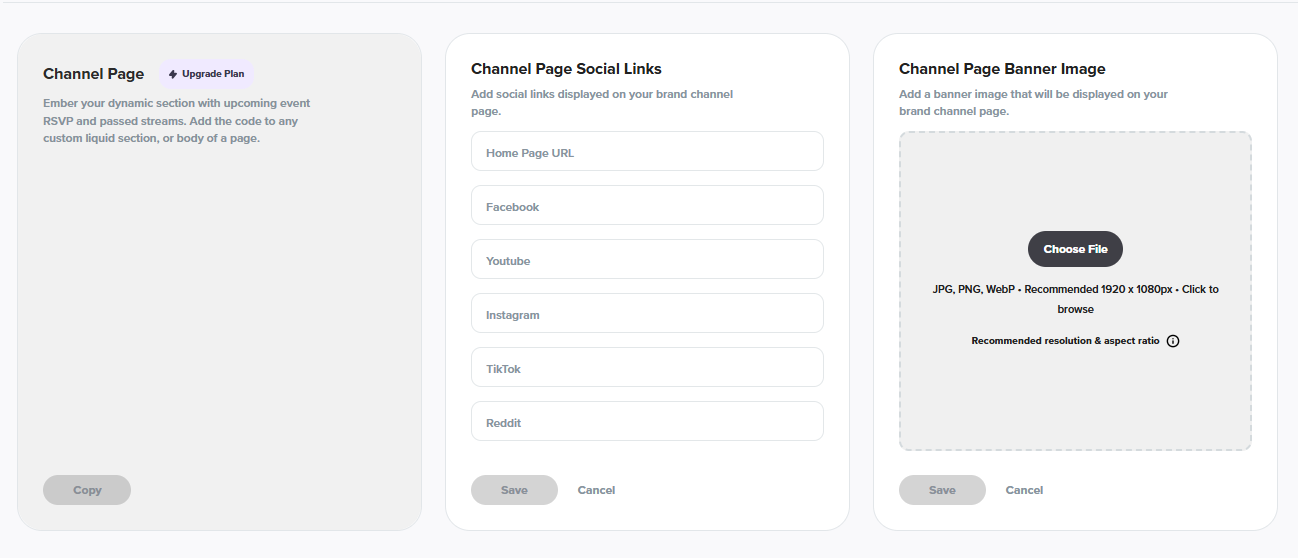
To set your hero image, go to Settings → Streaming in your LyveCom dashboard and upload a Channel Image.
Profile Card
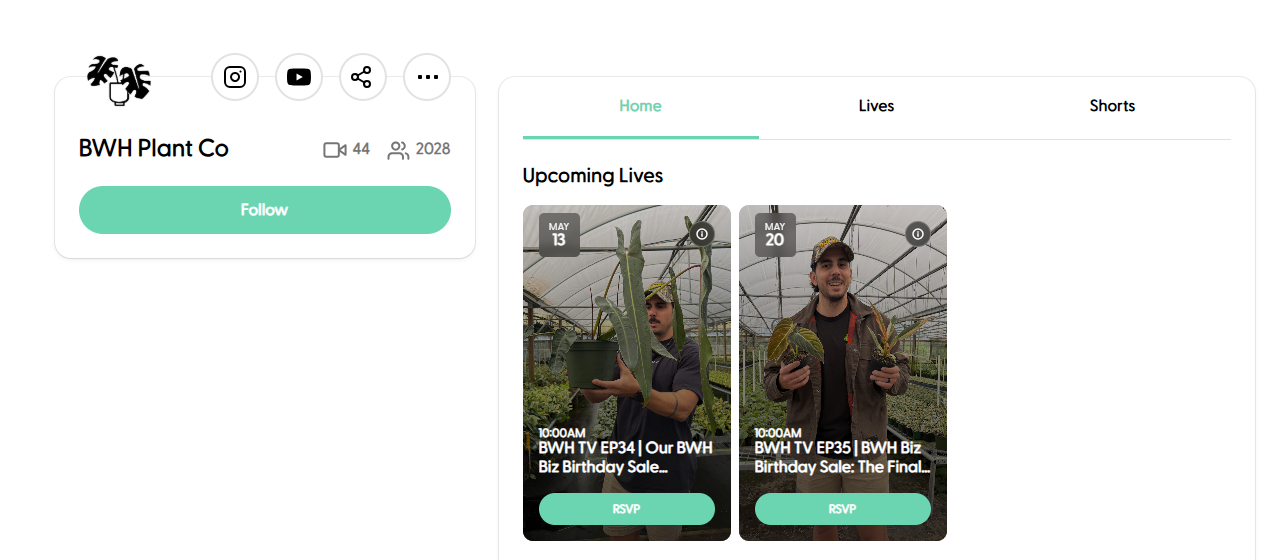
Just below the hero, your profile card gives visitors a snapshot of your brand at a glance.
- Avatar — Your brand photo or logo. When you are live, a red LIVE badge appears on the avatar. Tapping the avatar while live opens the stream viewer.
- Social icons — Links to your Instagram, YouTube, TikTok, Facebook, and Reddit profiles. Add or update these under Settings → Streaming → Channel Page Social Links.
- Share button — Copies your Channel Page URL to the clipboard so visitors can send it to friends.
- Channel name — Your brand or shop name.
- Stats — Shows your total video count and subscriber count at a glance.
- Description — A short bio or tagline for your channel. Tap to expand longer descriptions. Set this in Settings → Streaming.
- Follow button — Opens a sign-up form so visitors can subscribe to event reminders and notifications.
Navigation Tabs
Three tabs sit below the profile card and let visitors switch between sections of your Channel Page:
| Tab | What it shows |
|---|---|
| Home | Upcoming lives, recent live replays, and trending products |
| Lives | All scheduled and past live streams |
| Shorts | Short-form videos, split into Most Popular and Our Feed |

Home Tab
The Home tab gives visitors a curated summary of your most important content.
Upcoming Lives
Cards for each of your scheduled live events appear in a horizontal row. Each card shows:
- Your event thumbnail or branding image
- The date (month and day badge)
- The stream title and scheduled time
- An RSVP button
Tapping RSVP opens a short sign-up form. Customers who register receive a reminder before the stream goes live.
Tapping the info icon (ⓘ) on a card opens a detail panel with the full event description and a second RSVP to Live button.
Recent Lives
A scrollable row of your latest live replays. Each card shows a thumbnail, a time-ago label (for example, "3 days ago"), and the stream title. Tapping a card opens the replay in the stream viewer.
Trending Products
A row of shoppable product cards sourced from your recent streams. Each card shows product images with navigation arrows (when there are multiple images), the product name, price, and a Buy Now button that takes the customer directly to the product page.
Lives Tab
The Lives tab surfaces all of your scheduled and archived live content.
Upcoming Lives — The same scheduled-event cards as on the Home tab, including RSVP and event-details functionality.
Recent Lives — A three-column grid of all your past live replays. Tap any card to watch the replay. A See More button loads additional replays as you scroll.
Shorts Tab
Most Popular — A horizontal swiper featuring your highest-performing short videos. Tapping a card opens the full-screen video player. If the video has a tagged product, a compact product card appears at the bottom with a Buy Now link.
Our Feed — A three-column grid of all your short-form videos in chronological order. Tapping any card opens the full-screen player. A See More button loads additional clips.
Captions
Captions are now available on all stream types — live, archived, and replay. When captions are detected, a captions icon appears in the video controls. Tap it to toggle captions on or off.
Setting Up Your Channel Page
For step-by-step instructions on embedding the Channel Page on your Shopify store and adding it to your navigation, see Creating a Page Template For Your Channel Page.
To update your logo, brand colors, and fonts, see Branding Your Channel Page.
Have more questions? Reach out to our support team — we're happy to help!
Happy selling! ✨