
Branding Your Channel PageUpdated 4 months ago
Audience: Marketing Teams, Brand Managers
Purpose: Learn how to brand your LyveCom Channel Page so it feels aligned, engaging, and on-brand.
Branding Your Channel Page
Create a cohesive livestream experience that reflects your brand.
Your Channel Page is the front door to your livestream content. A polished, consistent look helps build trust, recognition, and viewer retention.
How to Brand Your LyveCom Channel Page
Your channel page is the first thing your viewers see — it sets the tone for your livestream experience. Strong branding helps build trust, recognition, and viewer retention.
Step 1: Access Your Channel Page Settings
Log in to your LyveCom Dashboard
Navigate to the Channel tab
Select your desired channel (or create a new one if needed)
Step 2: Upload Branded Assets
Customize the look and feel of your page:
Channel Logo – Appears at the top of your page and in livestreams

Brand Colors – Customize your accent colors to match your palette
Fonts – Stick with 1–2 fonts that align with your brand guidelines
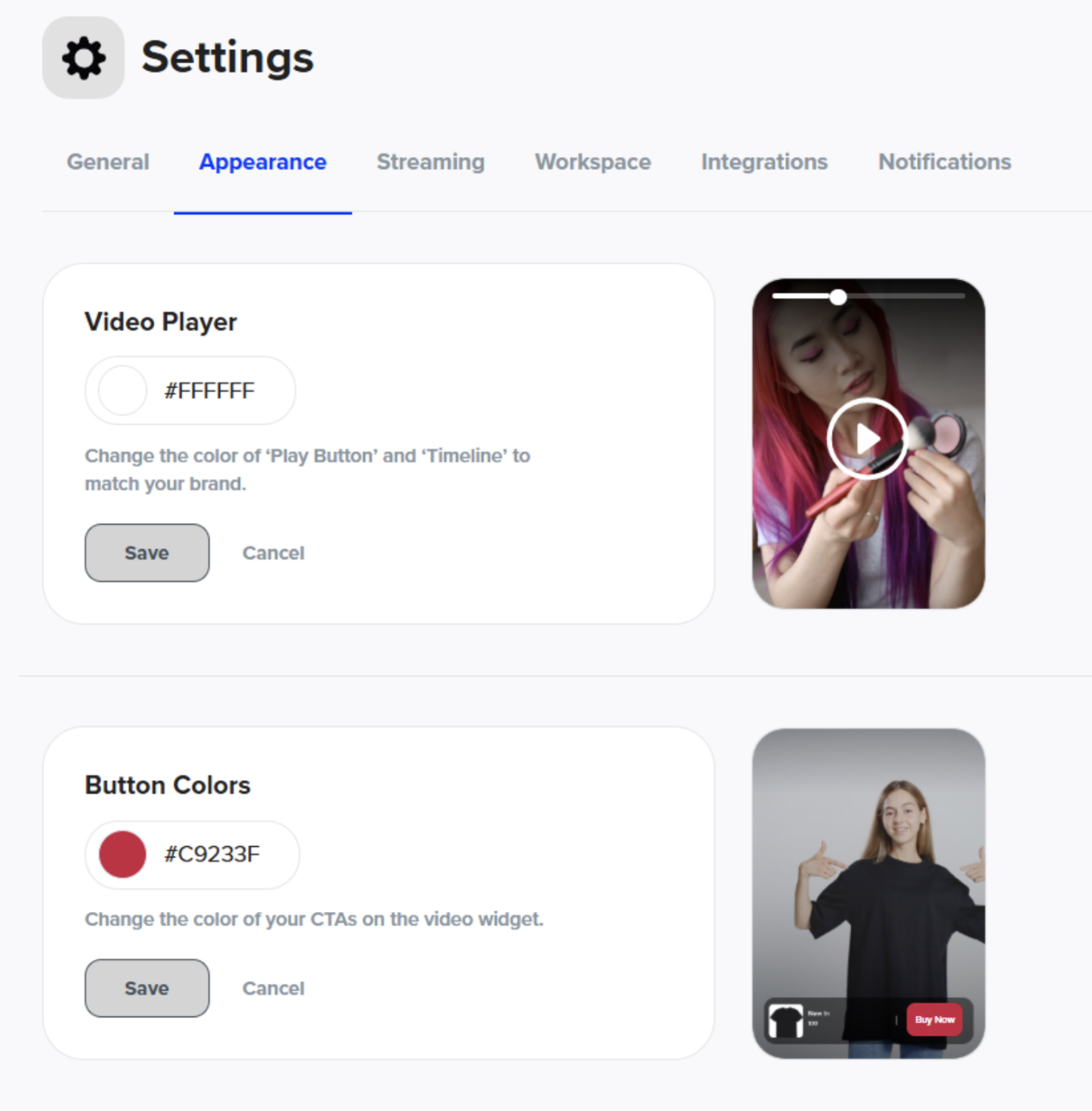
Step 3: Preview and Publish
Once you've made your edits:
Click Preview Channel to see how it looks to viewers
Make final adjustments if needed
Hit Publish to go live with your branded look
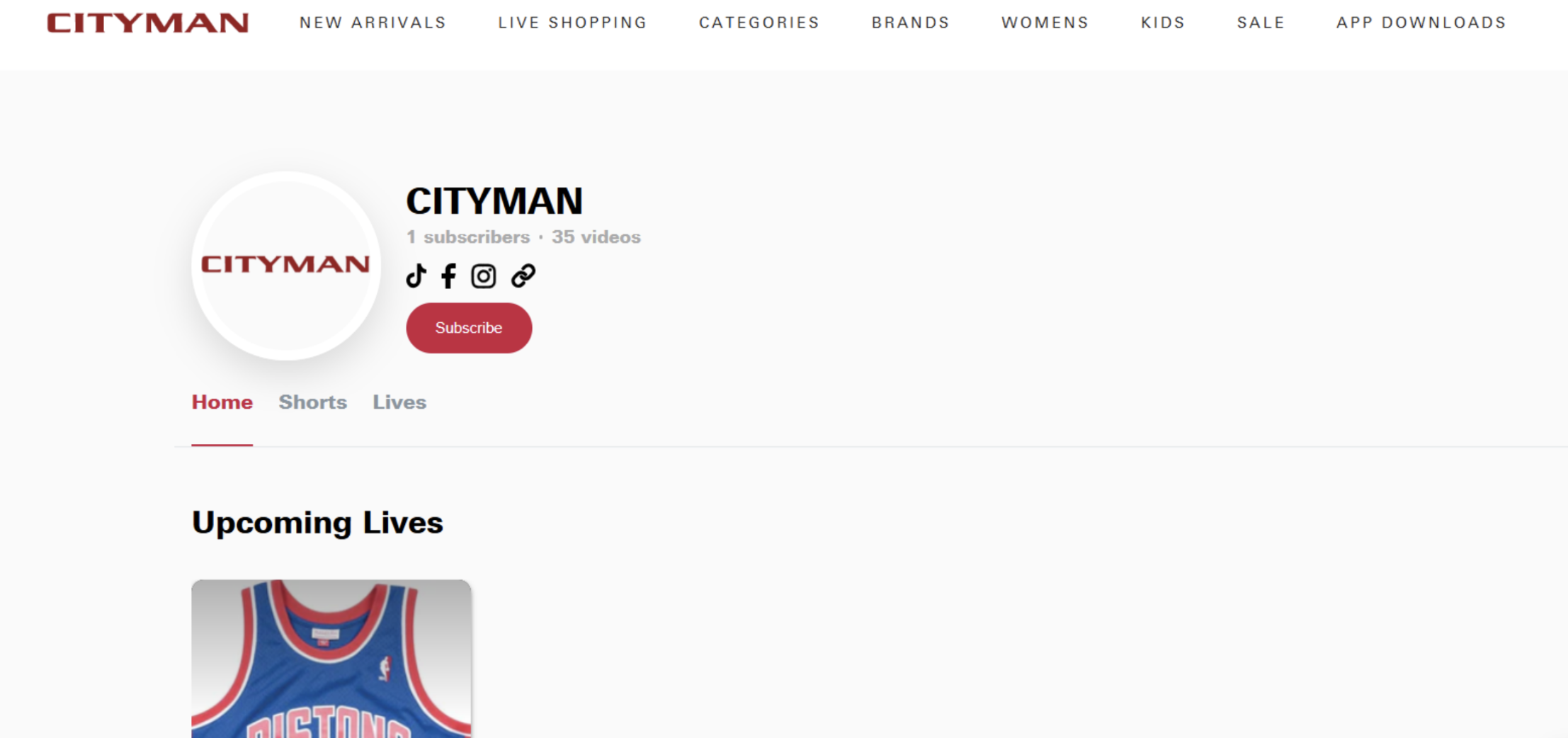
Need design inspiration? Check out other top-performing channels or contact our team for brand guidance.
Have more questions? Reach out to our support team - we’re happy to help!
Happy selling! ✨