
✨ Using the AI UGC GeneratorUpdated 4 months ago
Platform: LyveCom
Audience: Creators & Sellers
Topic: How to Generate UGC with LyveCom's AI Studio
✨ Using LyveCom's AI Studio - UGC Generator
LyveCom’s AI Studio makes it easy to generate custom UGC content for any platform or campaign—all in just a few clicks.
How to Get Started
Log in to your LyveCom dashboard
Click AI Studio → Avatar Studio in the left-hand menu
Select Generate UGC in the upper righthand corner

Fill Out the UGC Generator Form
You'll be prompted to complete:
Story Title
Tag Your Product or Paste a Product URL
🛍 Make sure your Shopify store is synced with LyveCom to tag products! We have an article here if you need help!

Then, click Let’s start generating your script at the bottom. 
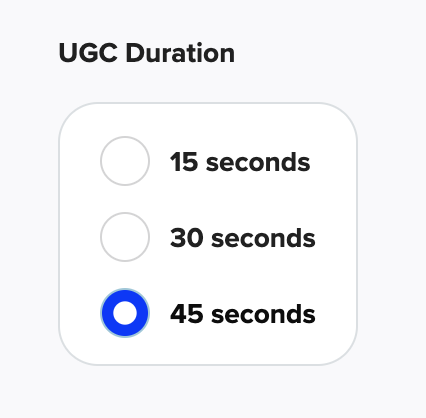
Select UGC Duration
Select length for your UGC content. (This can be 15, 30 or 45 seconds)
Customize Your Script
Choose options in the following categories to tailor your UGC script:
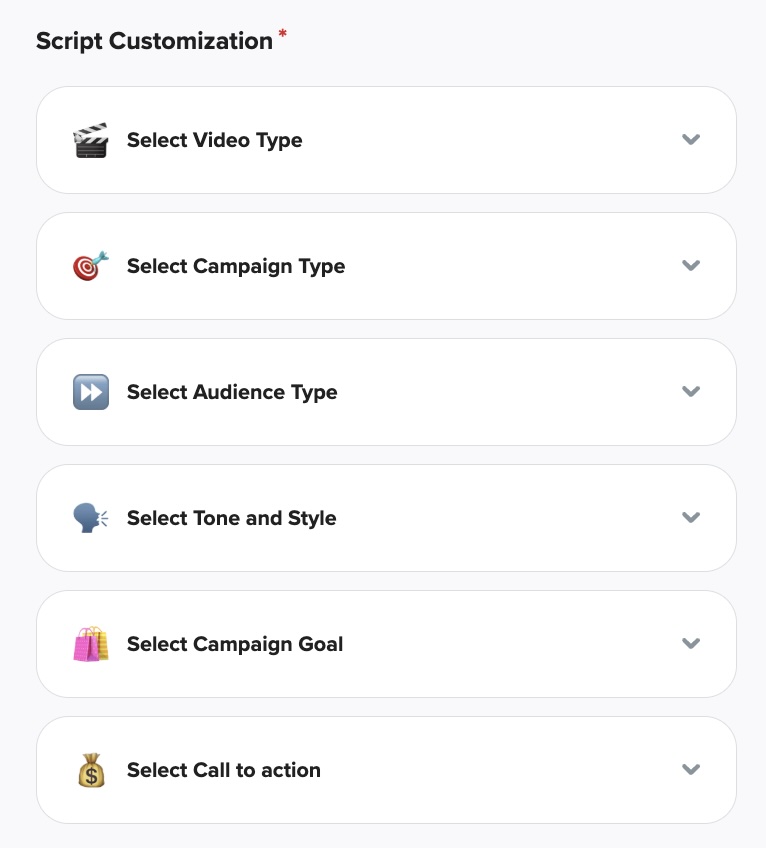
Once you’ve made your selections, click Lets generate your script.

Edit & Refine
Your script will appear on the right-hand side.
Want to make changes? You can reselect options or edit the text directly on screen.
To generate a new version, click Regenerate on the right-hand side.
To manually tweak the copy, click Edit and make changes directly in the text editor.

Once you have your script to your liking, click Choose your Avatar to move to the next step!

Generate Your Video
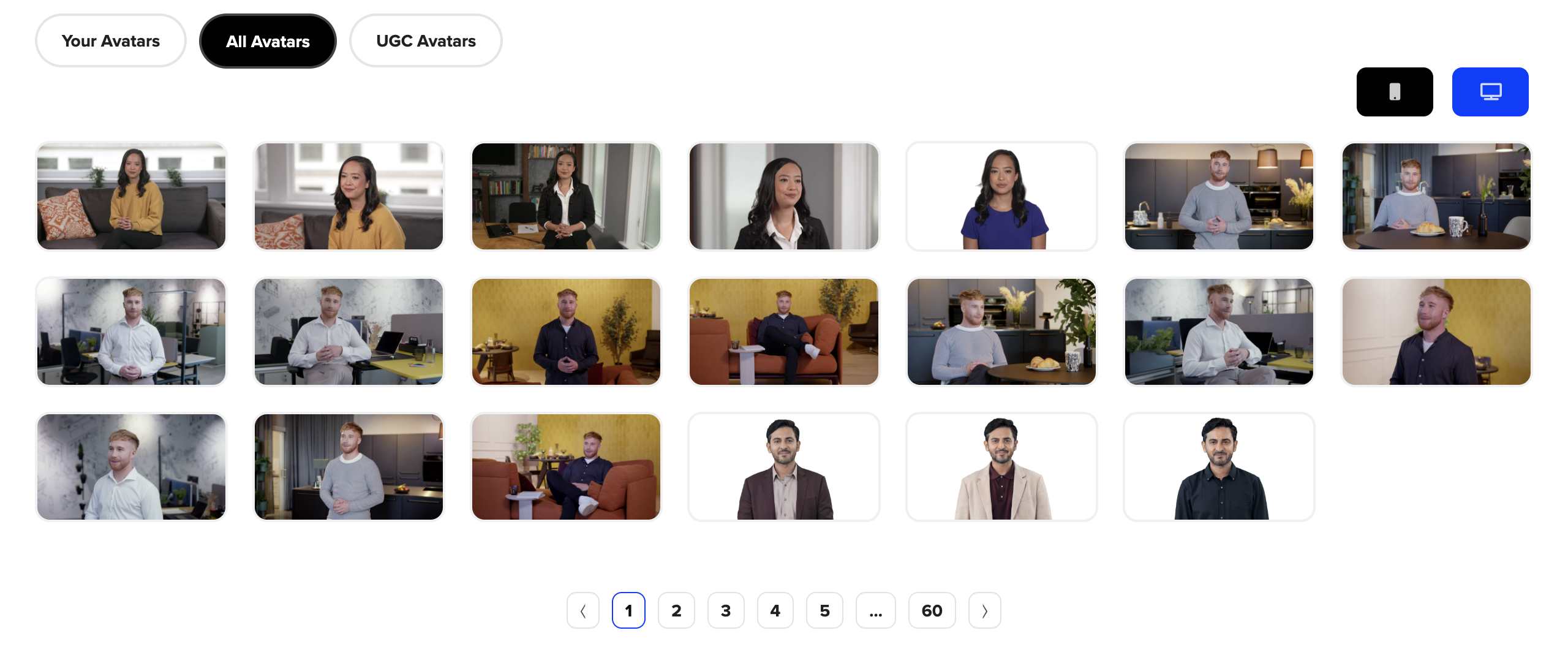
Select your avatar (or create a new one)
You can select from mobile orientation or landscape orientation from the left-hand side
If you've created an avatar of your own, you can find it under Your Avatars
If you are looking for UGC-specific avatars, click into the UGC Avatars section
Select your preferred voice
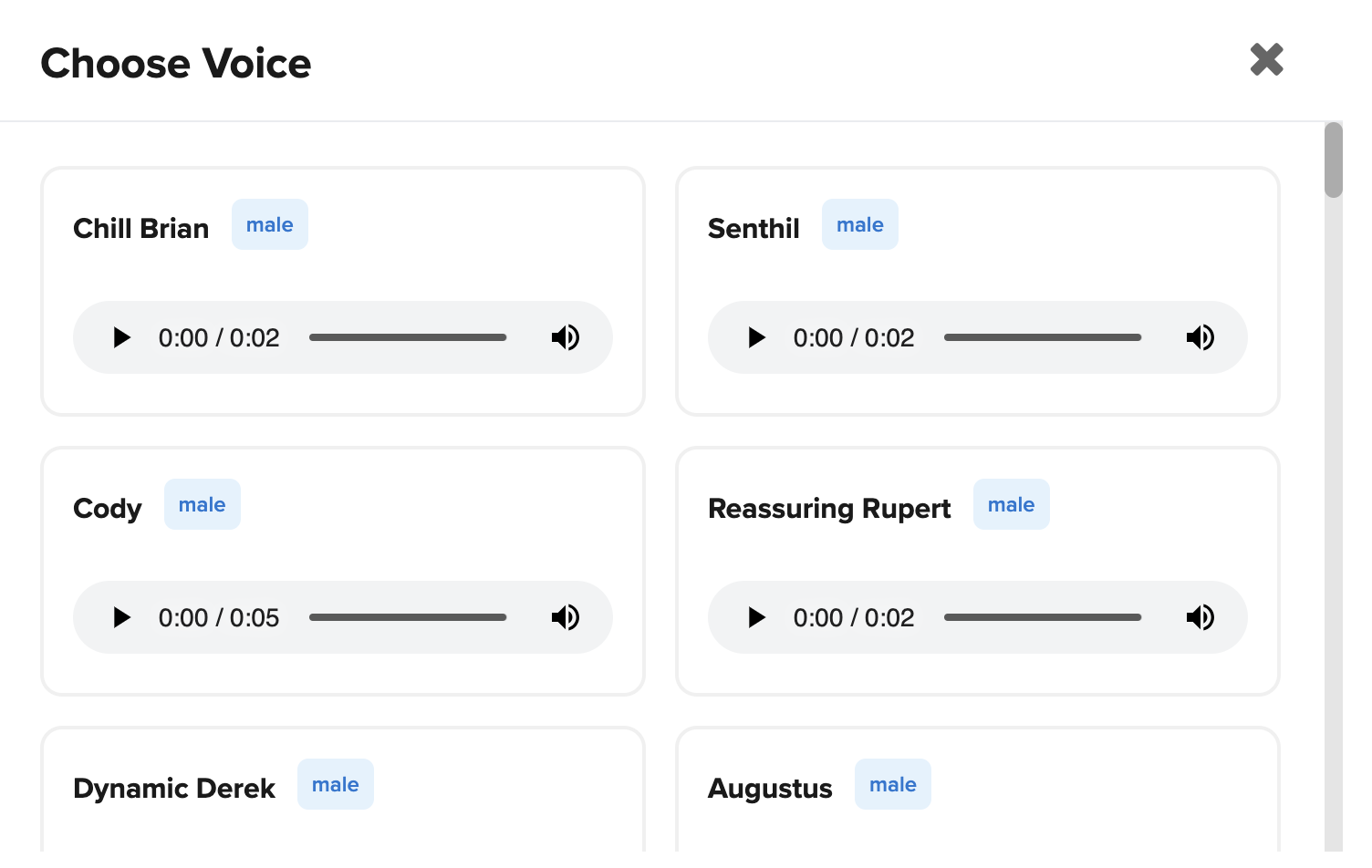
Once you've selected a voice, you can enable Captions and change your chosen voice if you aren't feeling it anymore.

Scroll down and click Start Generate

Your AI-powered UGC video will begin processing!
Once your UGC content has generated, you'll find it inside the AI Studio → Avatar Studio.
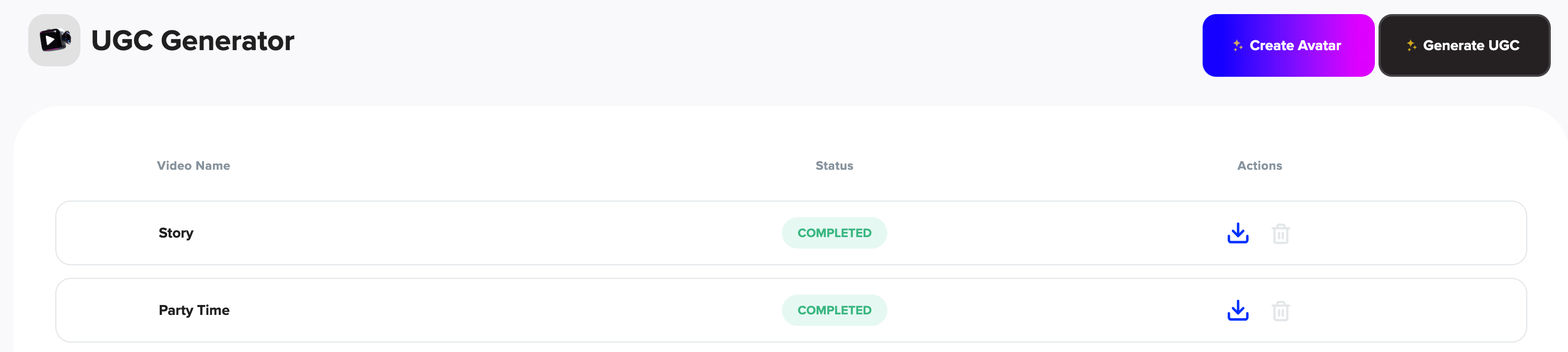
(Note: Video generation takes approximately 4-8 minutes, so stick with us! Refresh the page if it's not visible after that time.)
Have more questions? Reach out to our support team - we’re happy to help!
Happy selling! ✨