
Setting Up Larix BroadcasterUpdated 4 months ago
Purpose: This article walks you through setting up the Larix Broadcaster app to stream directly to your LyveCom dashboard using RTMP.
Intended Audience: Creators, Hosts, Brand Partners, Ecommerce Managers
Setting Up Larix Broadcaster
Step 1: Download Larix Broadcaster
Go to the App Store or Google Play
Search for Larix Broadcaster and download the app
Open the app
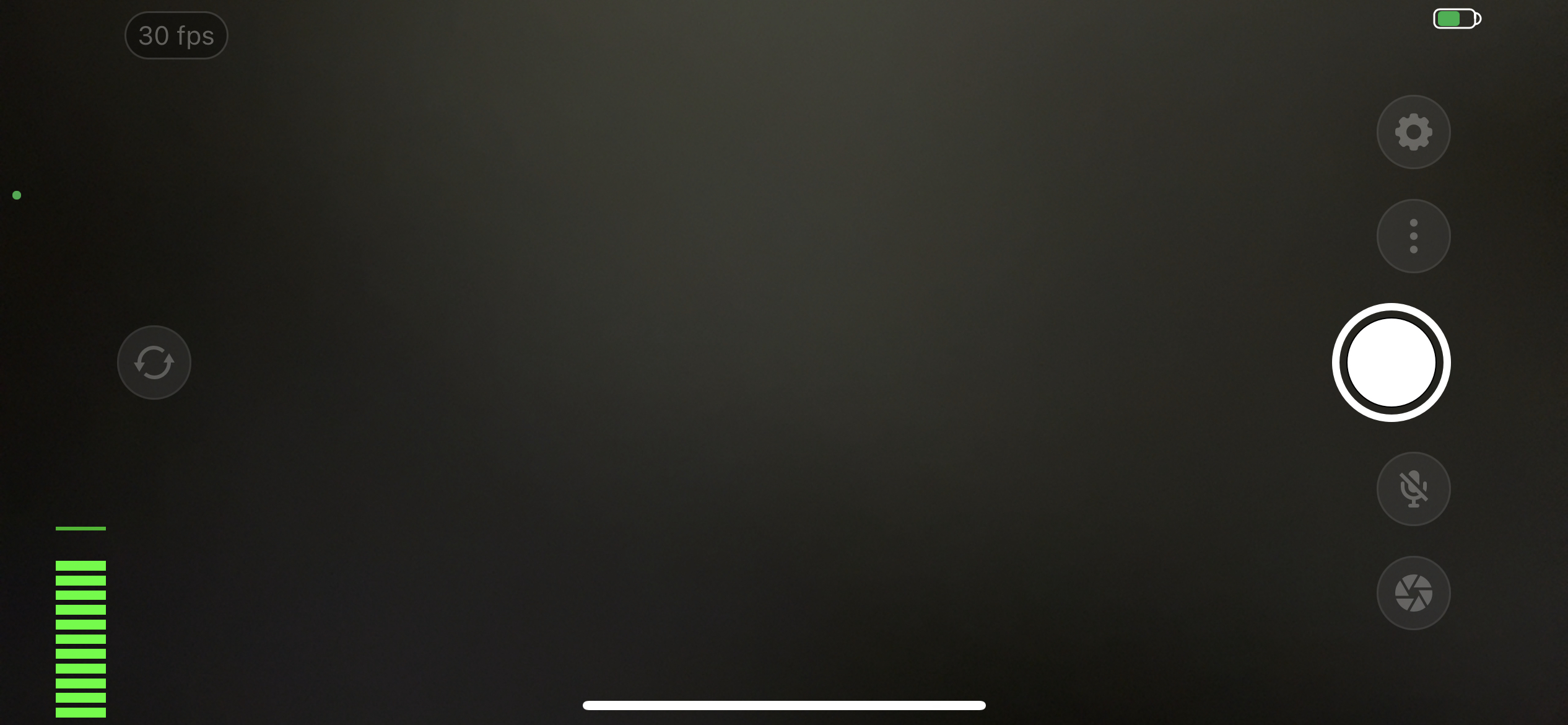
Tap the gear icon (Settings) in the top-right corner
Step 2: Adjust Camera Settings
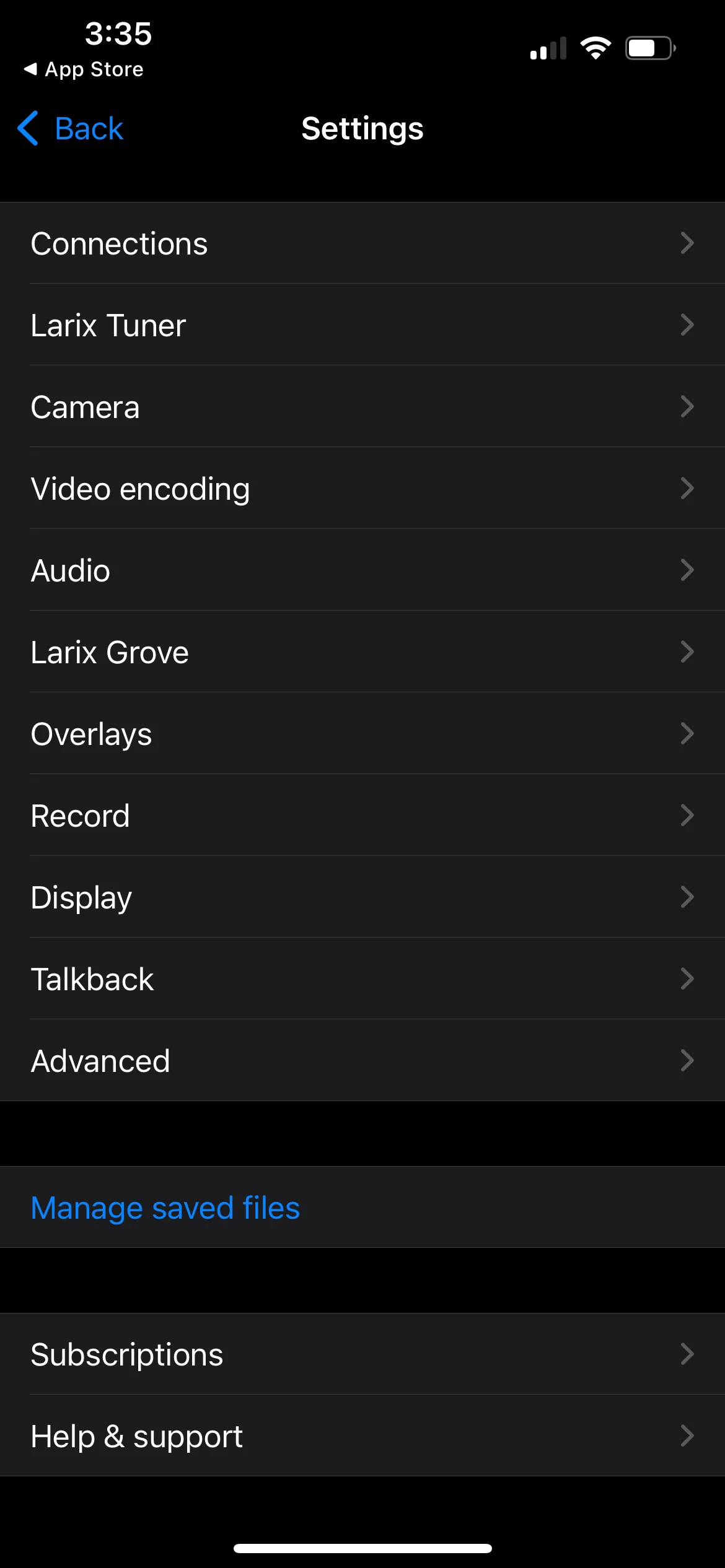
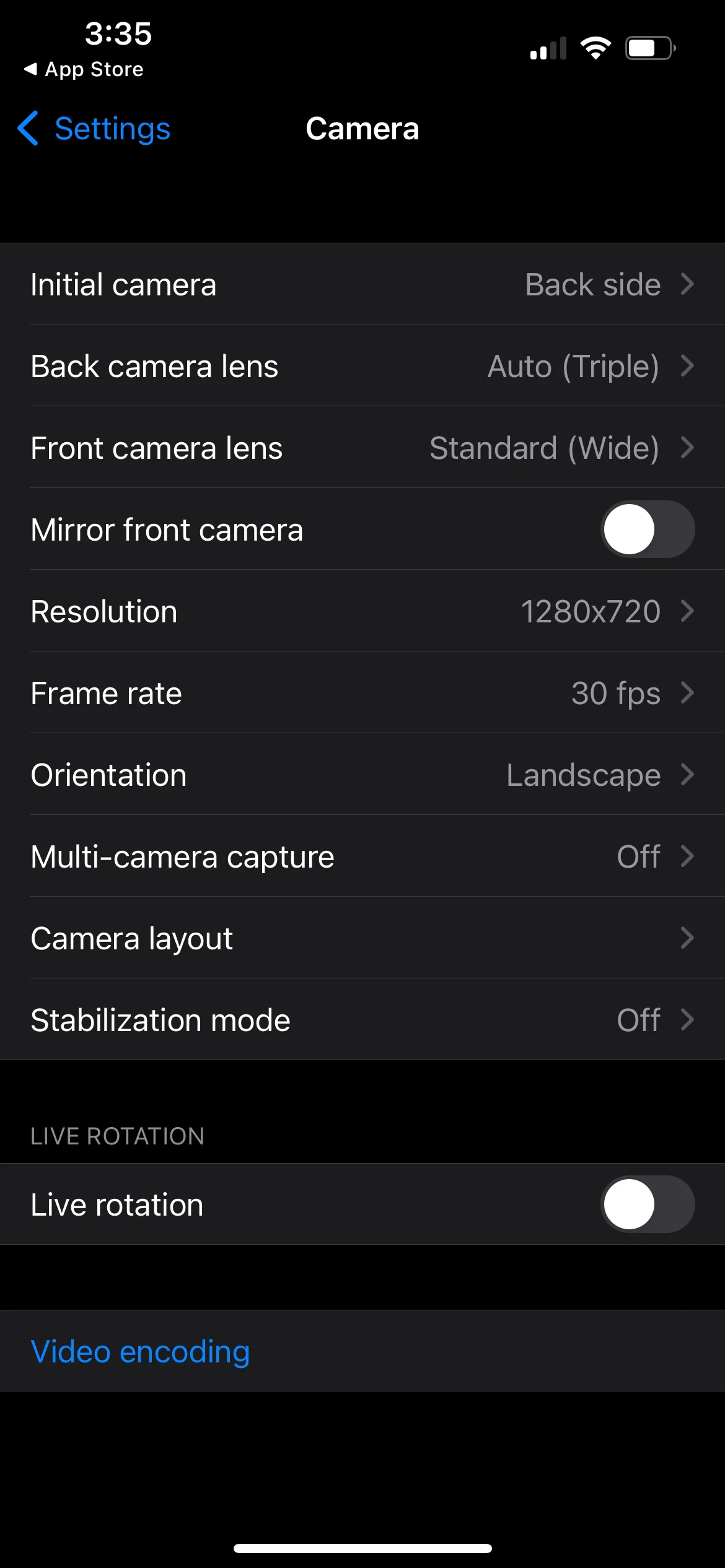
In Settings, select Camera
Set Orientation to Portrait
Set Resolution to 1920 x 1080
Step 3: Configure Video Encoding
Go back to Settings
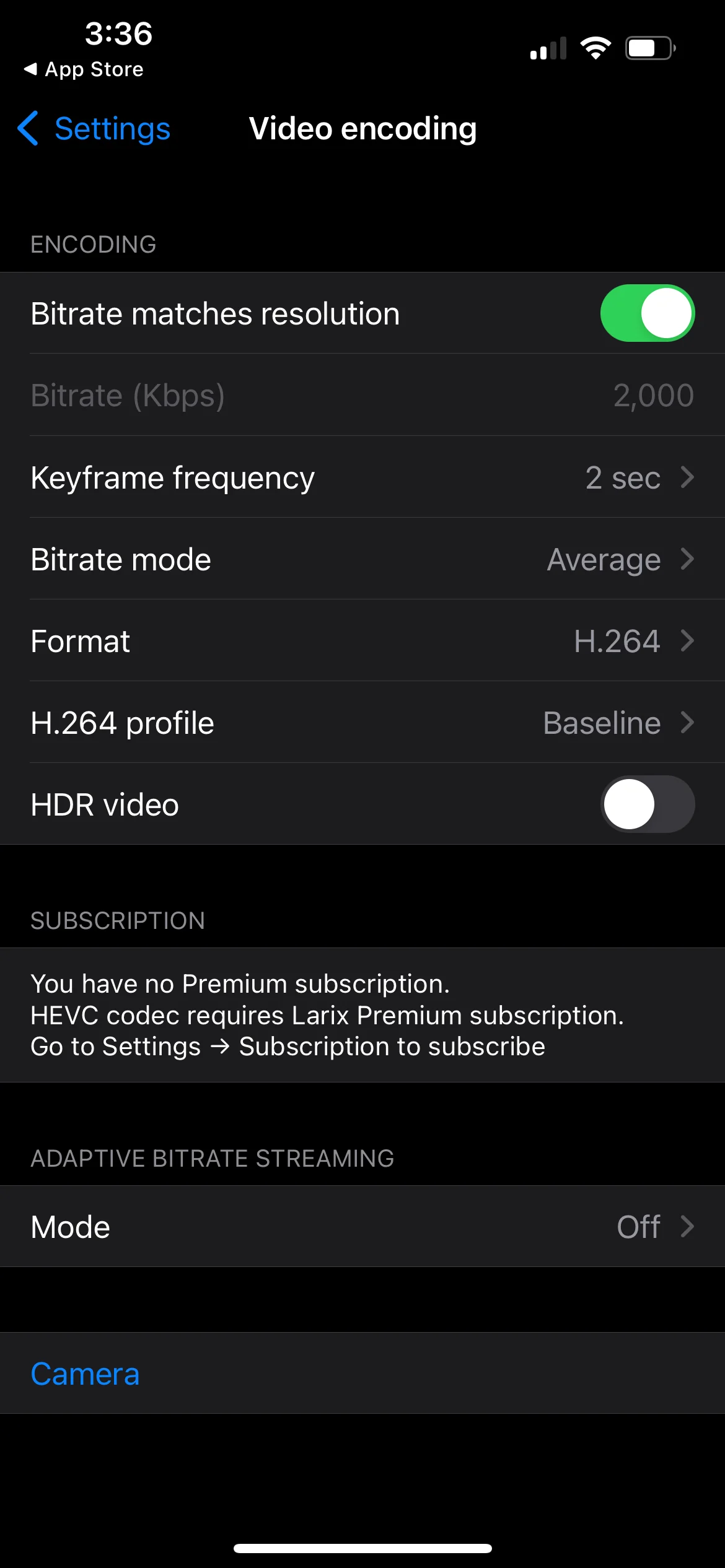
Select Video Encoding
Toggle Bitrate Matches Resolution to ON
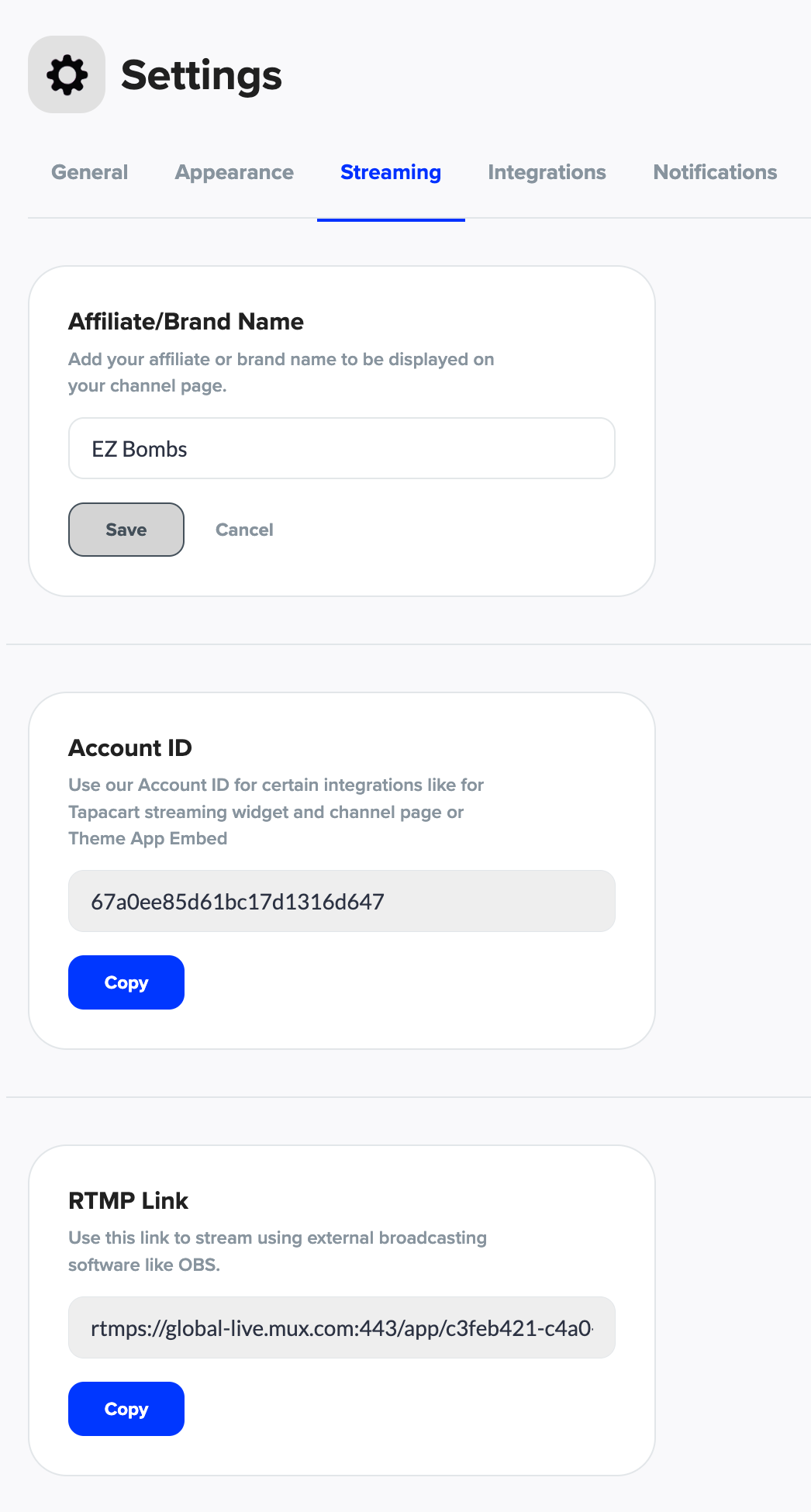
Step 4: Grab Your RTMP Link
Log into your LyveCom Dashboard
Go to Settings → Streaming
Scroll down to find the RTMP Link
Click Copy
If you're on a desktop, send the link to your phone via email or text
Step 5: Add RTMP Link in Larix
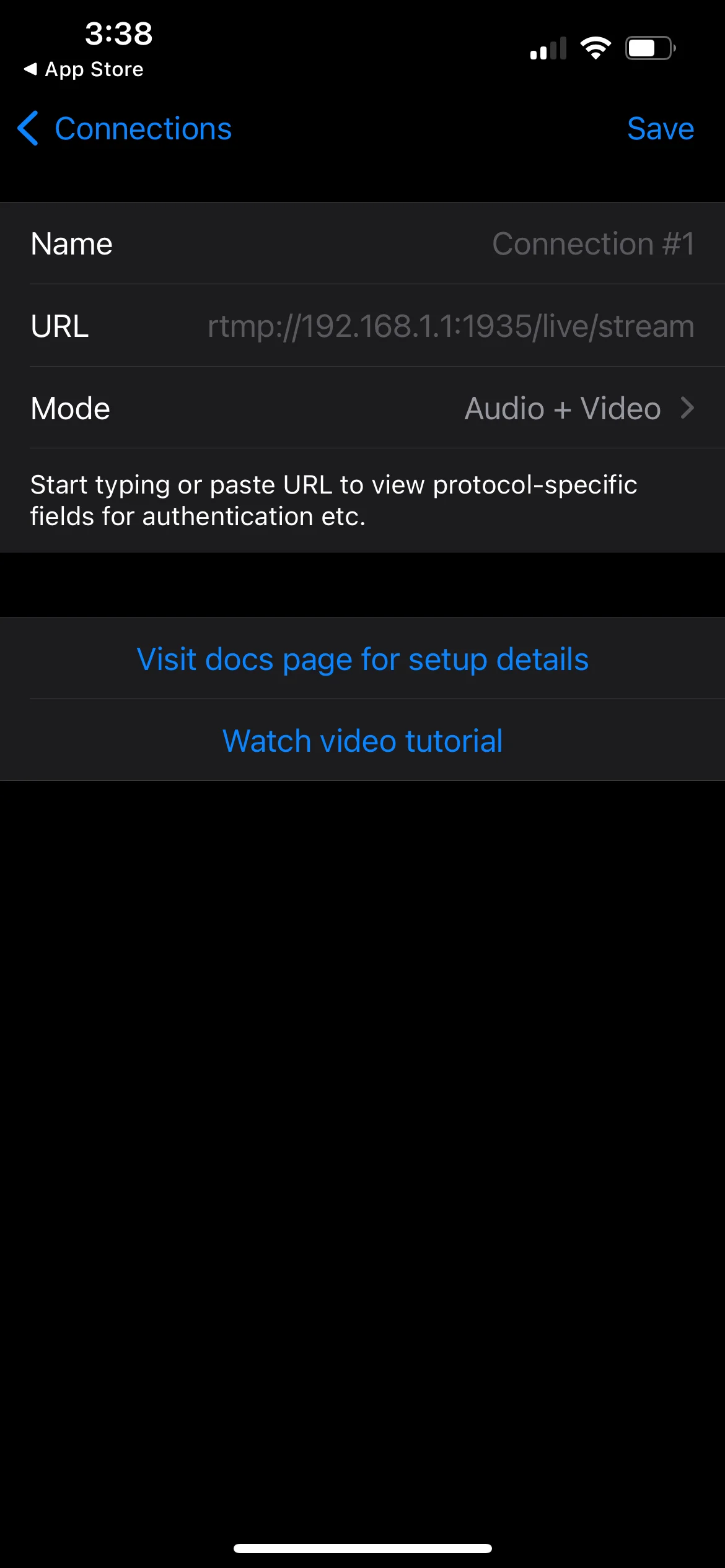
On your phone, go to Settings → Connections in the Larix app
Tap the + icon
Select Connection
Give your connection a name
Paste the RTMP URL into the URL field
Tap Save
Step 6: Start Your Stream
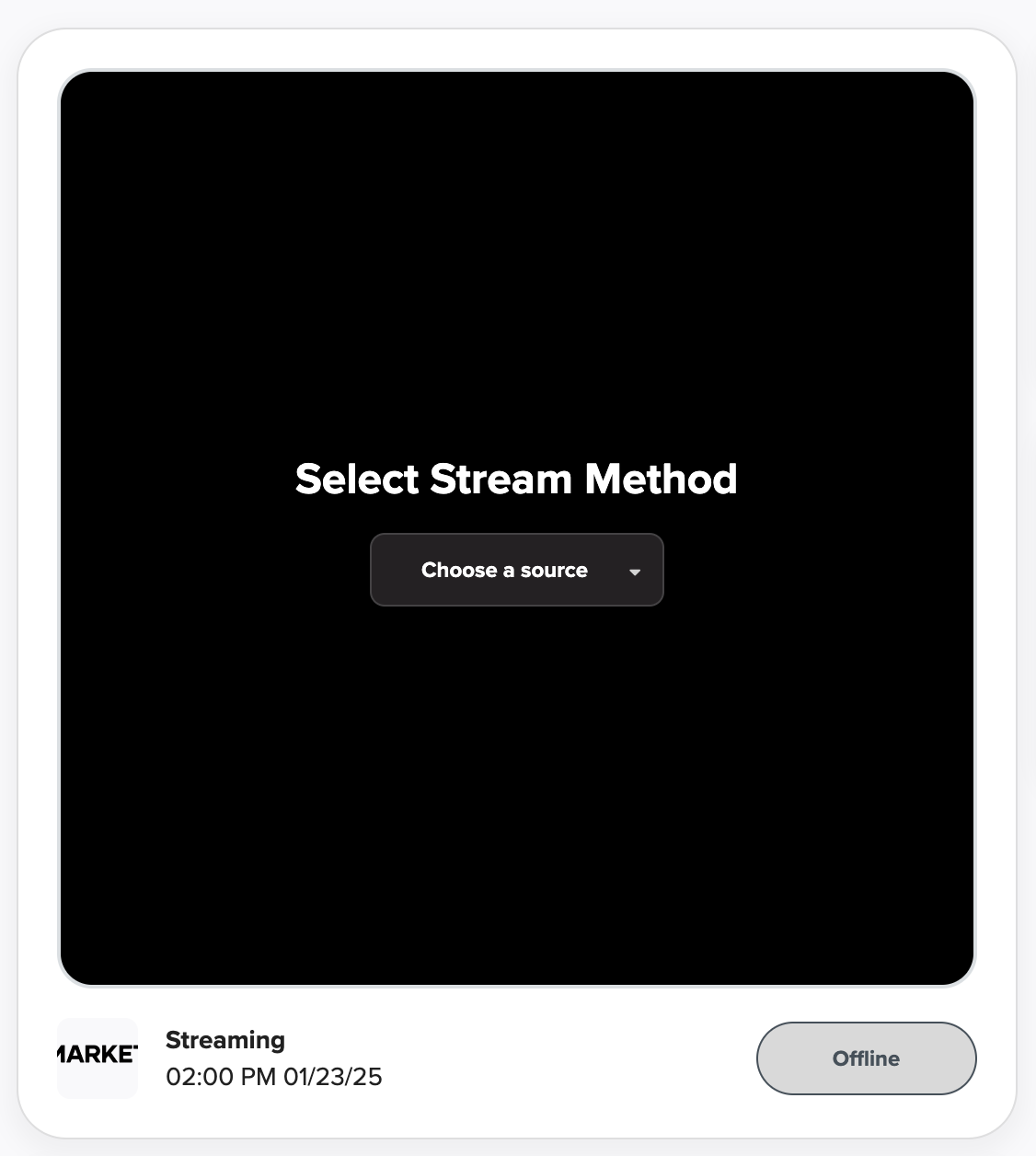
Back in your LyveCom Dashboard, select Source of Broadcast: Software
On your phone or tablet, tap Start to begin using your mobile camera
You'll know it's connected when you see the mobile camera preview in your dashboard
Tap Go Live when you're ready!
(Need more help? Refer to our Go Live article)
Have more questions? Reach out to our support team - we’re happy to help!
Happy streaming!