
Getting a Livestream StartedUpdated a month ago
Getting a Livestream Started
Once you have scheduled a livestream, you can go live! (If you need help scheduling a livestream, check out our guide here.)
Starting a Livestream
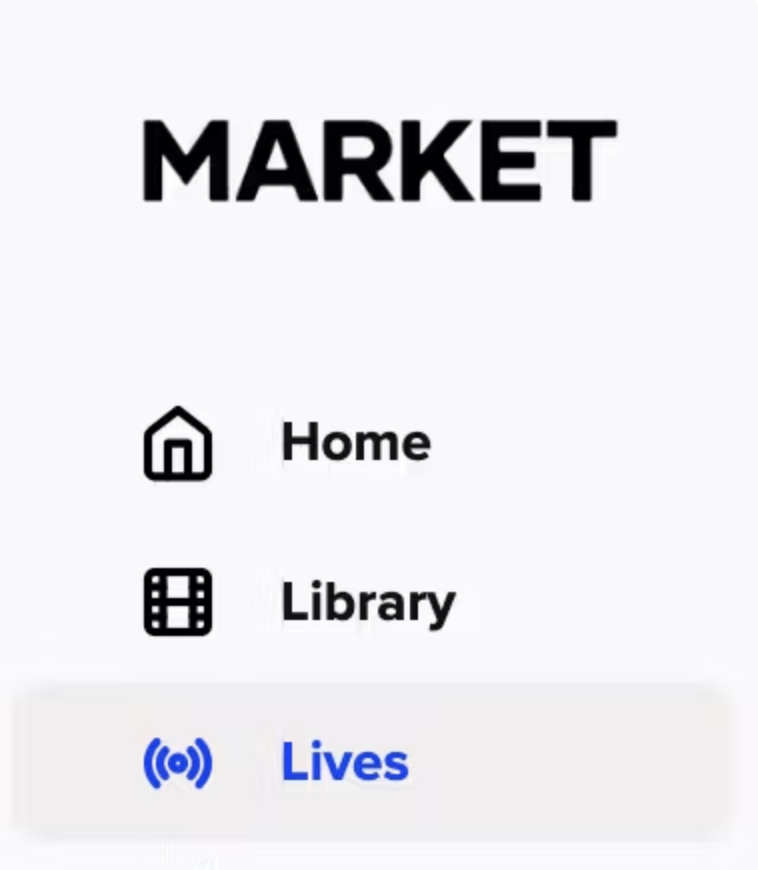
To start a live, click into the Lives section on the left-hand menu from your main screen.
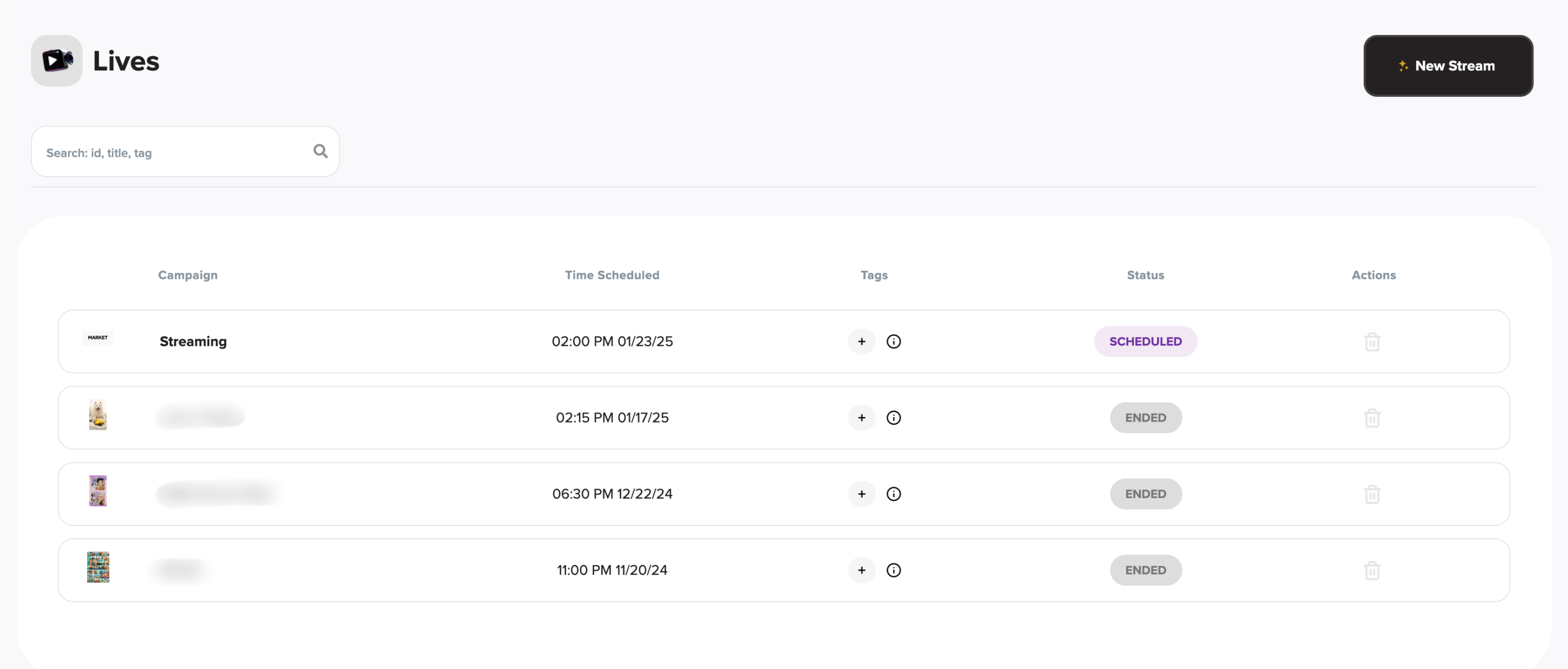
Select your scheduled livestream from the section that appears. All you have to do is click on the title you gave it!
The Streaming Screen
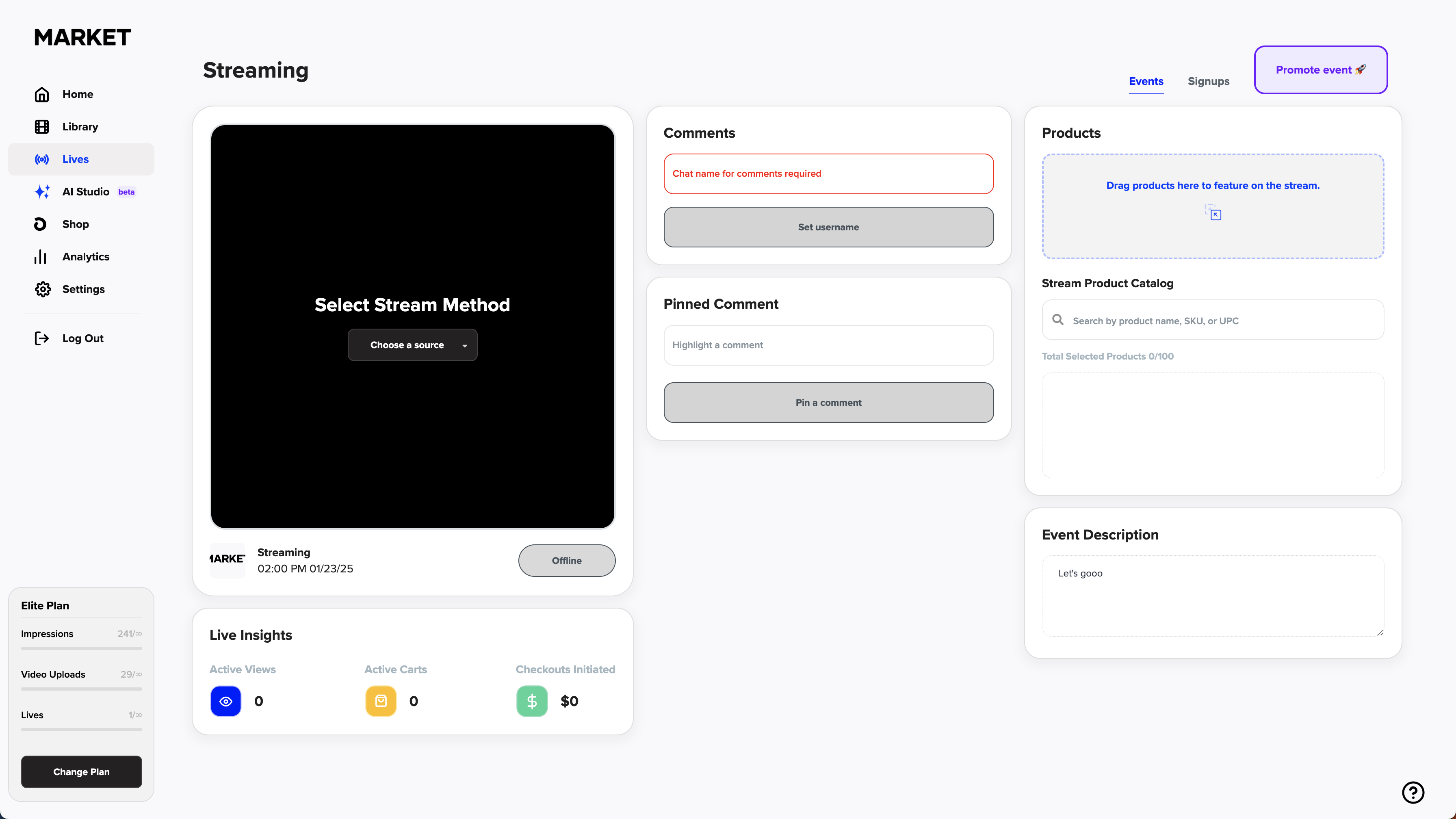
Once you click into your scheduled livestream, you'll be taken to the screen pictured below. There's a lot of information here, but don't worry! We'll break it down for you.
Selecting Stream Method
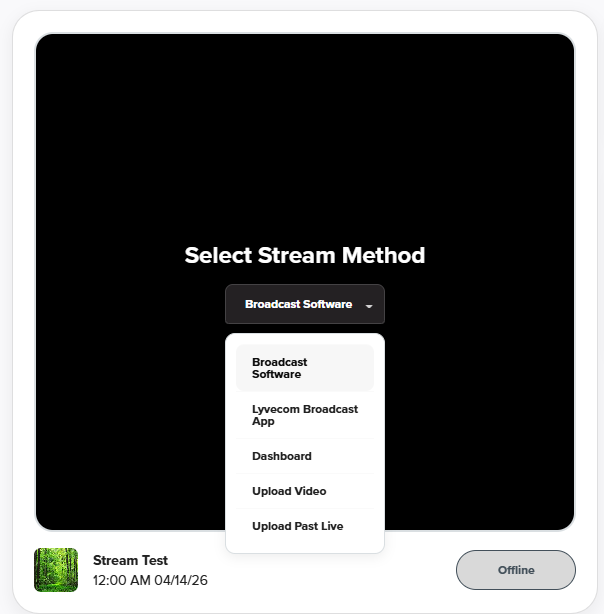
First of all, you'll see the big black box asking for you to Select Stream Method.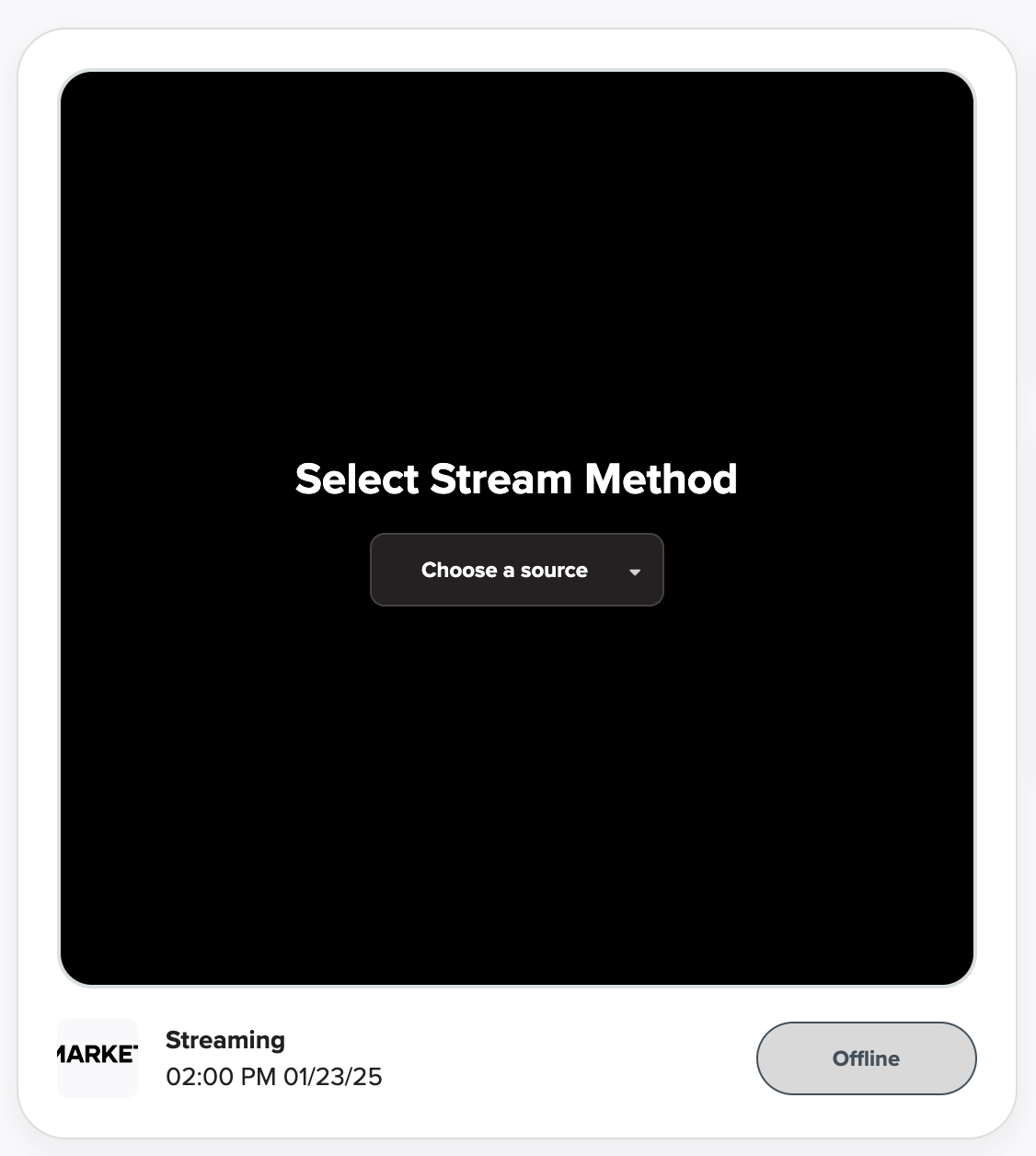
Click Choose a source, and you can choose how you want to go live, ie:
Using Broadcast Software (such as OBS & Larix)
Using LyveCom Broadcasting App
Using Dashboard (simply going through MARKET.live's dash)
Upload Video
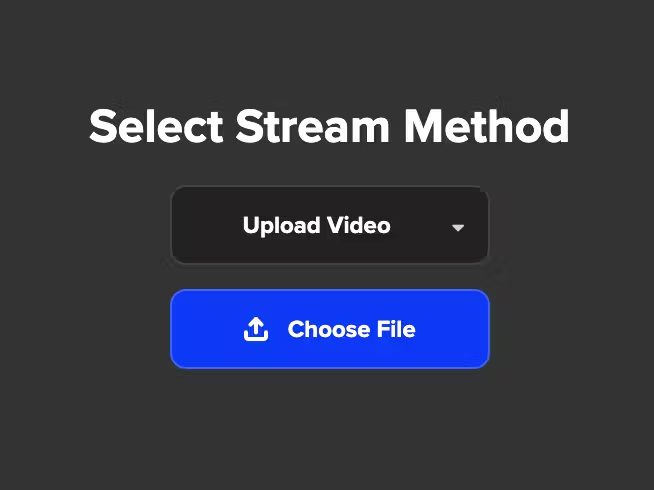
If you select Upload Video, you'll be asked to choose a file from your device to upload. Click Choose File and your folders or Finder (if on Mac) will open up for you to select your file.
Upload Past Live
If you select Upload Past Live, you'll be asked to choose a file from your device to upload. Click Choose File and your folders or Finder (if on Mac) will open up for you to select your file.
Start Preview
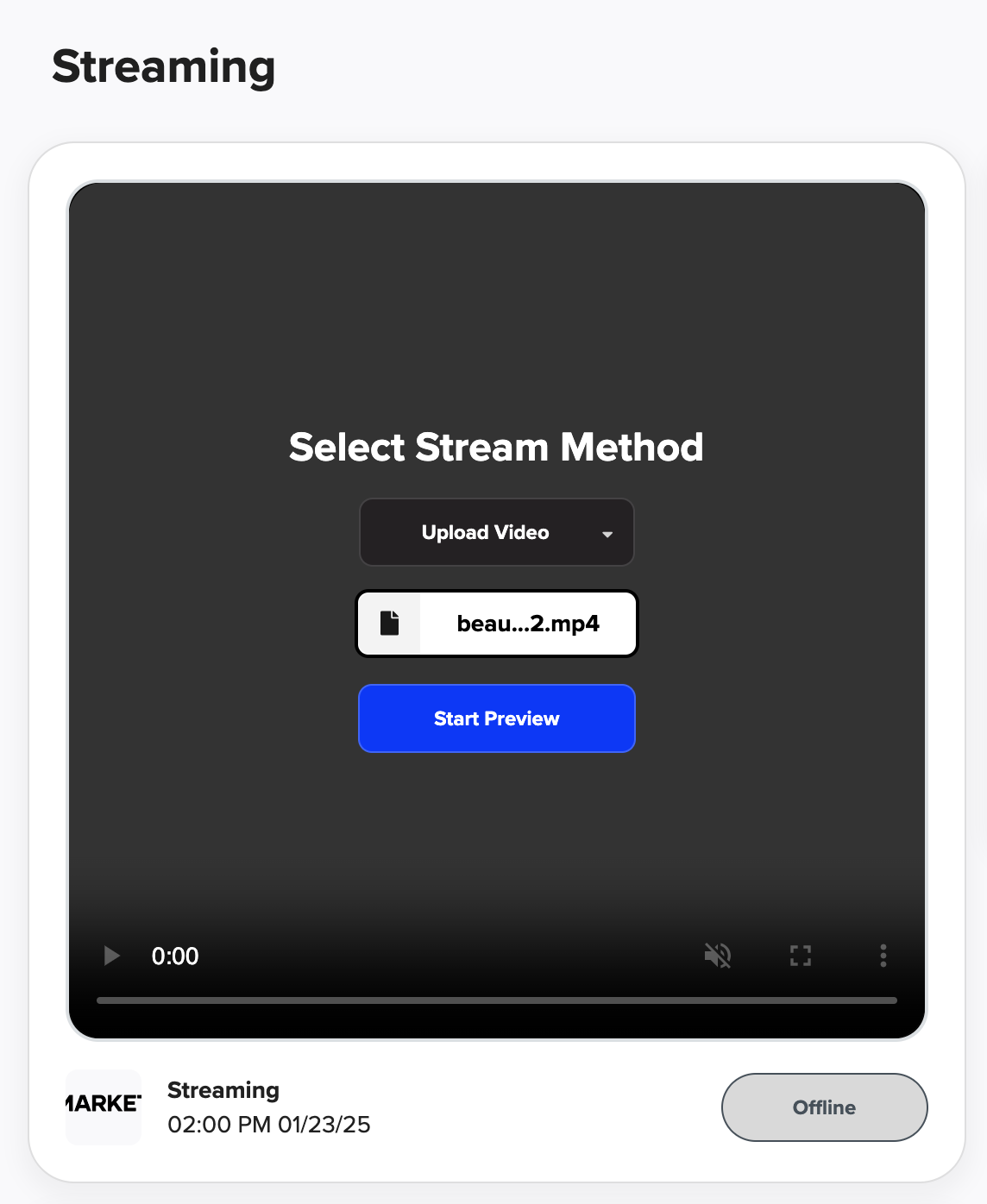
Once you've selected a method of streaming, you'll be shown a button saying Start Preview.
💡 Quick Tip: Only select this when you are ready to go live!
Have more questions? Reach out to our support team - we’re happy to help!
Happy selling! ✨