
Set Up Your Brand KitUpdated 4 months ago
Purpose: This guide explains how to update your logo, language, brand colors, and fonts in the LyveCom dashboard to align with your brand identity.
Intended Audience: Marketing Managers, Ecommerce Managers
Set Up Your Brand Kit
Step 1: Access Branding Settings
Log in to your LyveCom dashboard
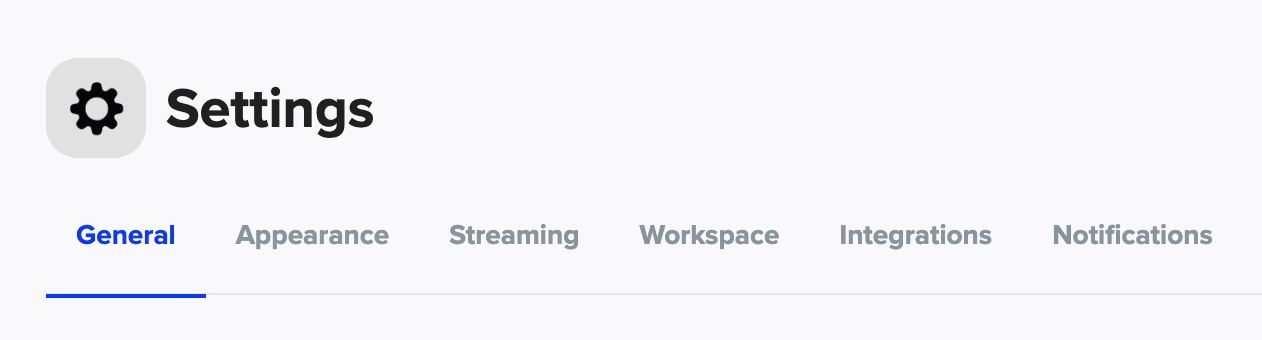
Navigate to Settings > General
Step 2: Upload Your Logo & Set Language
Upload your Brand Logo
Click Save
Select Your Language from the dropdown menu
Click Save
Step 3: Update Brand Colors & Fonts
Navigate to Settings > Appearance
Customize the following elements using your brand’s hex codes for exact color matching.
Player Colors
Button Colors
Accent Colors
Select your desired Font Type from the drop-down menu.
Step 4: Save Your Changes
Click Save under each Appearance option to apply your updates
Your branding settings are now live and visible in your video experiences!
Next step: Ready to start importing videos? Check out our Connect Brand Socials for Video Upload article for the next step!
Have more questions? Reach out to our support team - we’re happy to help!
Happy streaming!