
Connect Brand Socials For Video UploadUpdated 4 months ago
Purpose: This guide shows you how to connect your brand’s social media accounts to LyveCom so you can upload videos directly to your channels.
Intended Audience: Marketing Managers, Social Media Managers, Ecommerce Managers
Connecting Your Brand’s Social Media for Video Uploads
Step 1: Access Integrations
Log in to your LyveCom dashboard
Go to Settings > Integrations
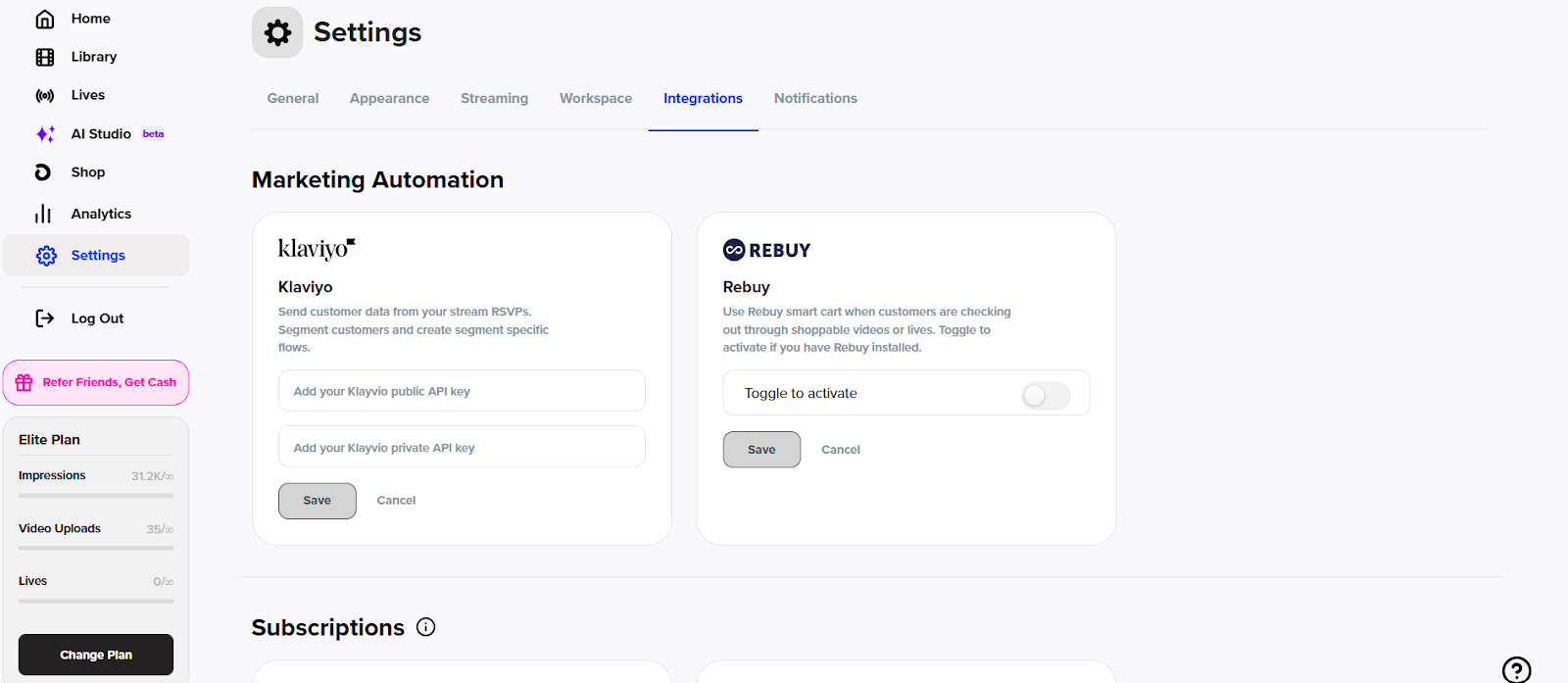
Step 2: Scroll to Socials Section
Locate the Socials section within the Integrations page
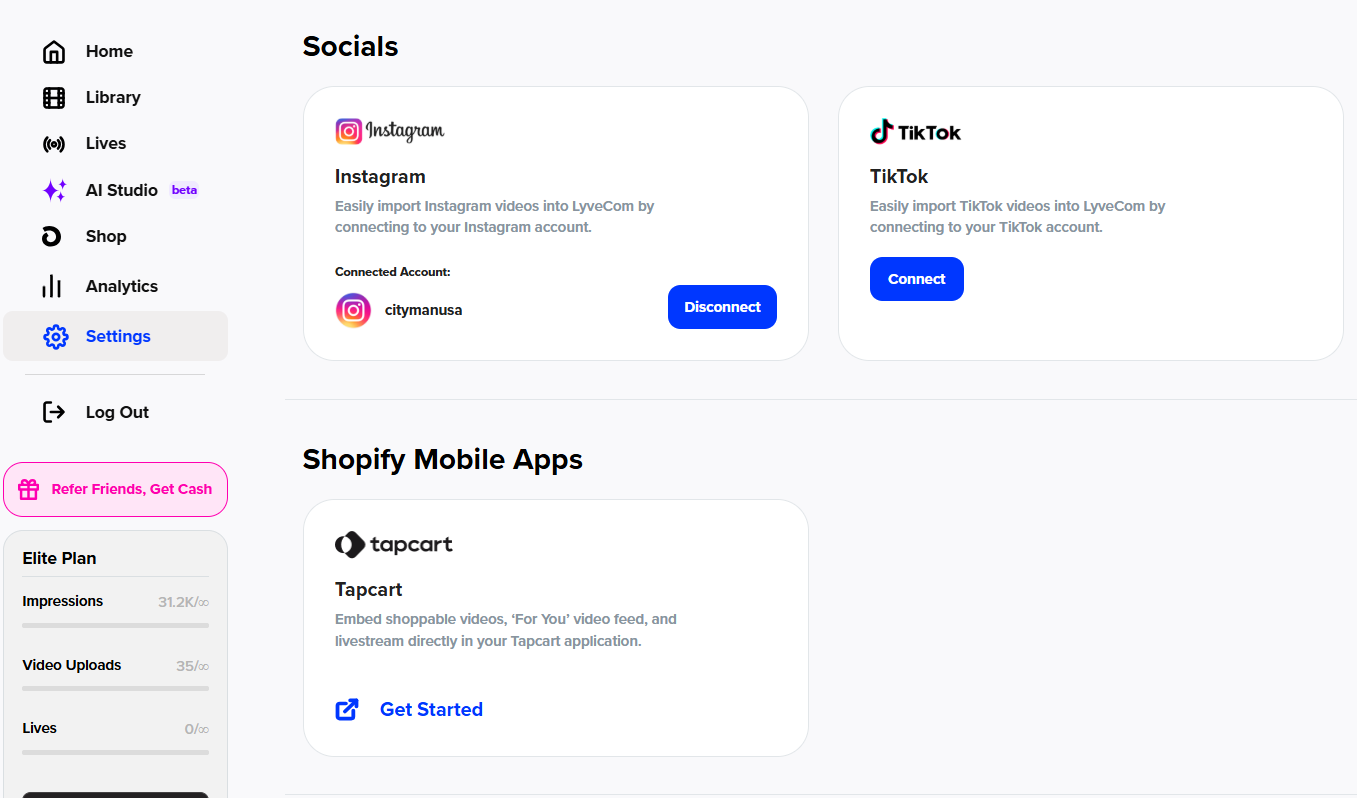
Step 3: Connect Your Social Media Accounts
Open a new browser tab and make sure you're logged into the correct social media account
Return to LyveCom and click Connect next to the platform you want to integrate
Follow the prompts to authorize the connection
Tip:
If it connects to the wrong account, try repeating the process in an Incognito browser window to ensure the correct login is used.
✅ Once connected, your videos can now be seamlessly uploaded to your brand’s social media!
Next step: Ready to start importing videos? Check out our Uploading Video Content Into Your Video Library article for the next step!
Have more questions? Reach out to our support team - we’re happy to help!
Happy streaming!