
Organizing Your Video LibraryUpdated 4 months ago
Purpose: This guide walks you through how to organize videos within a playlist and apply design settings to your video library.
Intended Audience: Ecommerce Managers, Content Managers
How to Organize & Design Video Playlists
Manage the layout and style of your video library in just a few clicks
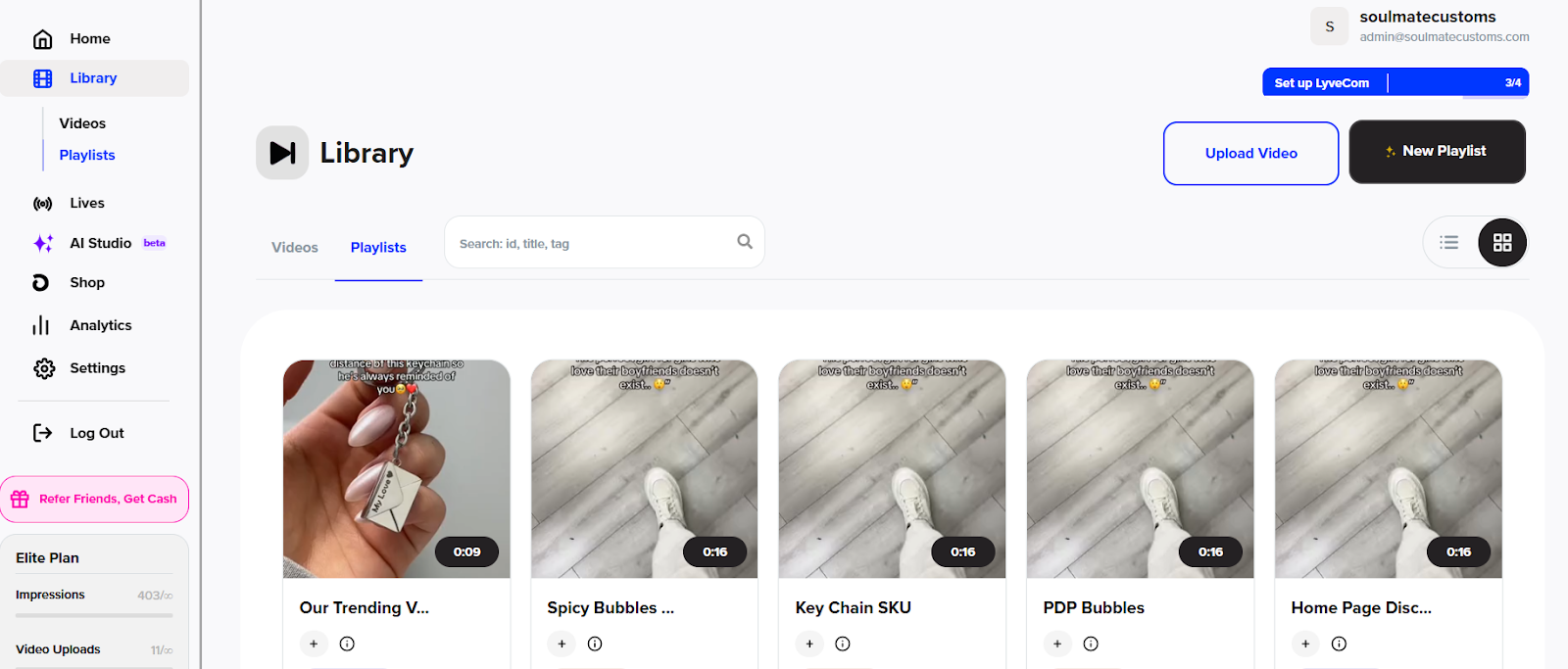
Step 1: Access Your Playlists
From the LyveCom dashboard, go to Library > Playlists
Step 2: Reorder Videos
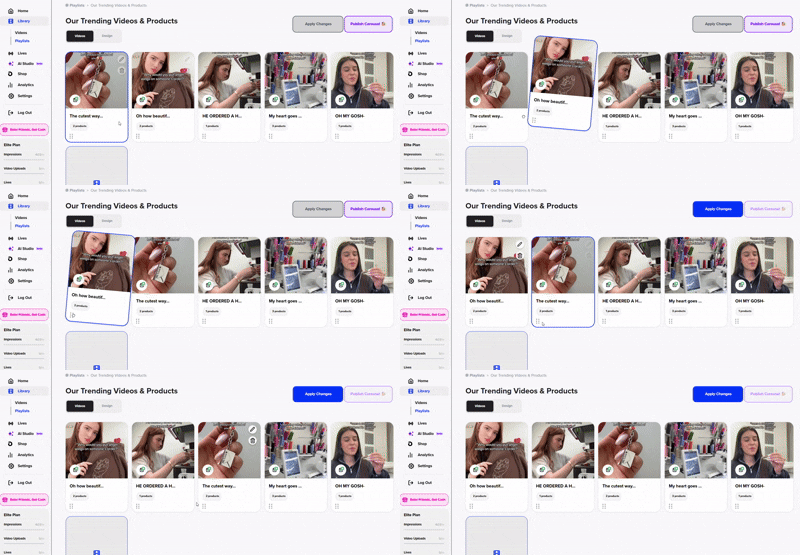
Select the playlist you want to organize
To change the order of videos:
Click and hold the 6 dots in the bottom left corner of the video
Drag and drop the video into the desired order
Step 3: Customize Playlist Design
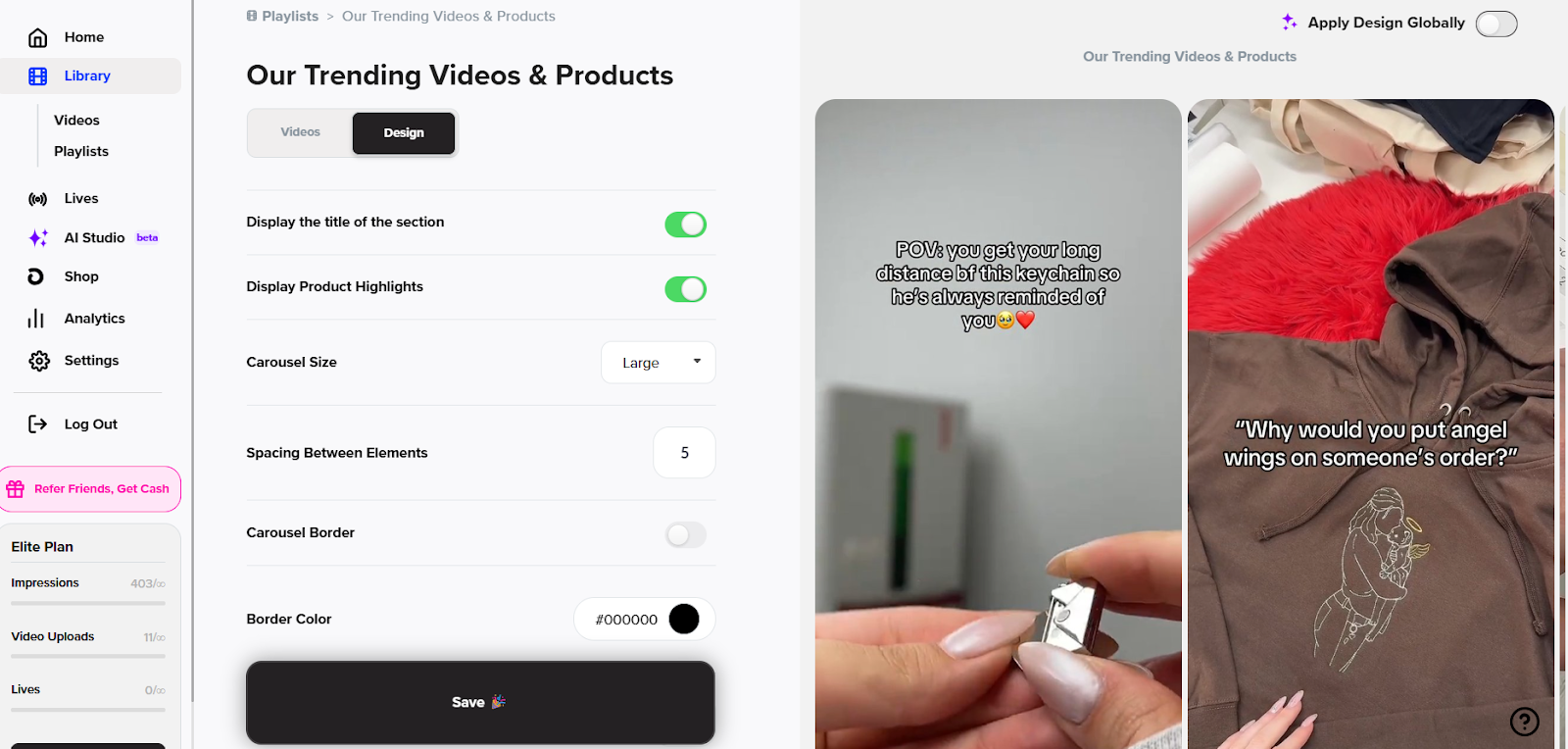
Click the Design tab to adjust your playlist’s look and feel:
Colors
Borders
Sizes
Spacing
And more
Step 4: Apply Design Settings
To apply the current design settings to all playlists, click Apply Design Globally
Click Apply Changes to save your updates
🎉 Your playlist is now organized and designed to match your brand!
Next up: Get your playlists ready for specific products! Check out our article here.
Have more questions? Reach out to our support team - we’re happy to help!
Happy streaming!