
Setting Up Product Metafields for Product Specific Video PlaylistsUpdated 4 months ago
Purpose: This article helps you add product-specific video playlists by utilizing product metafields, allowing seamless integration of LyveCom Bubbles and Carousels into product pages.
Intended Audience: Ecommerce Managers, Marketing Managers
How to Add Product-Specific Video Playlists Using Product Metafields
Step 1: Access Product Metafields in Shopify
Go to your Shopify Admin
Navigate to Settings > Custom Data or Metaobjects
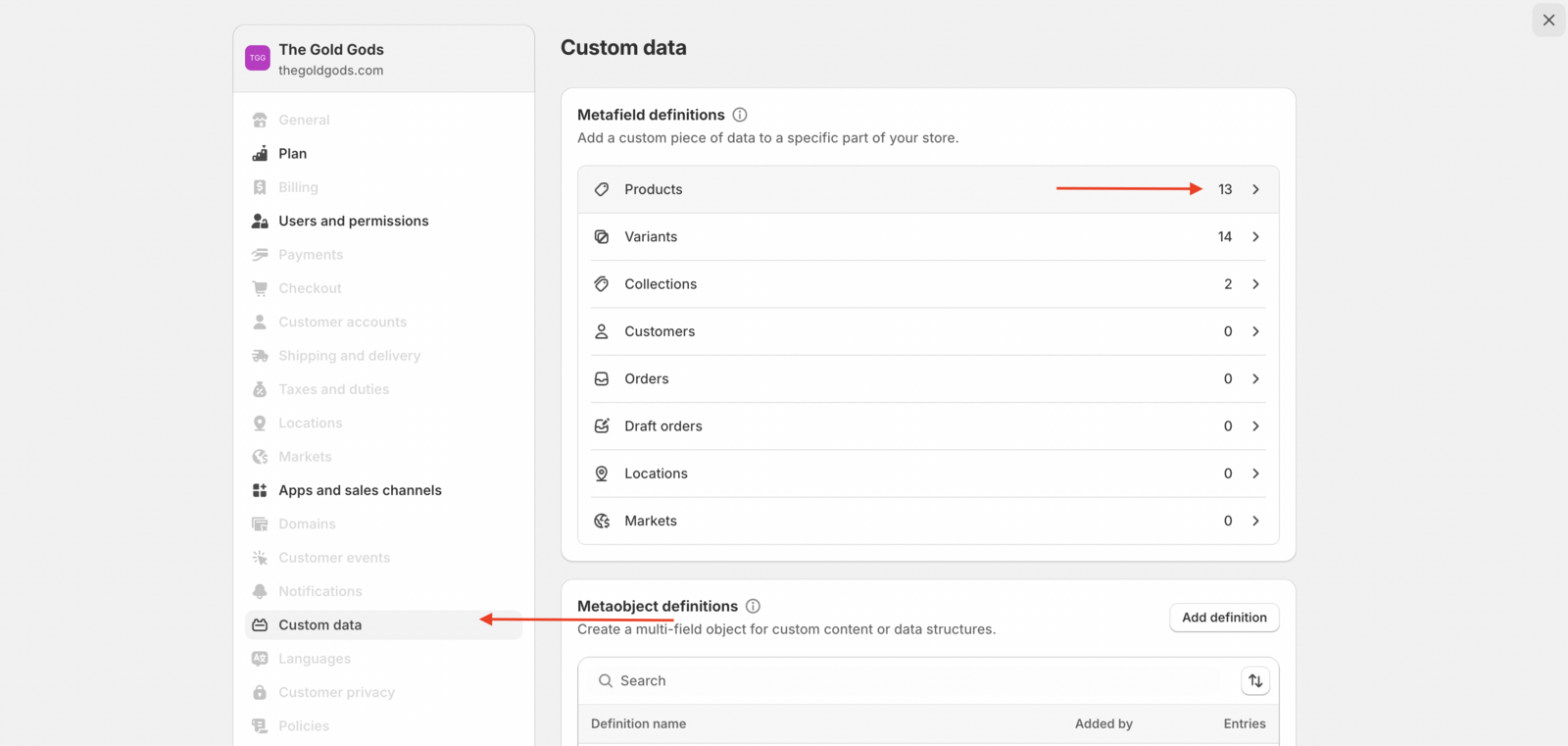
Step 2: Create New Metafields
Select Product Metafields
Click Add definition to create two new single-line text metafields:
One for LyveCom Bubbles
One for LyveCom Carousel
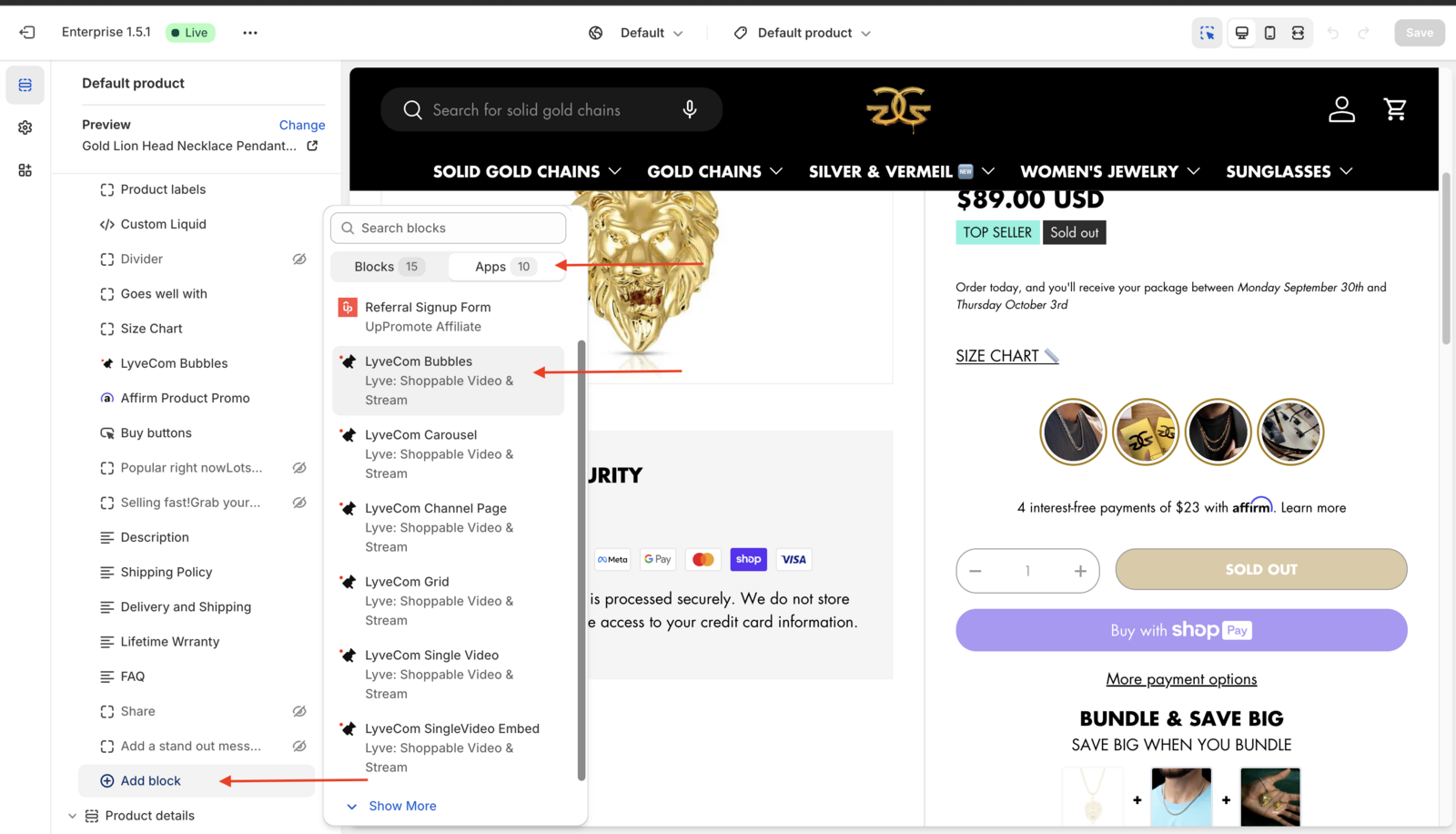
Step 3: Add LyveCom Blocks to Product Template
Open your Product Template in Shopify
Drag and drop the following blocks onto the product page layout:
LyveCom Bubble Block
LyveCom Carousel Block
📍 Placement Tips
Bubbles Block: Place right below your CTA or above your product description for highest engagement
Carousel Block: Place below the product description for a clean visual flow
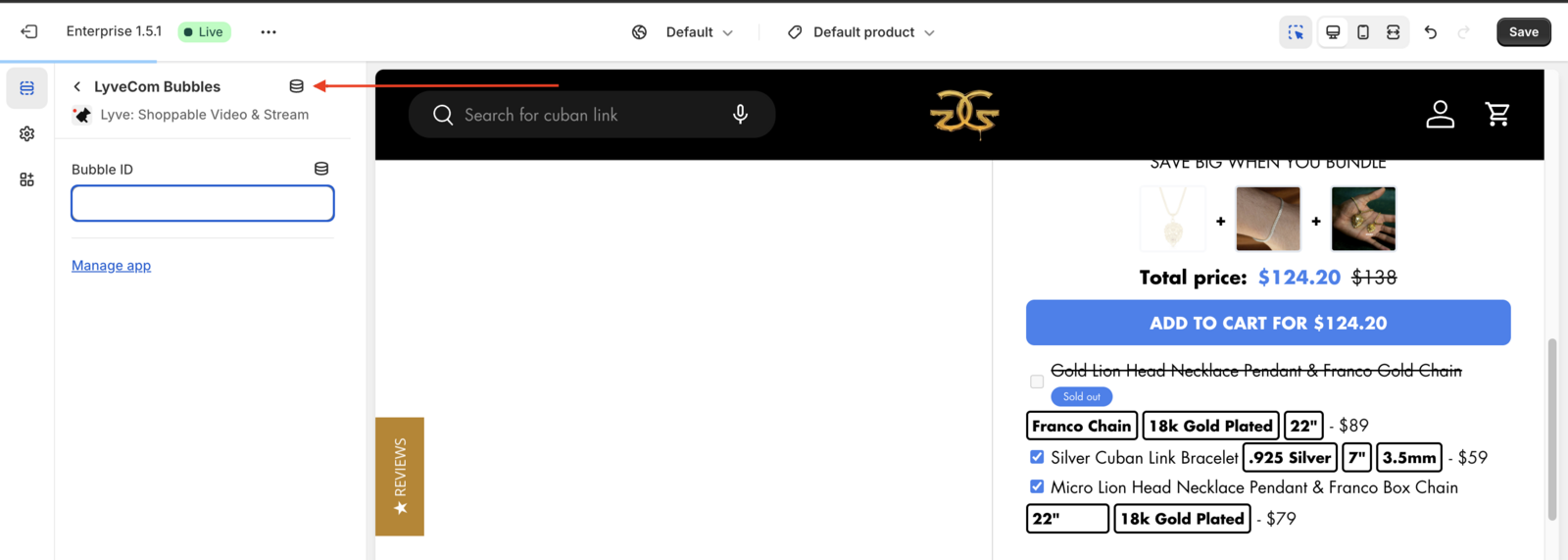
Step 4: Assign Metafields to Each Block
Within each LyveCom block, open the Stack Dropdown Menu
Select the metafield you created for that block
Delete placeholder text and replace it with the appropriate metafield key
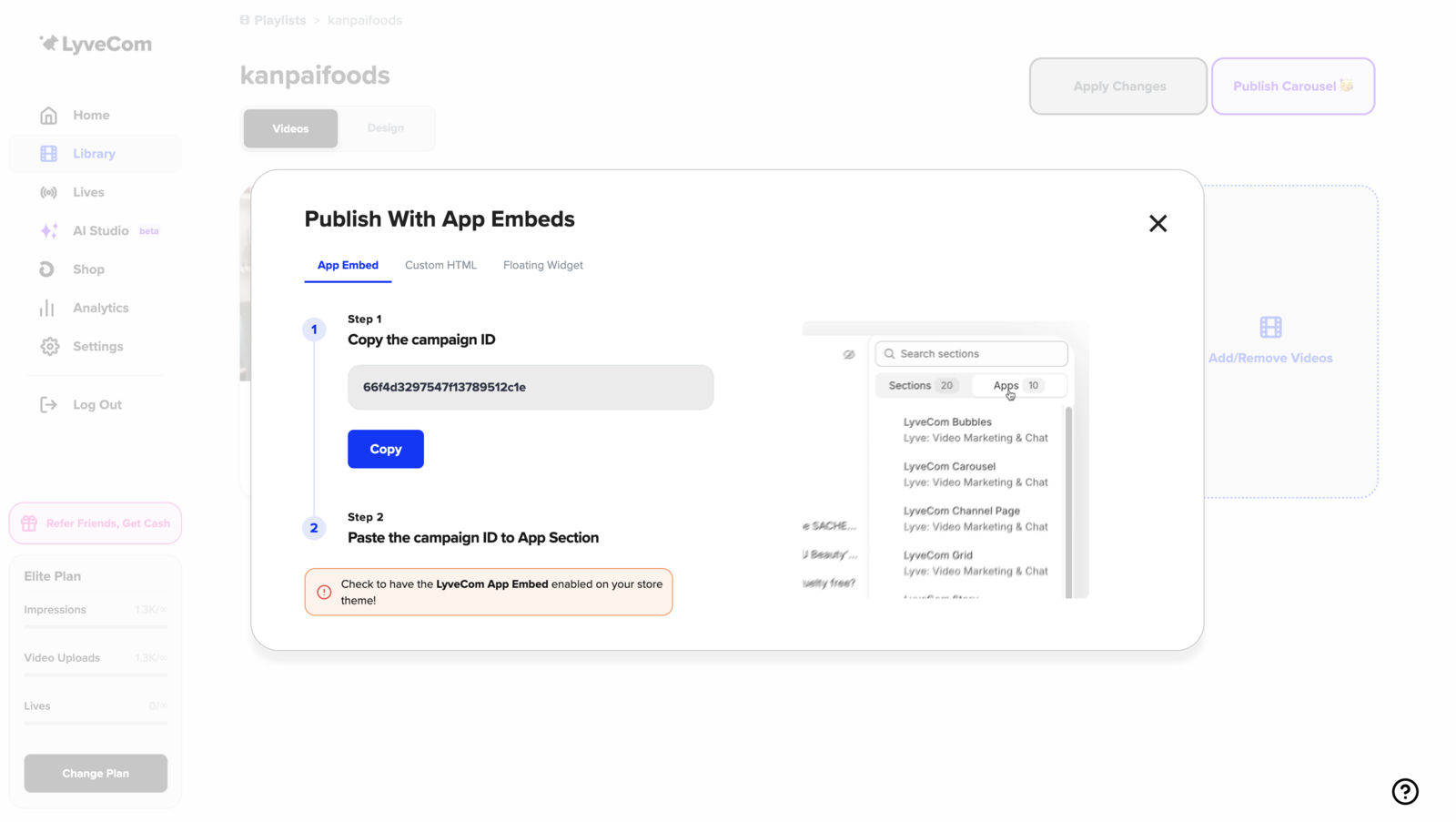
Step 5: Add Playlist IDs
From your LyveCom Dashboard, copy the Playlist ID
Paste it into the matching metafield field for the corresponding product in Shopify
🎉 You’ve successfully connected product-specific video playlists using metafields!
Next up: Learn all about the ways to use shoppable video. Check out our article Shoppable Video Best Practices!
Have more questions? Reach out to our support team - we’re happy to help!
Happy selling!