
Installing the App and Selecting/Changing PlansUpdated 4 months ago
Audience: Ecommerce Managers, Shopify Store Owners, CSMs
Purpose: This guide walks you through how to install the LyveCom app on Shopify and select or change your subscription plan.
Installing the LyveCom App and Selecting a Plan
Step 1: Install the LyveCom App
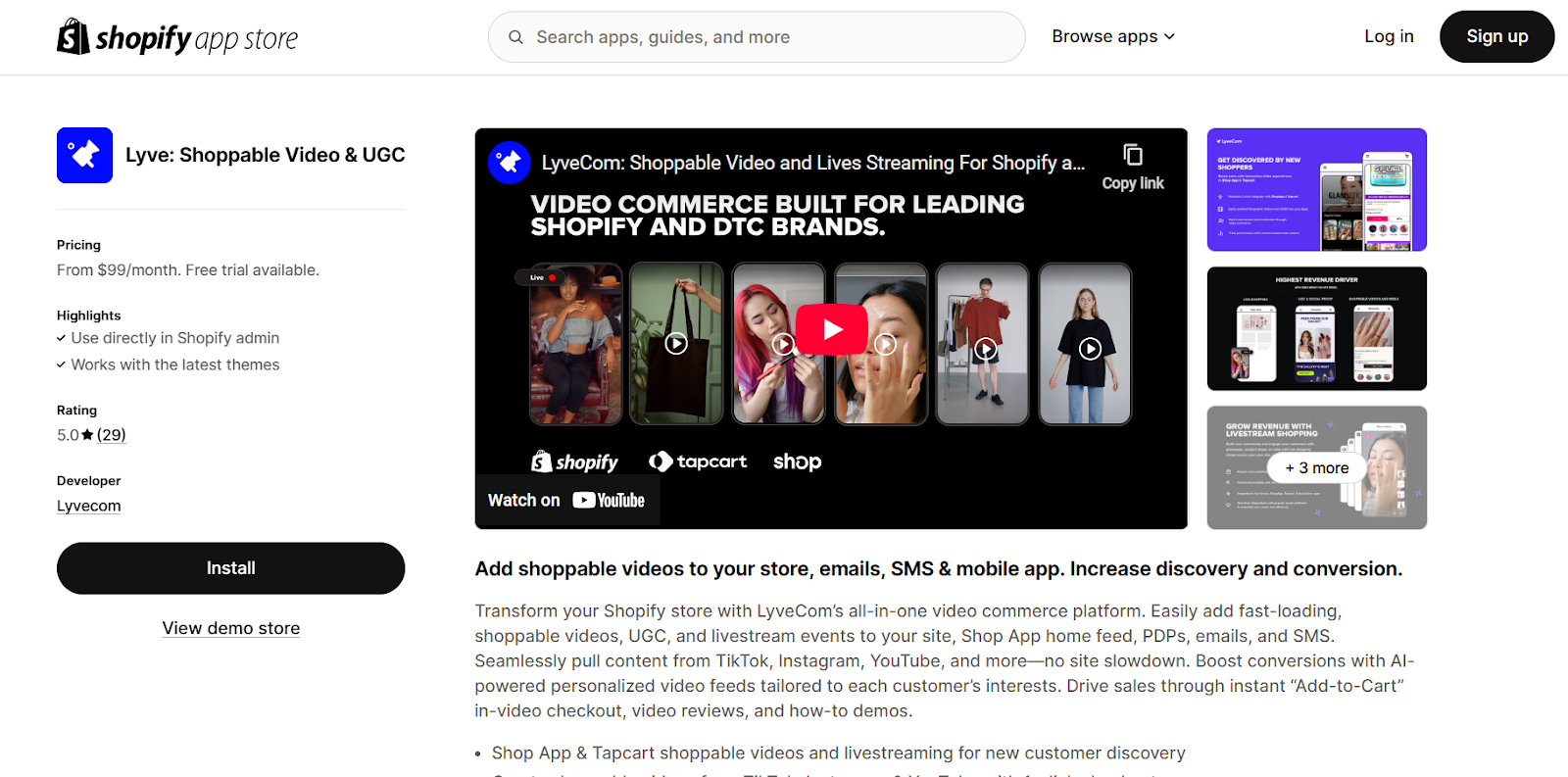
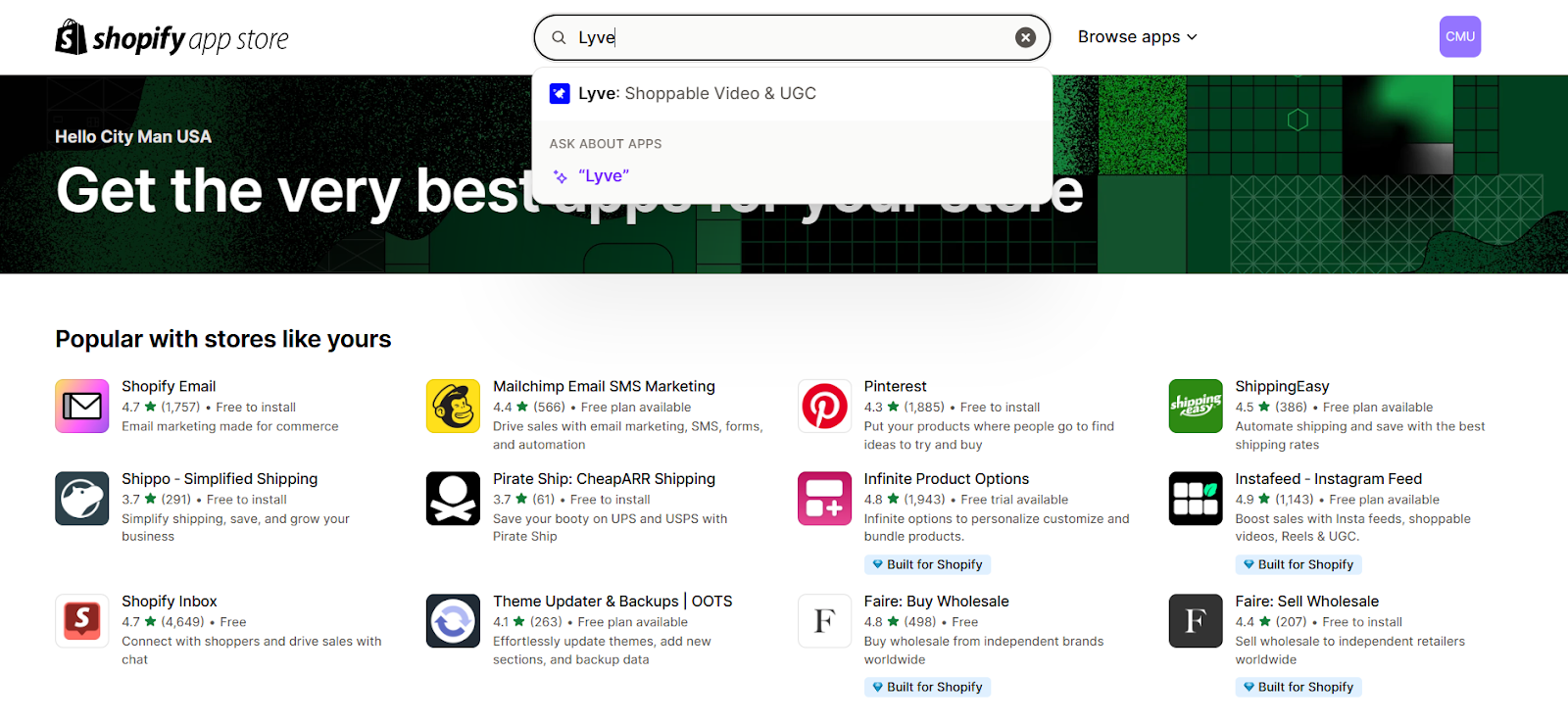
In the search bar, type Lyve
Click on the LyveCom app
Select Install
Step 2: Access the LyveCom Sales Channel
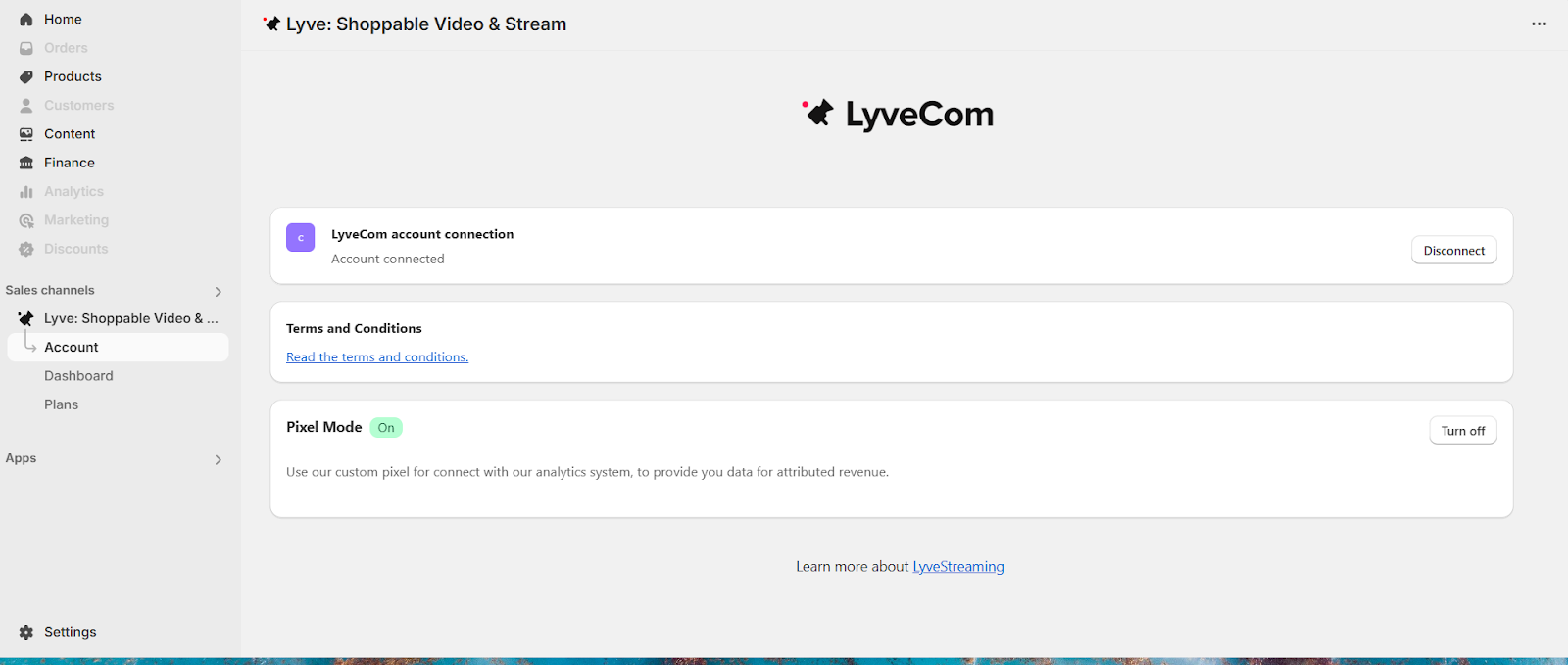
In your Shopify Admin, navigate to Sales Channels
Click on LyveCom
Step 3: Enable Pixel Mode
Under the Account section, locate Pixel Mode
Click Turn On
Step 4: Select or Change Your Plan
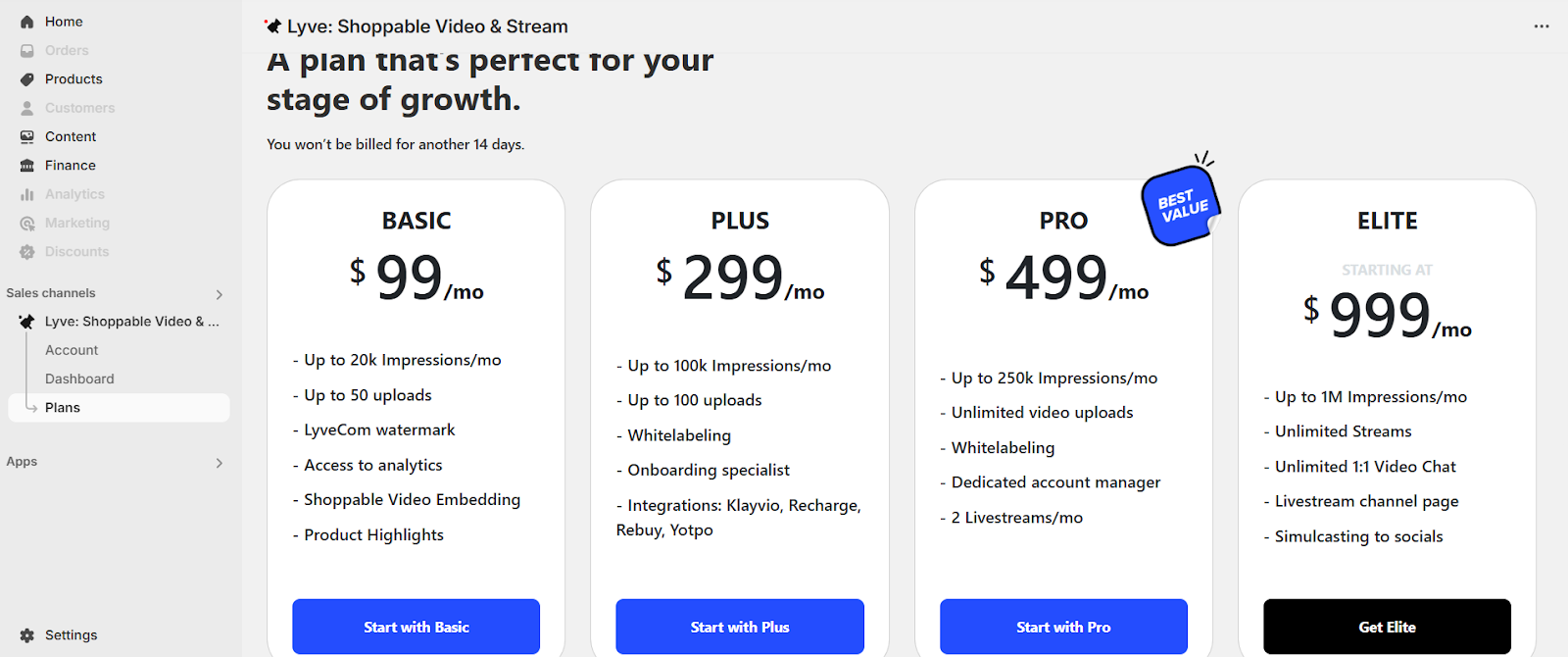
Go to the Plans section
Choose the plan that best fits your needs
✅ LyveCom is now installed and configured with your selected plan!
Next step: Turn on your App Embed in Shopify so Lyve can appear on your store: Turning On your App Embed in Shopify
Have more questions? Reach out to our support team - we’re happy to help!
Happy selling! ✨