
Adding Products to Shoppable VideosUpdated 4 months ago
Purpose: This guide walks you through how to tag products in your shoppable videos using the LyveCom dashboard.
Intended Audience: Ecommerce Managers, Content Creators, CSMs
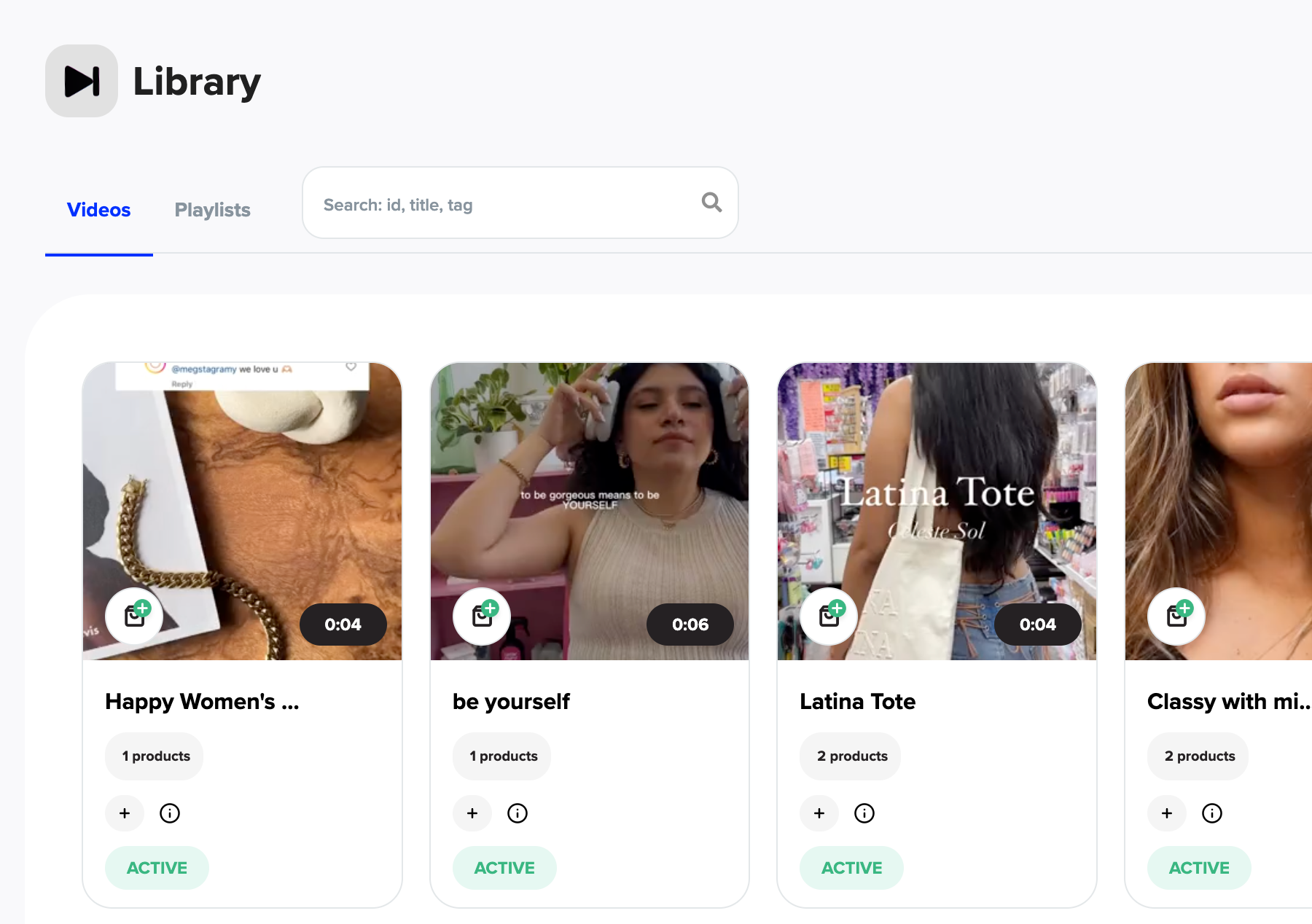
Step 1: Navigate to Your Video Library
Log into your LyveCom dashboard.
Go to Library > Videos.
Select the video you want to edit.
Step 2: Set Video Type to Shoppable
Inside the video editor, locate the Video Type section.
From the dropdown menu, select Shoppable.
Step 3: Tag Your Products
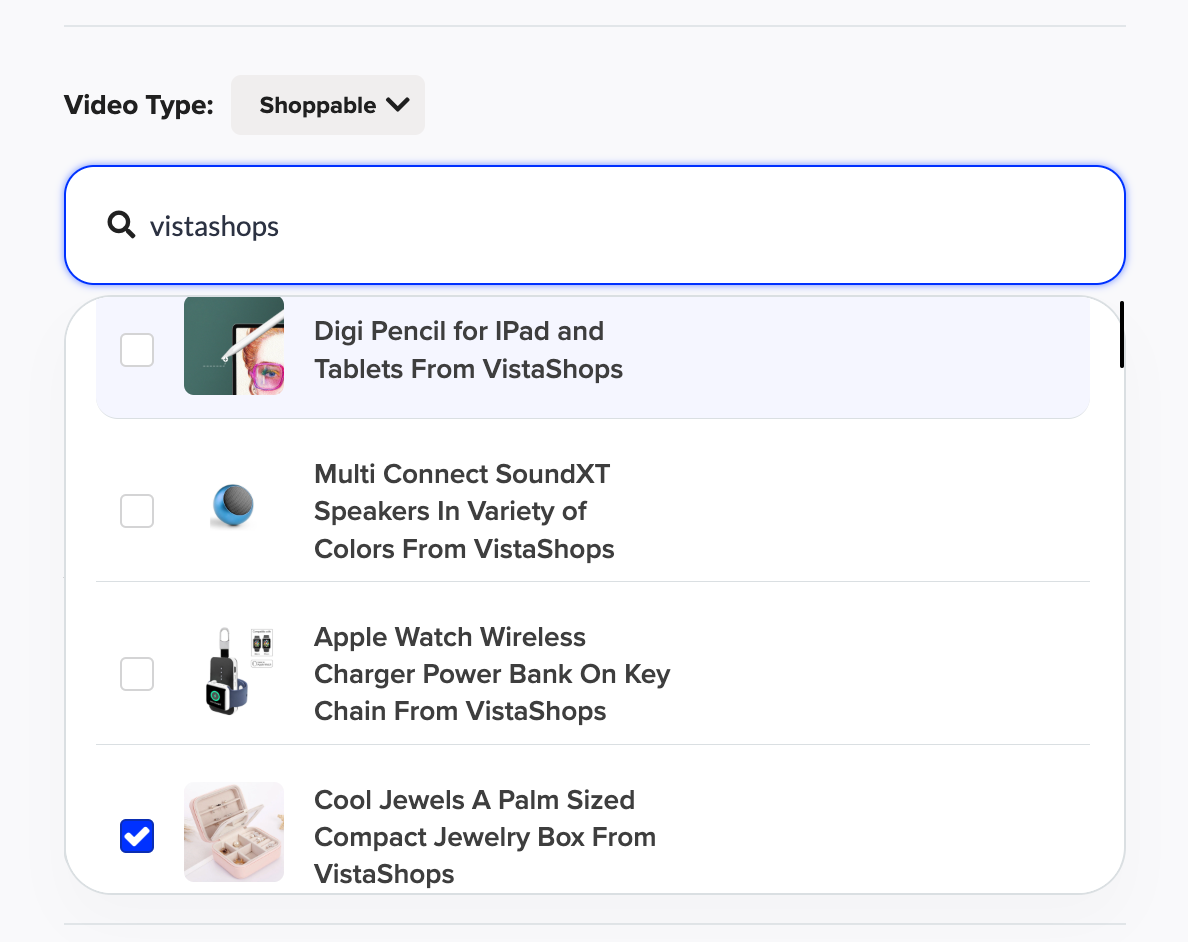
In the product search bar, begin typing the name of the product you'd like to tag.
When it appears below, check the box next to the correct product.
Repeat to tag multiple products if desired.
Step 4: Save Your Changes
Once all desired products are selected, click Update Story to save the video with your product tags applied.
Your video is now shoppable and ready to drive engagement and conversions!
Next up: Check out our article Creating a Shoppable Video Campaign!
Have more questions? Reach out to our support team - we’re happy to help!
Happy selling! ✨