
Test Your Livestream WidgetUpdated 4 months ago
Platform: Shopify + LyveCom
Intended Audience: Ecommerce Managers, Marketing Teams, Shopify Site Admins
Purpose: This guide helps new users of the LyveCom app test their livestream setup on a Shopify store—ensuring your video widget, product sync, and checkout flow are working correctly before going live.
Shopify Livestream Setup: Test Your LyveCom Widget
Step 1: Find Your Test Page
After installing the LyveCom app, you’ll see a new page in your Shopify dashboard called “Test Your Setup.”
Go to Online Store → Pages → Test Your Setup
This page may appear empty at first—but don’t worry!
The LyveCom streaming widget is already embedded and will display content once you go live.
Note: Make sure to customize your widget branding in the LyveCom dashboard before proceeding.
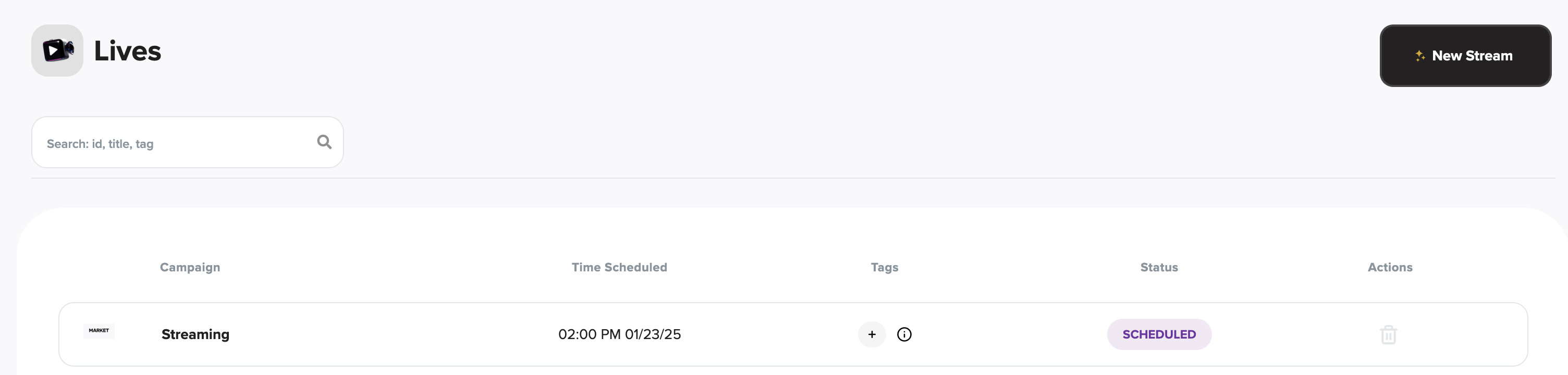
Step 2: Open Your Scheduled Test Livestream
Head to your scheduled test livestream in the LyveCom dashboard. This is where you’ll:
Add products from your Shopify catalog
Choose your streaming method
Preview how your content appears in the widget
Step 3: Sync and Add Products
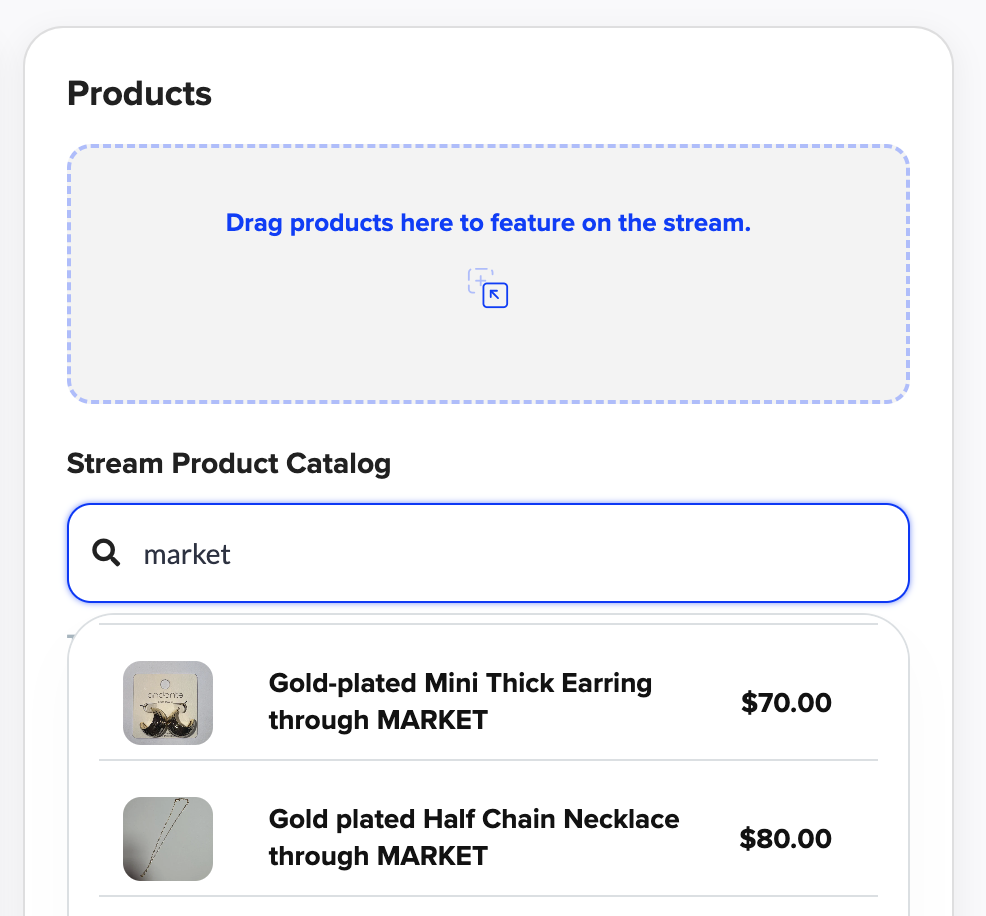
Confirm that your Shopify product catalog is synced with LyveCom. Then:
Click into your test livestream event
Select “Add Product”
Choose a few items from your catalog to include in the test
These products will appear in the widget once you go live—perfect for testing product visibility and the checkout experience.
Step 4: Select Your Streaming Method
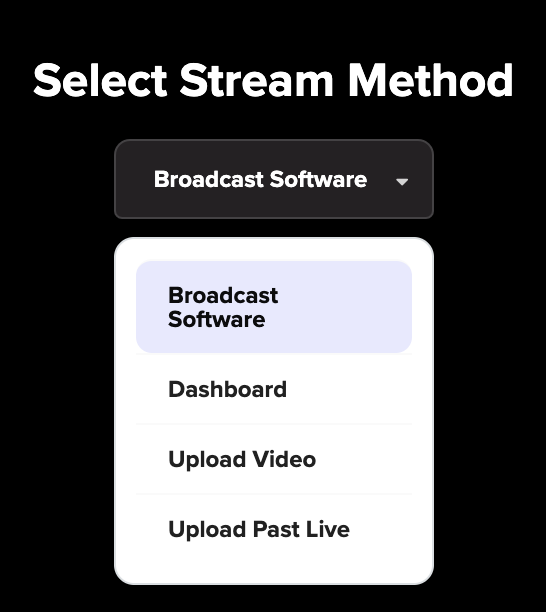
From the “How will you be streaming?” dropdown, choose one of the following options:
Larix Streaming App (recommended for ease and stability)
Mac Camera (quick and simple)
OBS or RTMP Stream (advanced control)
Pre-Recorded Video Upload (for hands-off demos)
Step 5: Go Live and Preview Your Widget
Once you go live in your test event:
Return to your “Test Your Setup” Shopify page
Watch the LyveCom widget display your livestream content
Test video playback, product interaction, and checkout flow
Use this moment to confirm everything is functioning as expected.
Have more questions? Reach out to our support team - we’re happy to help!
Happy selling! ✨