
Simulcasting Across SocialsUpdated 4 months ago
Intended Audience: Sellers, Livestream Hosts
Purpose: This guide walks you through simulcasting your livestream to platforms like YouTube, TikTok, Instagram, and Facebook using LyveCom—so you can expand your reach and boost engagement.
Getting Started with Simulcasting
LyveCom makes it easy to broadcast your livestream across multiple platforms simultaneously. Let’s get set up.
Step 1: Add Livestream Destinations
Log in to your LyveCom dashboard
Go to Settings
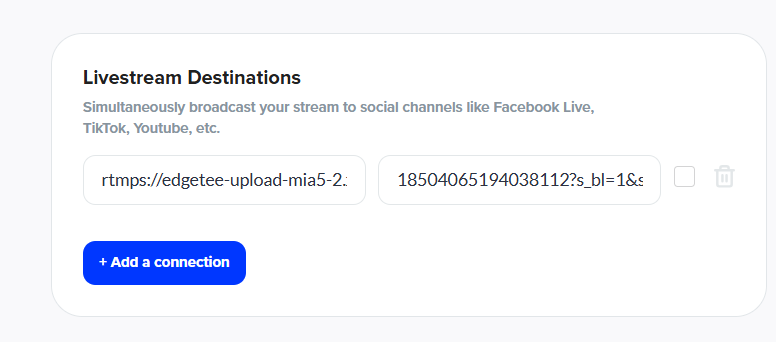
Scroll down to Livestream Destinations
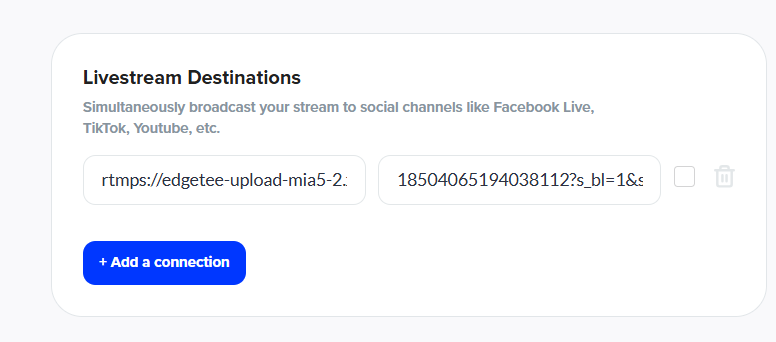
Click Add Connection to begin linking external platforms like YouTube, TikTok, Facebook, or Instagram
Note: You must set up at least one livestream destination to stream from LyveCom.
Step 2: Gather Stream Info from Each Platform
You’ll need a Stream URL and Stream Key from each platform you want to stream to. Open each platform in a separate browser tab—but do not close any tabs until your livestream is complete.
Facebook Setup
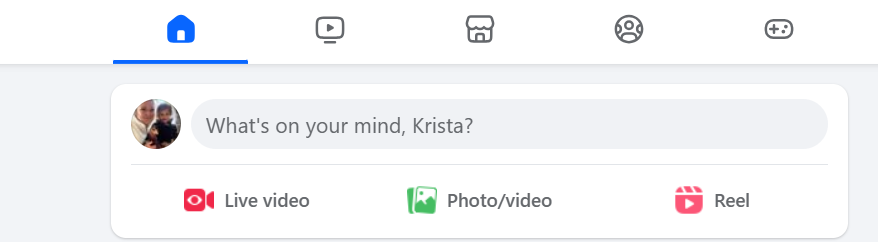
In your Facebook Business Account, select Live Video
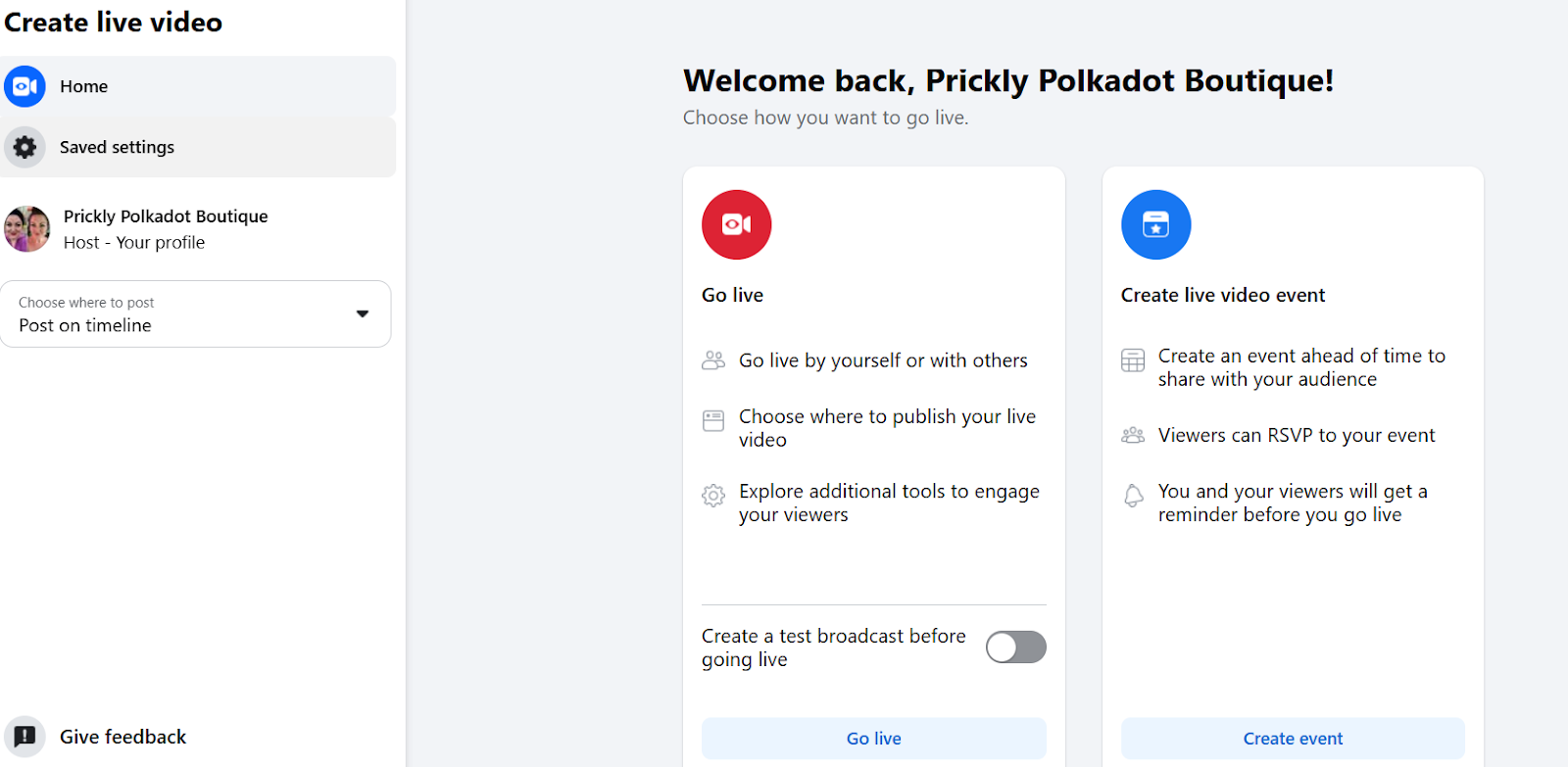
Turn OFF Create a test broadcast before going live
Select Go Live (this won’t start the livestream yet)
Configure the following:
Share to Story
Add a Title & Description in “What’s your live video about?”
Share to Page’s Group (if applicable)
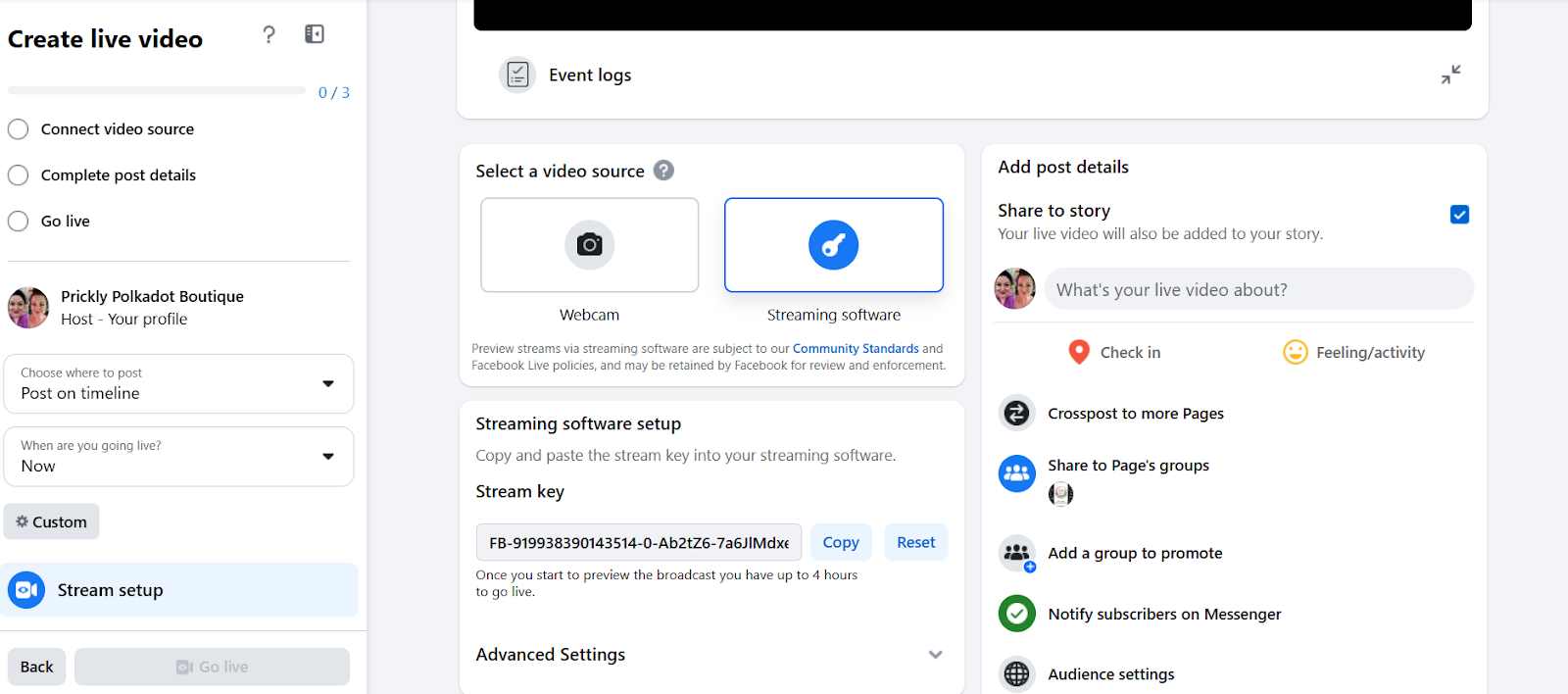
Click Advanced Settings
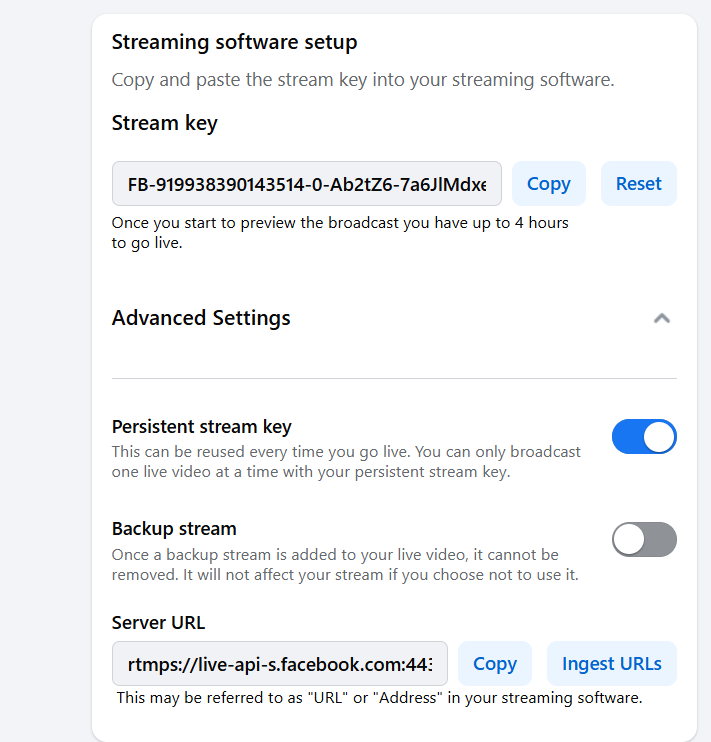
Turn ON Persistent Stream Key
Copy both the Stream Key and Server URL
Paste them into your LyveCom dashboard under Livestream Destinations
Facebook only needs to be set up once, thanks to Persistent Stream Key.
Instagram Setup
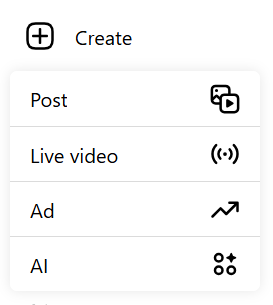
Select Create → Live Video
Add a Title and change Audience to Public
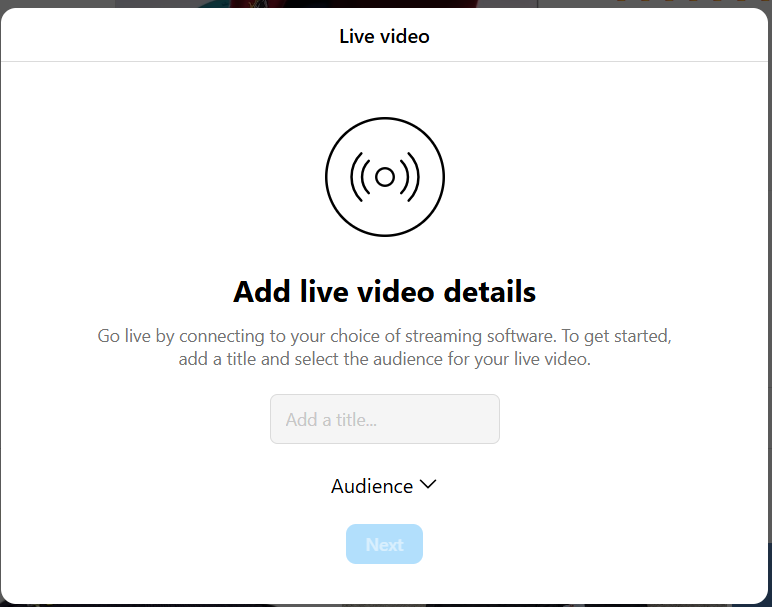
Click Next
Copy the Stream URL and Stream Key
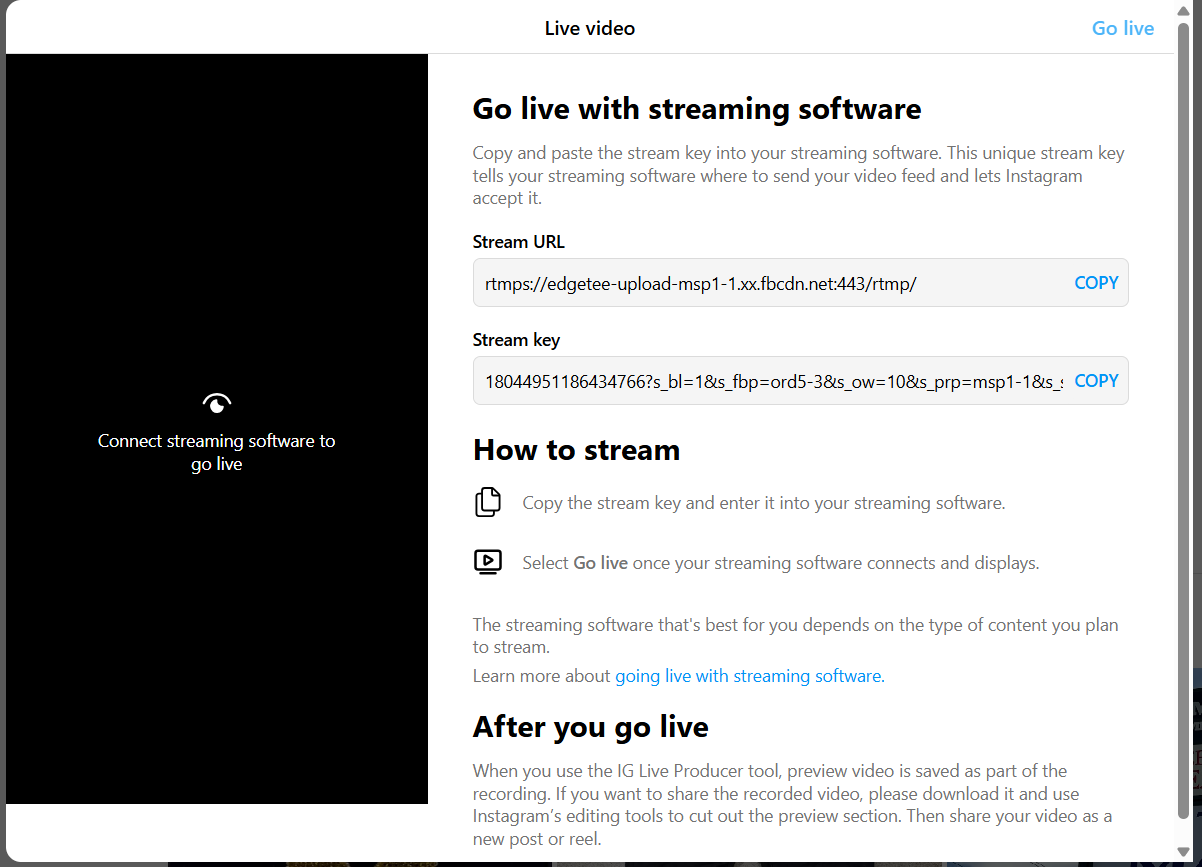
Paste both into your LyveCom dashboard
YouTube Setup
Select Create → Go Live
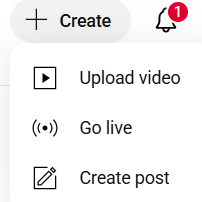
Copy the Stream Key and Stream URL
Paste them into your LyveCom dashboard
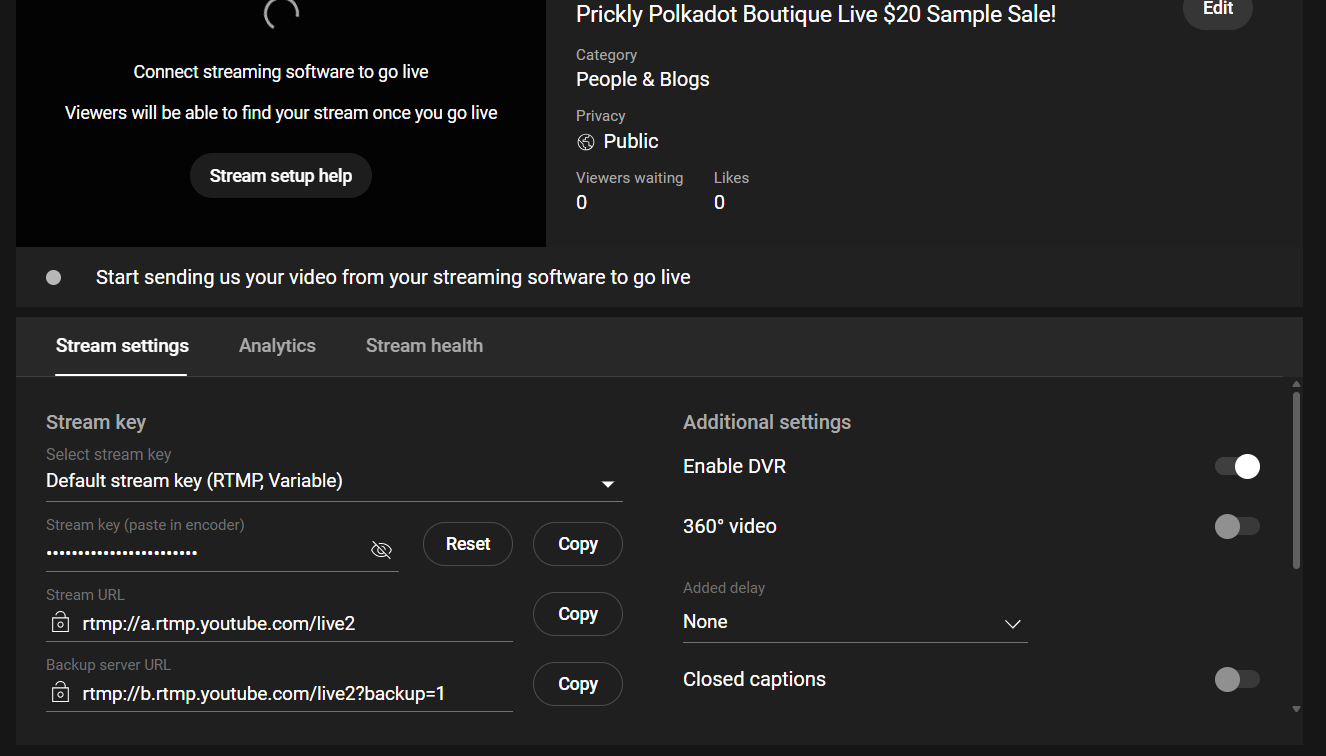
Platforms other than Facebook require a new stream key each time you go live.
Ready to Stream!
Once all destinations are connected in LyveCom and you're ready to go live, your stream will be broadcast to all selected platforms simultaneously.
Pro Tips
Use Persistent Stream Key on Facebook to avoid re-setup
Leave all platform tabs open during your stream
Test your video and audio before going live to all channels
Have more questions? Reach out to our support team - we’re happy to help!
Happy streaming! ✨