
OBS Setup GuideUpdated 4 months ago
Purpose: This guide will walk you through how to configure OBS settings for vertical (portrait) streaming with LyveCom.
Intended Audience: Sellers, Livestream Hosts, Content Creators using OBS Studio
Configuration Settings for Portrait Streaming
Step 1: Adjust Video Settings
Open OBS and go to Settings → Video
Update the following:
Base (Canvas) Resolution:
1080 x 1920Output (Scaled) Resolution:
1080 x 1920Common FPS Values:
30
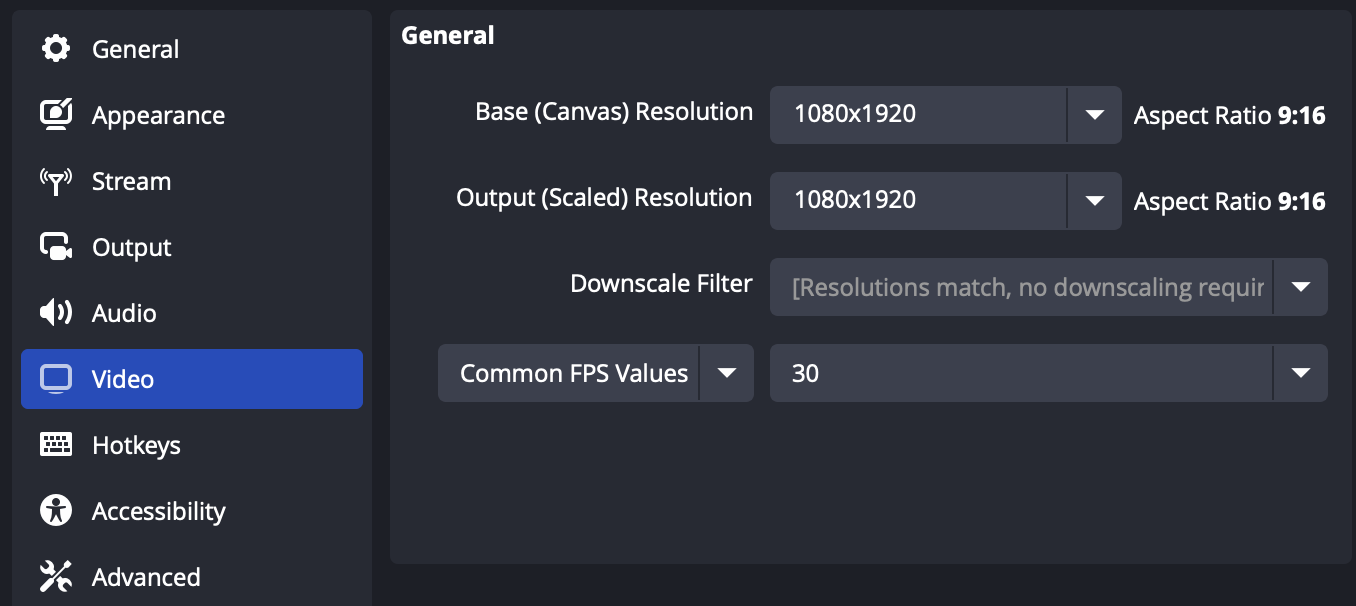
✅ Click OK to save. Your video is now setup for portrait (9 x 16) mode.
Step 2: Adjust Output Settings
In OBS, navigate to Settings → Output
Set the following:
Video Bitrate:
3000 KbpsEncoder:
Software(x264)
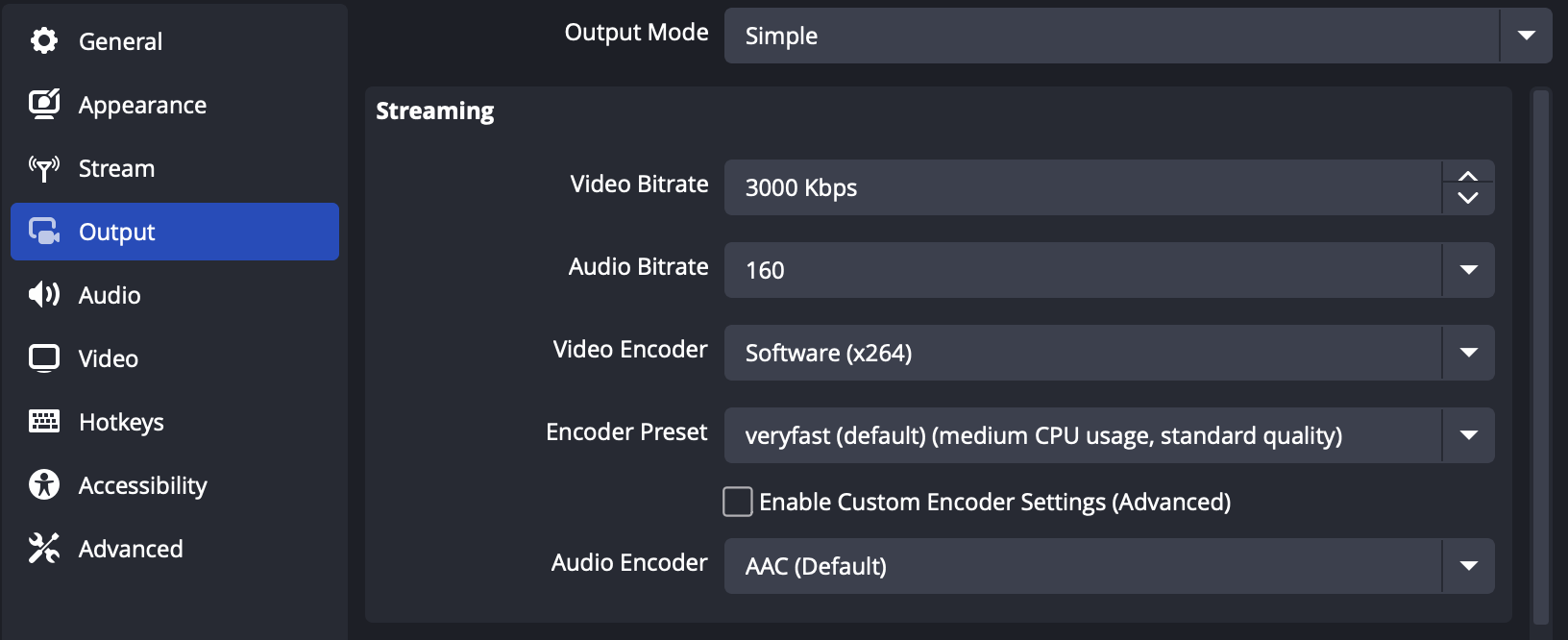
✅ Click OK to save.
Step 3: Add your LyveCom Stream Kety in OBS
Go to Settings → Stream
Set the following:
Service:
MUXServer:
GLOBAL (RTMPS)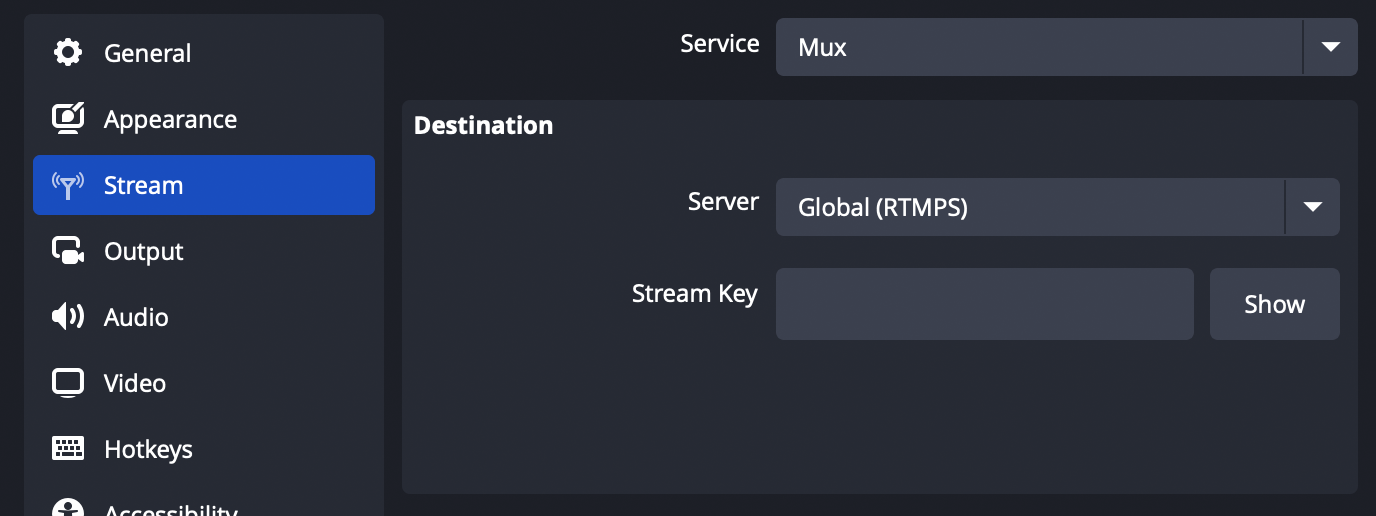
Get your Stream Key from the LyveCom dashboard
Log into your LyveCom dashboard
Go to Settings → Streaming
Copy your RTMP Link.
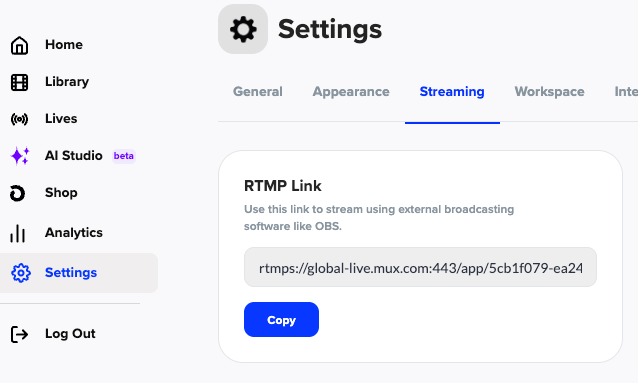
The Stream Key is the string of letters and numbers that appear after
/app/in your RTMP link. Paste your Stream Key into the OBS Stream Key field.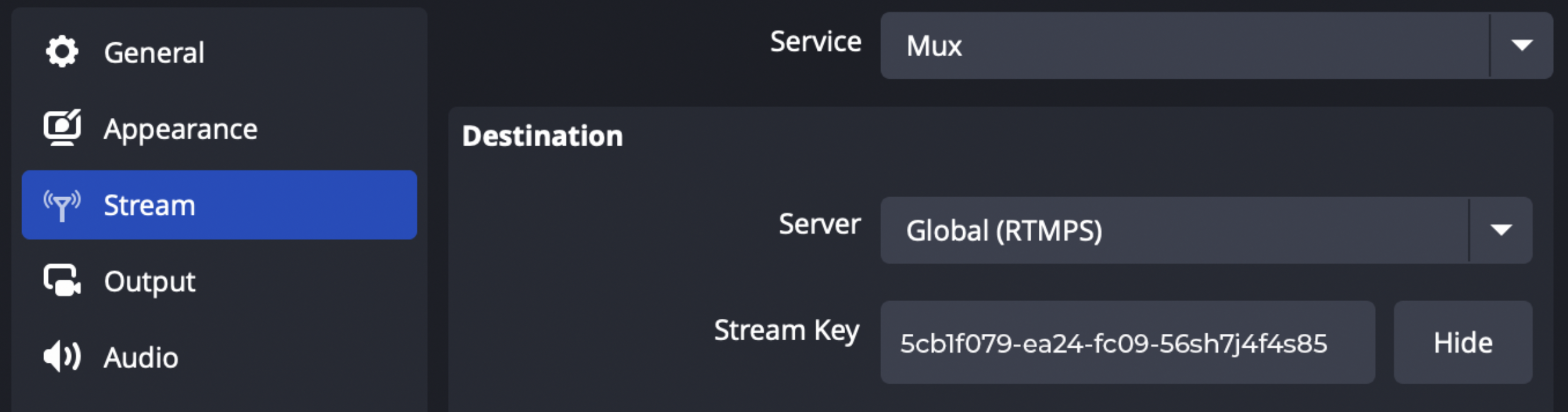
You're all set! Your OBS is now setup for portrait streaming with LyveCom.
You can now begin setting up your stream with your preferred Scenes and Sources in OBS. The preview window will now appear in portrait orientation.
Have more questions? Reach out to our support team - we’re happy to help!
Happy streaming! ✨