
How to embed your shoppable videos on your Shopify pages in carousel formatUpdated 4 months ago
Intended Audience: Marketing Managers, Content Managers
Purpose: This guide provides step-by-step instructions for embedding shoppable videos on your Shopify store using the Carousel format. Carousels span the full page width and are perfect for showcasing multiple videos—like UGC, reviews, or tutorials—in a scrollable, engaging layout.
💡 Pro Tip: Use carousels to drive social proof, upsells, and deeper engagement. CTAs can appear both inside and outside each video.
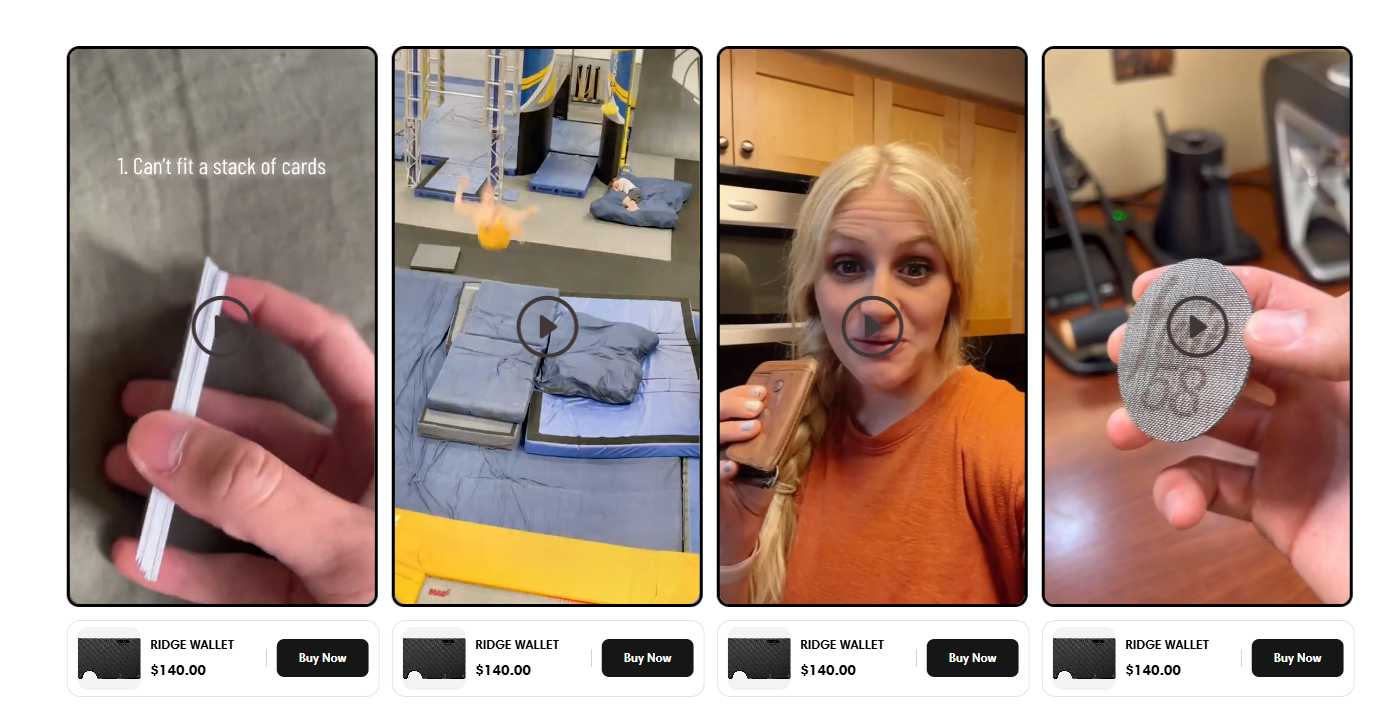
How to embed your shoppable videos on your Shopify pages in carousel format
Step-by-Step: Embed a Carousel on Shopify
1. Upload Your Videos
Go to Library > Videos
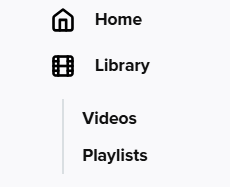
Click Upload Video

Choose your upload method:
Bulk Upload: Upload multiple videos from your desktop or cloud service
Single Video: Upload from desktop or import from Instagram/TikTok
✅ To import from socials, go to Settings > Integrations > Socials
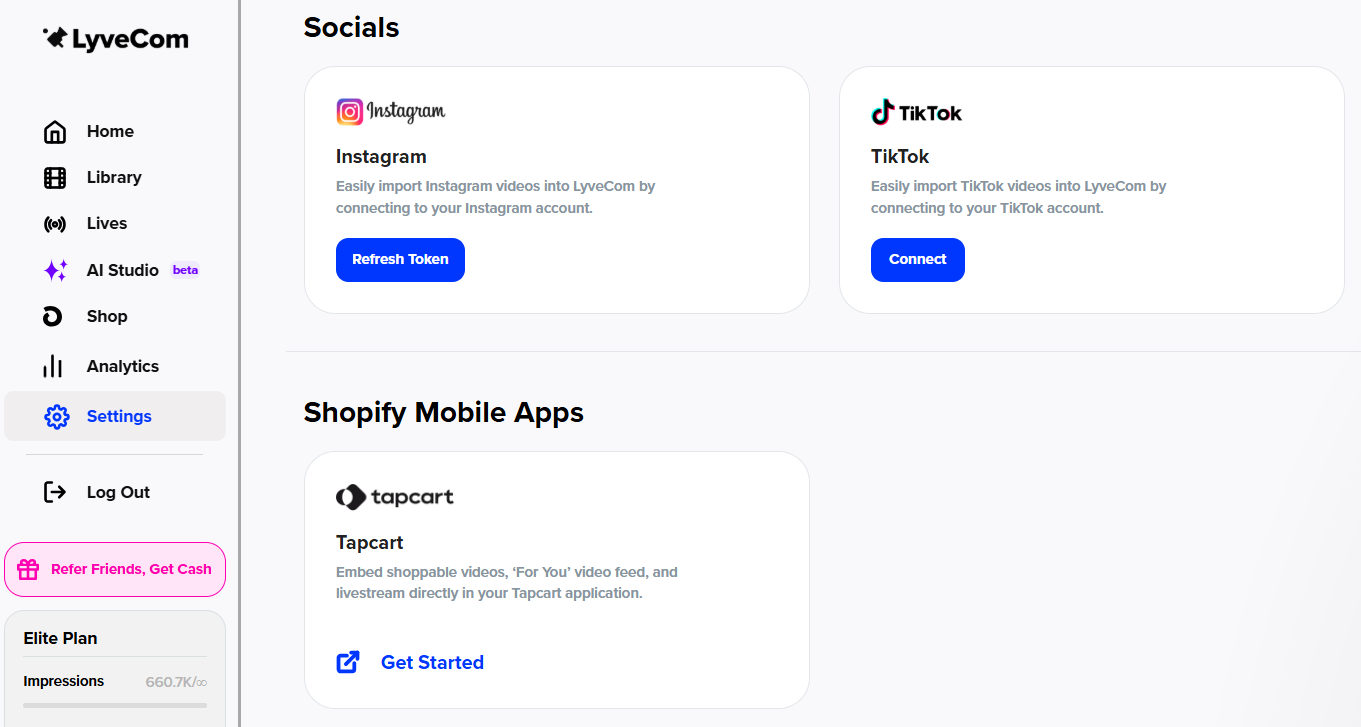
2. Add Video Details
Title: Give the video a clear name so you can easily identify it
Video Type: Keep set to Shoppable
Product Tagging:
Start typing a product name or SKU
Link all products shown in the video
Add upsell items as well
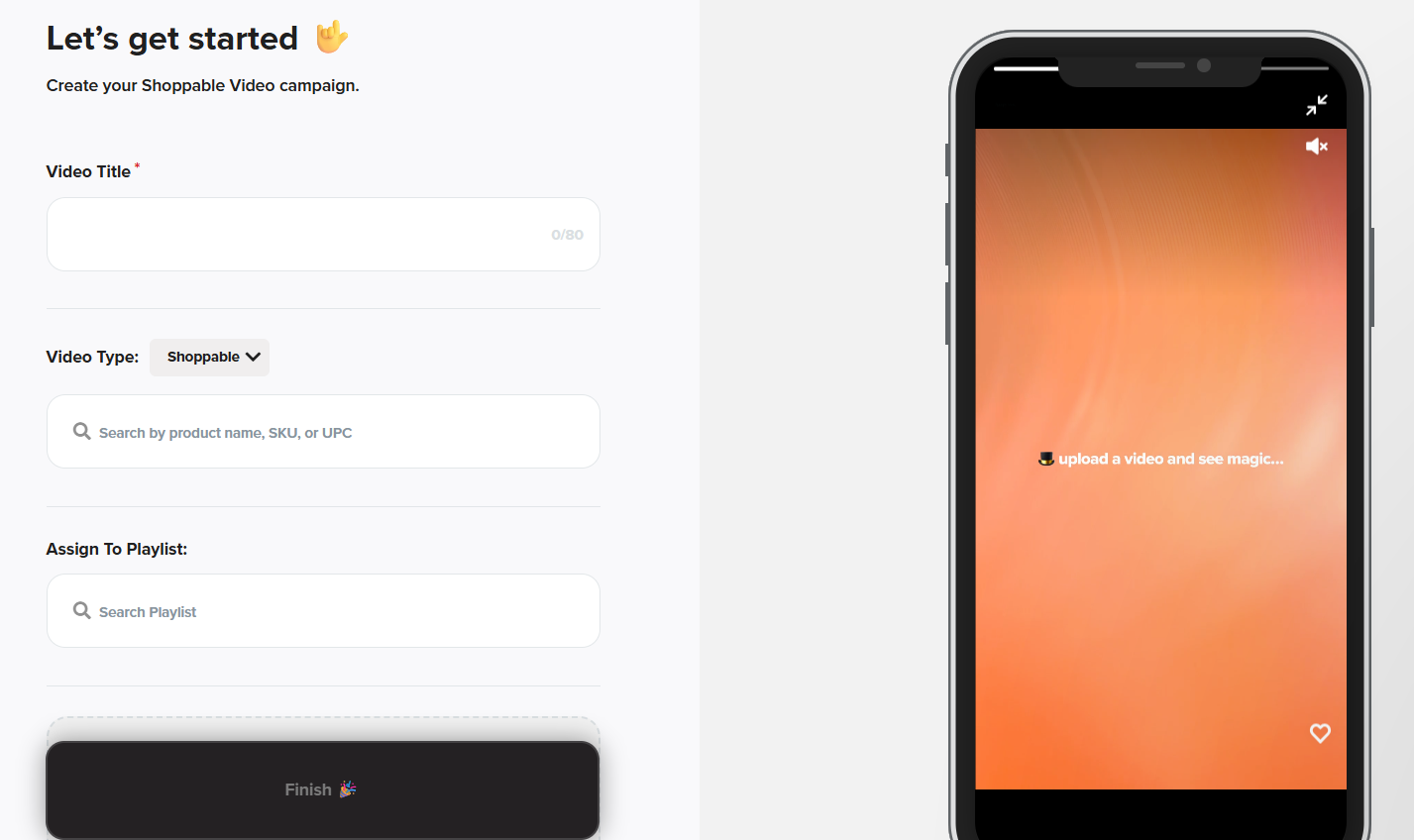
Click Choose File to upload the video
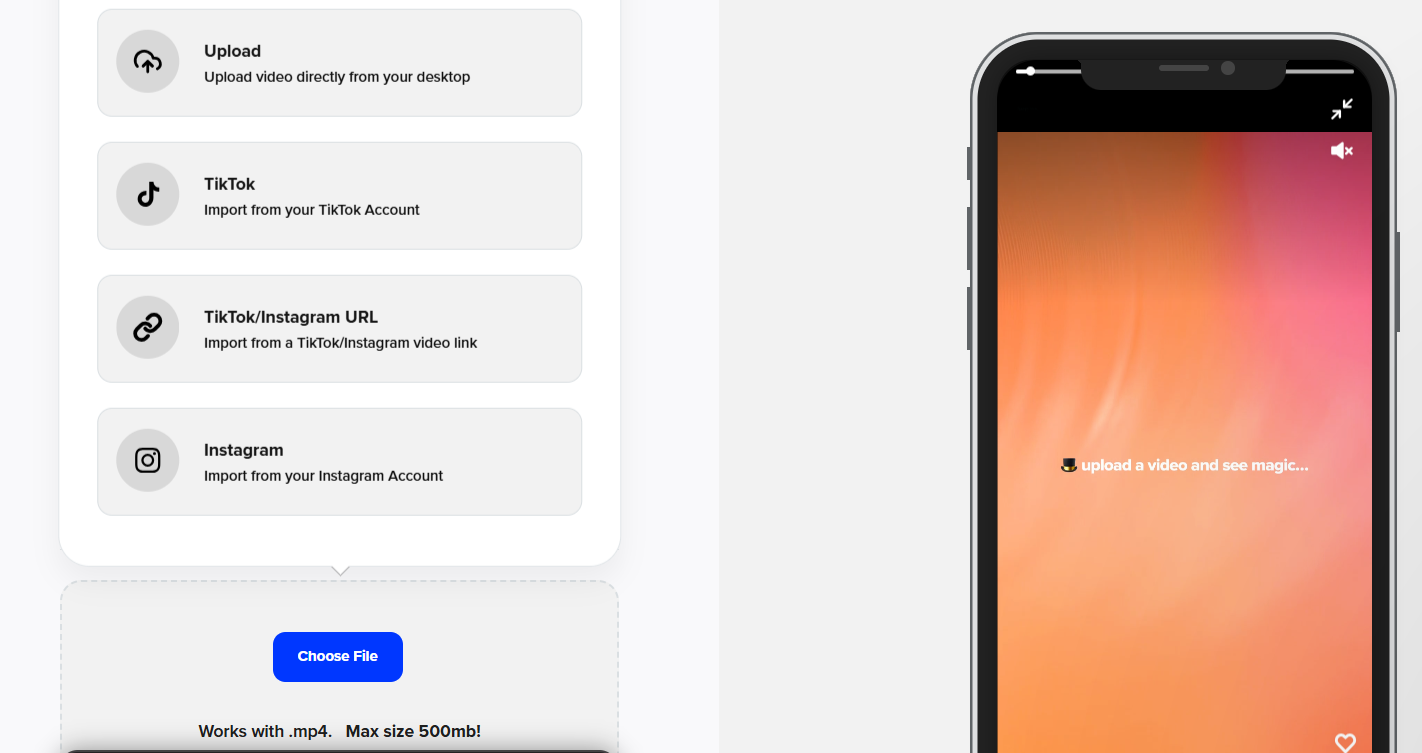
Click Finish
🔁 Repeat steps 1–2 until you’ve uploaded at least 5 videos for your Carousel.
3. Create a Carousel Playlist
Go to Library > Playlists
Click New Playlist

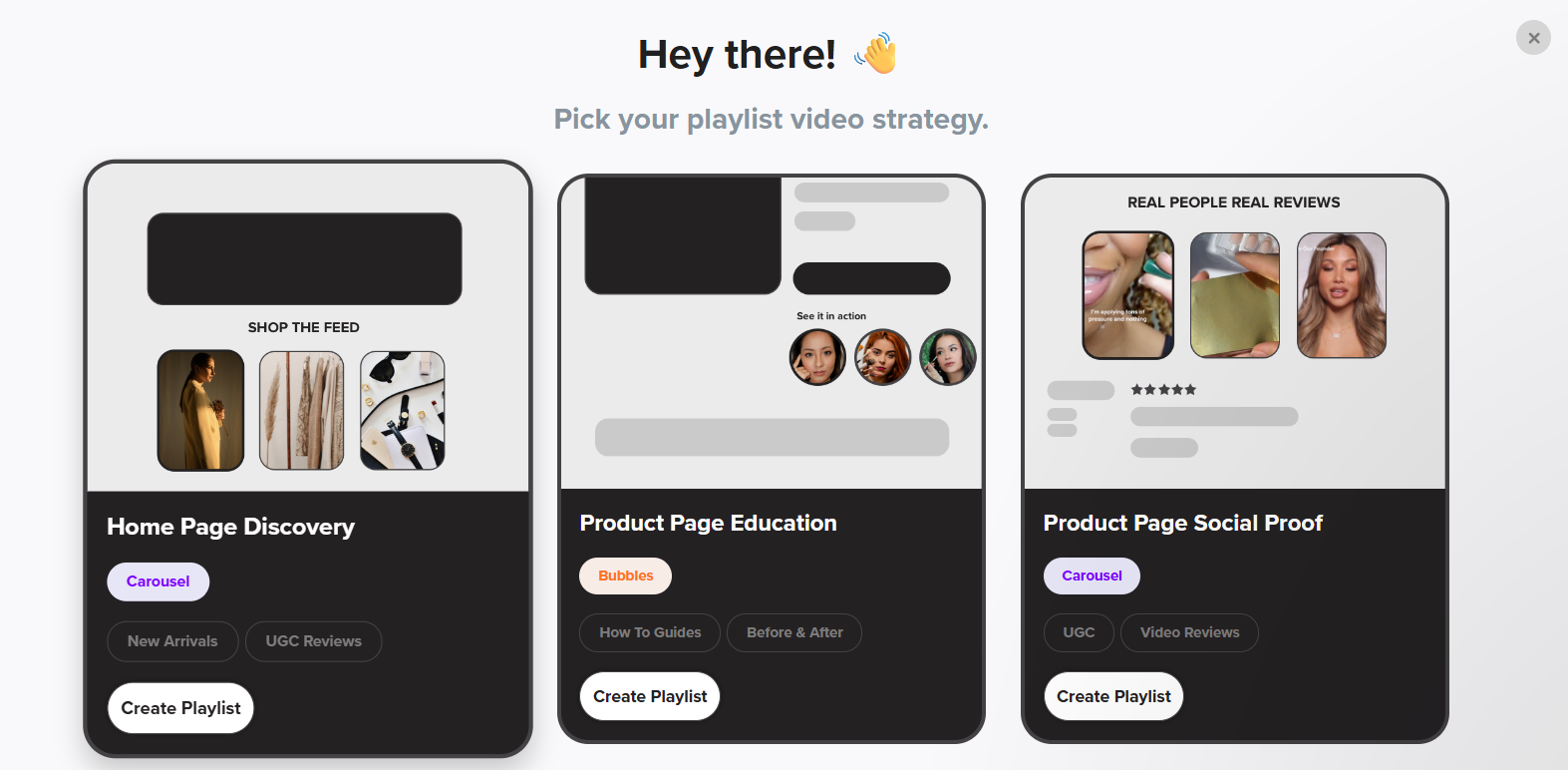
From the dropdown, select:
Home Page Discovery – for general visibility
Product Page Social Proof – for contextual placement
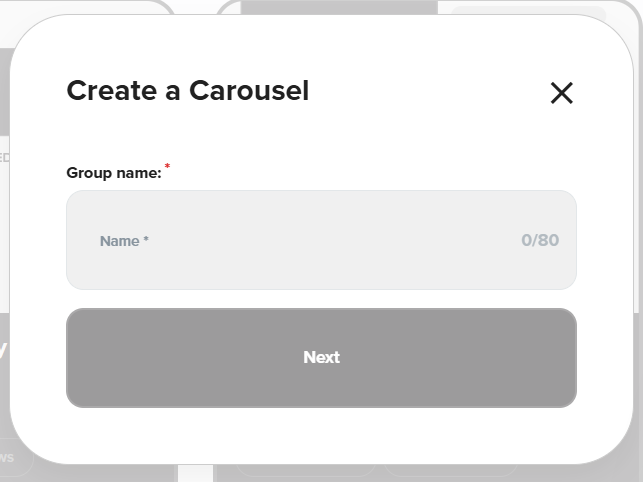
Name your playlist something recognizable (e.g., PDP Reviews or Home Carousel)
Select the videos you want to include
Click Get Carousel
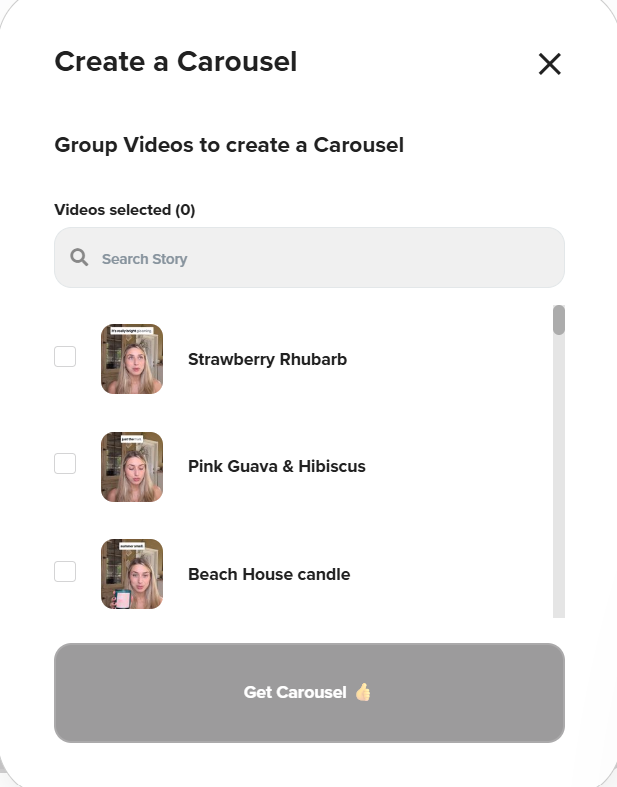
4. Customize the Design
Navigate to the Design tab
Customize layout, spacing, borders, and section titles
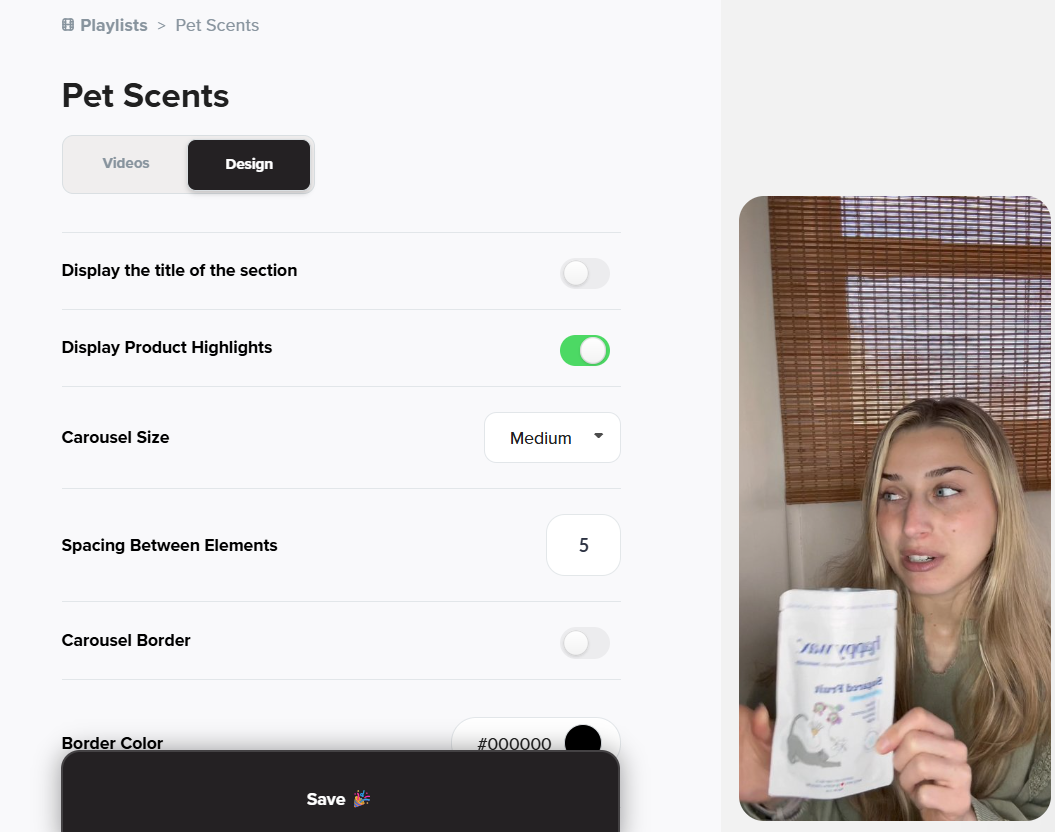
Preview your Carousel as you edit
When ready, click Publish Carousel

5. Embed in Shopify
After publishing, copy the Campaign ID from the playlist page
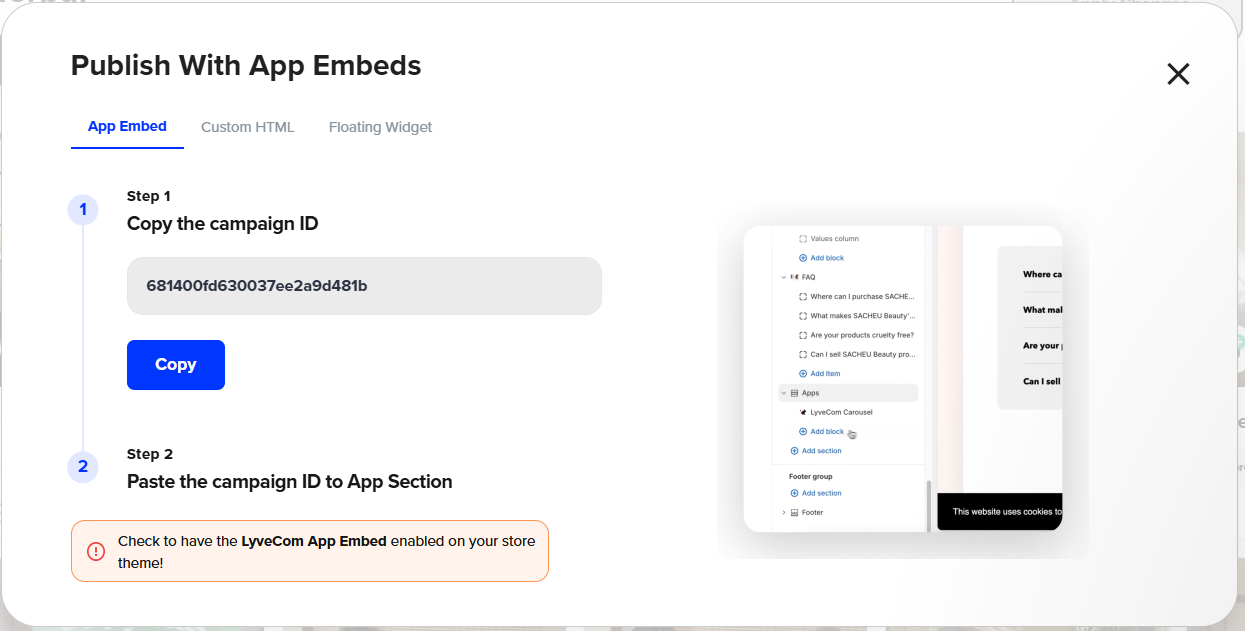
Go to your Shopify theme editor
If this is your first time embedding:
Enable LyveCom App Embeds
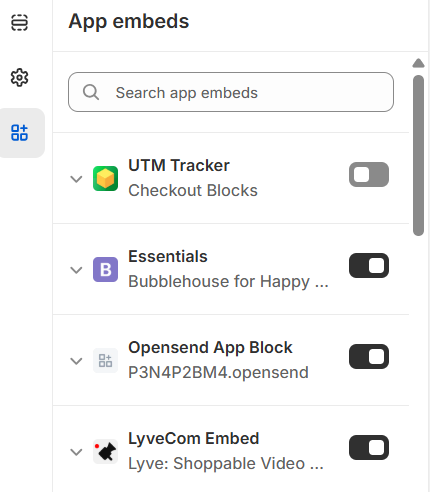
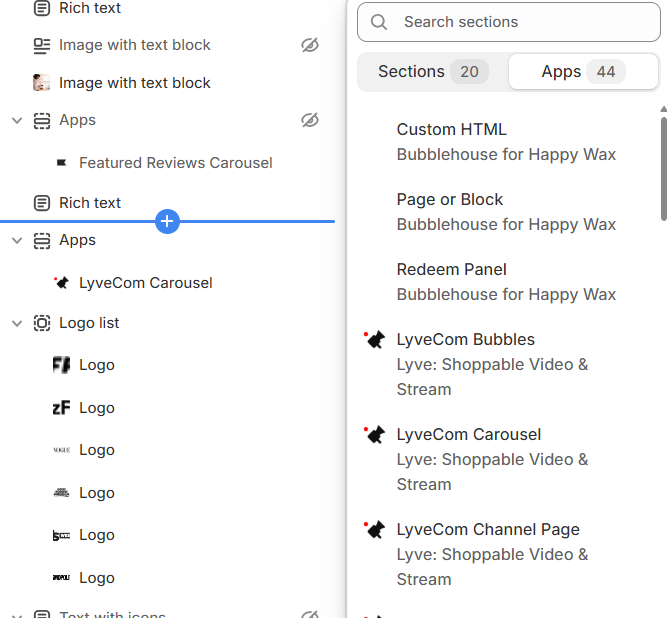
Click Add Section > Apps > LyveCom Carousel
Paste your Carousel ID into the settings panel
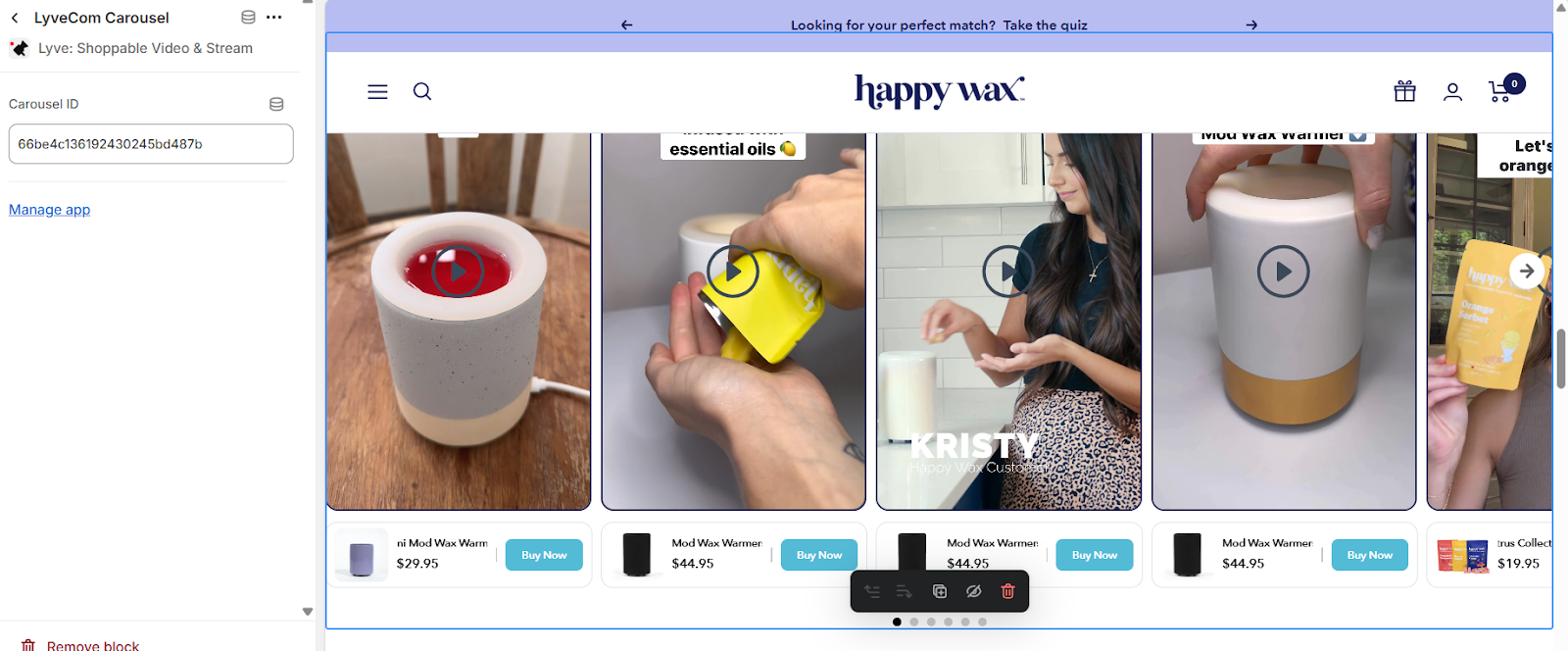
Click Save to apply changes.
You're Live!
Your shoppable Carousel is now embedded and ready to convert browsers into buyers.
Have more questions? Reach out to our support team - we’re happy to help!
Happy selling!