
Going Live via Zoom + OBSUpdated 4 months ago
Intended Audience: Sellers, Livestream Hosts, Producers
Purpose: Stream a Zoom meeting with multiple hosts to your LyveCom channel using OBS.
Stream Multi-Host Events Seamlessly with Zoom + OBS
This guide walks you through how to stream a Zoom conference with multiple hosts using OBS and LyveCom. Perfect for panel-style events, webinars, or dual-host livestreams!
✅ Before You Begin:
Make sure OBS is already configured to stream with LyveCom.
Need help? ... check out our OBS Setup Guide here.
Step 1: Set Up Zoom in OBS
Open OBS Studio.
Under Sources, click the ➕ icon and choose macOS Screen Capture (or Window Capture).
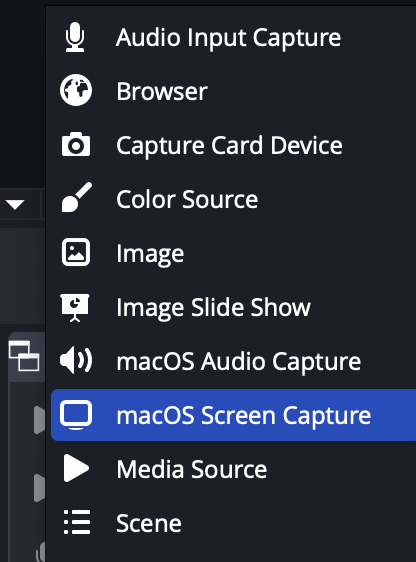
Name your source something like Zoom Window, then click OK.
In the Properties Window, update the following:
Method: Window Capture
Window: [zoom.us] Zoom Meeting
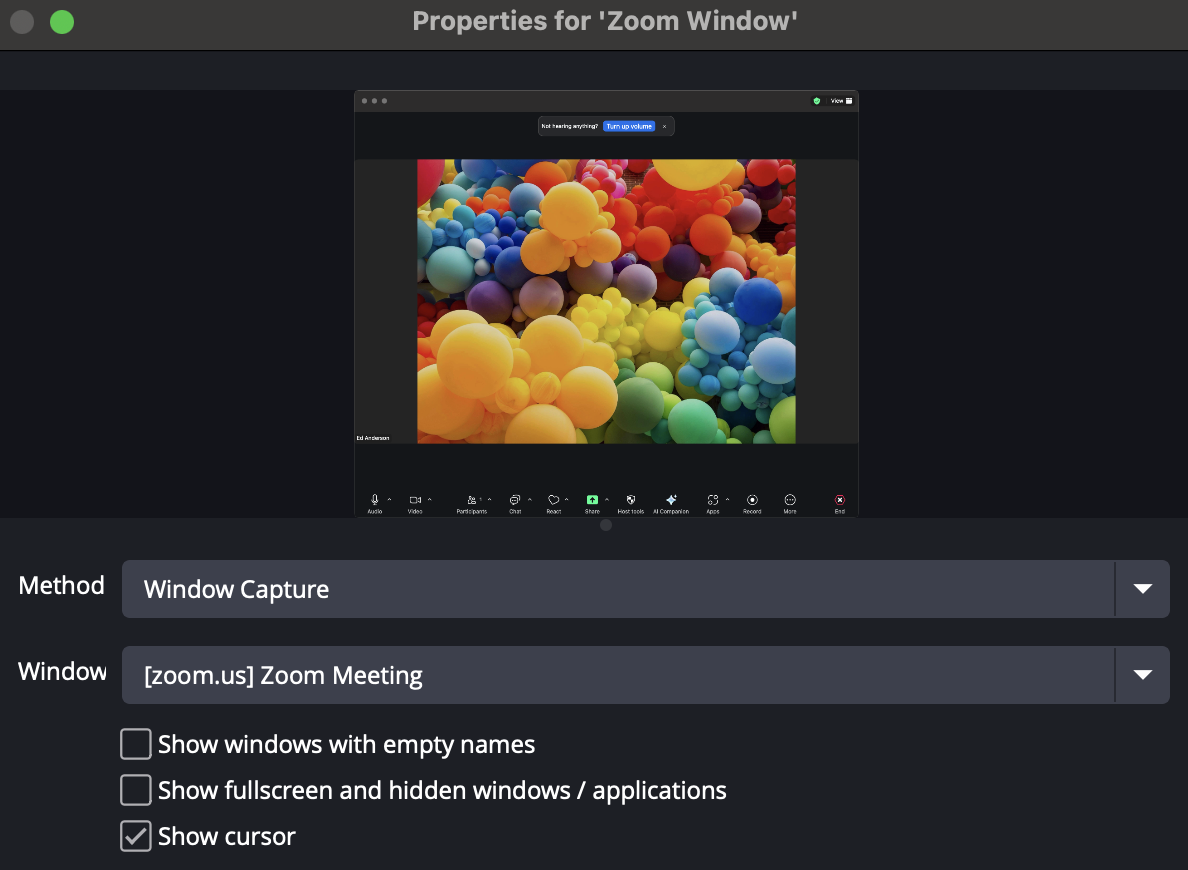
💡 Tip: Make sure your Zoom meeting is open and visible in desktop view before selecting it in OBS.
Step 2: Adjust Your Zoom Layout
Use Zoom’s Gallery View to show multiple hosts at once.
In OBS, resize and position the Zoom window to fit your stream layout.
Stack speakers, feature just one, or arrange however fits your brand best.
🎨 This is your moment to customize—design your stream layout around your content!
Step 3: Start Streaming from OBS
When ready, click Start Streaming in OBS.
Head over to your LyveCom dashboard and open a scheduled live event. Select Broadcast Software as the stream method, and click Start Preview.
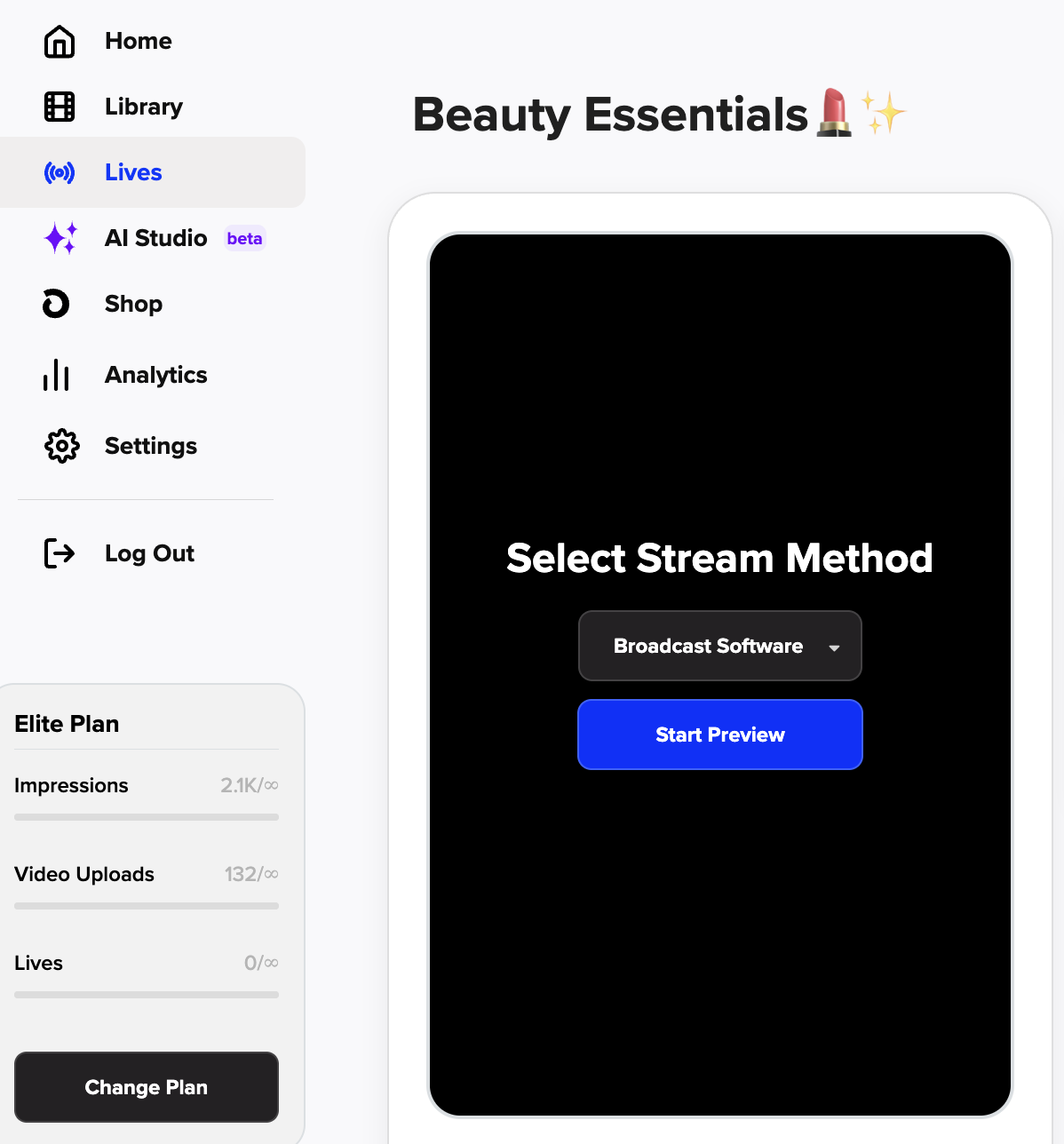
Preview your stream to ensure everything looks proper, and click Go Live to begin broadcasting.
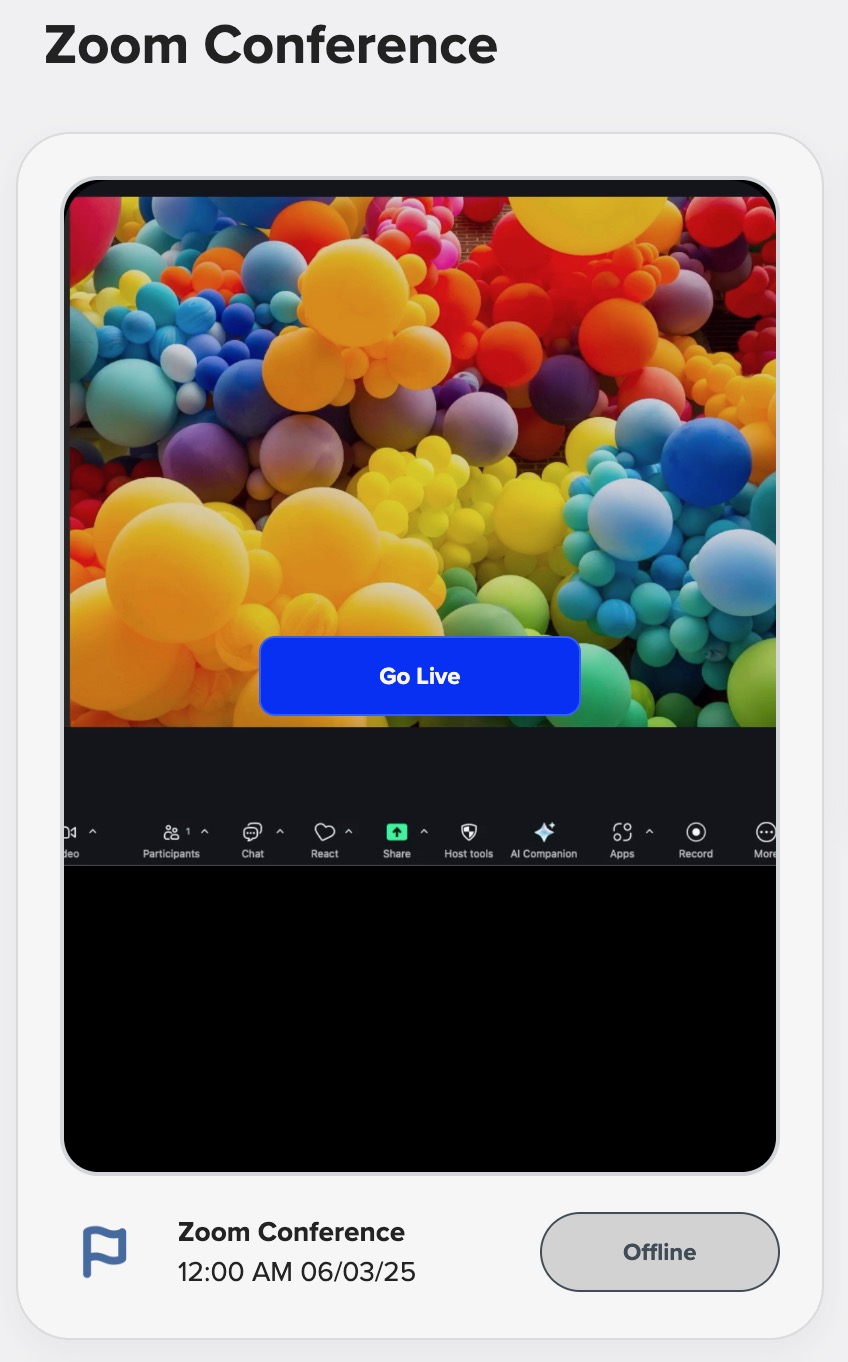
Once your stream is live, you’re ready to deliver a dynamic, multi-host show from Zoom—broadcasted to the world via LyveCom!
Have more questions? Reach out to our support team - we’re happy to help!
Happy selling! ✨