
Creating Your First Grid PlaylistUpdated 4 months ago
Purpose: This article explains how to build and customize a video Grid—a compact, clickable video mosaic that can be embedded on your site.
Intended Audience: Marketing Managers, Content Managers, E-commerce Managers
Creating a Shoppable Grid
Build a compact, clickable video mosaic to showcase product collections and campaigns.
What Is a Grid?
Grids are scrollable video galleries designed to display multiple products or features at once in a sleek, visual layout.
- Ideal for showcasing product lines, campaign collections, or rich landing page media.
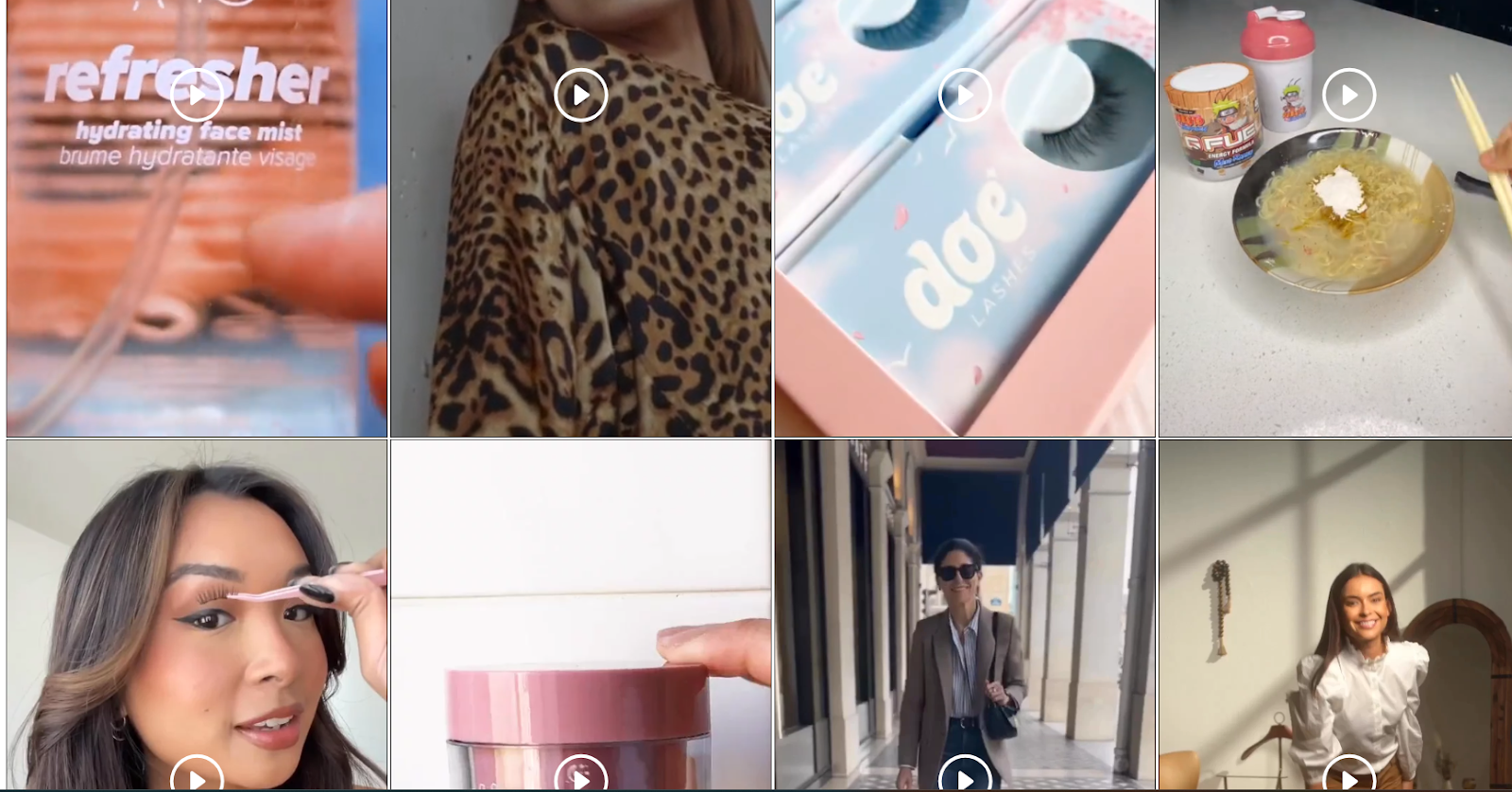
Once created, a Grid can be embedded directly on your site to enhance engagement and interactivity.
How to Create Grid
- Log In to Your Seller Account
Go to your LyveCom dashboard and make sure you're signed in. - Navigate to New Playlist
Go to Library > Playlists > New Playlist.
From the dropdown, select Grid.
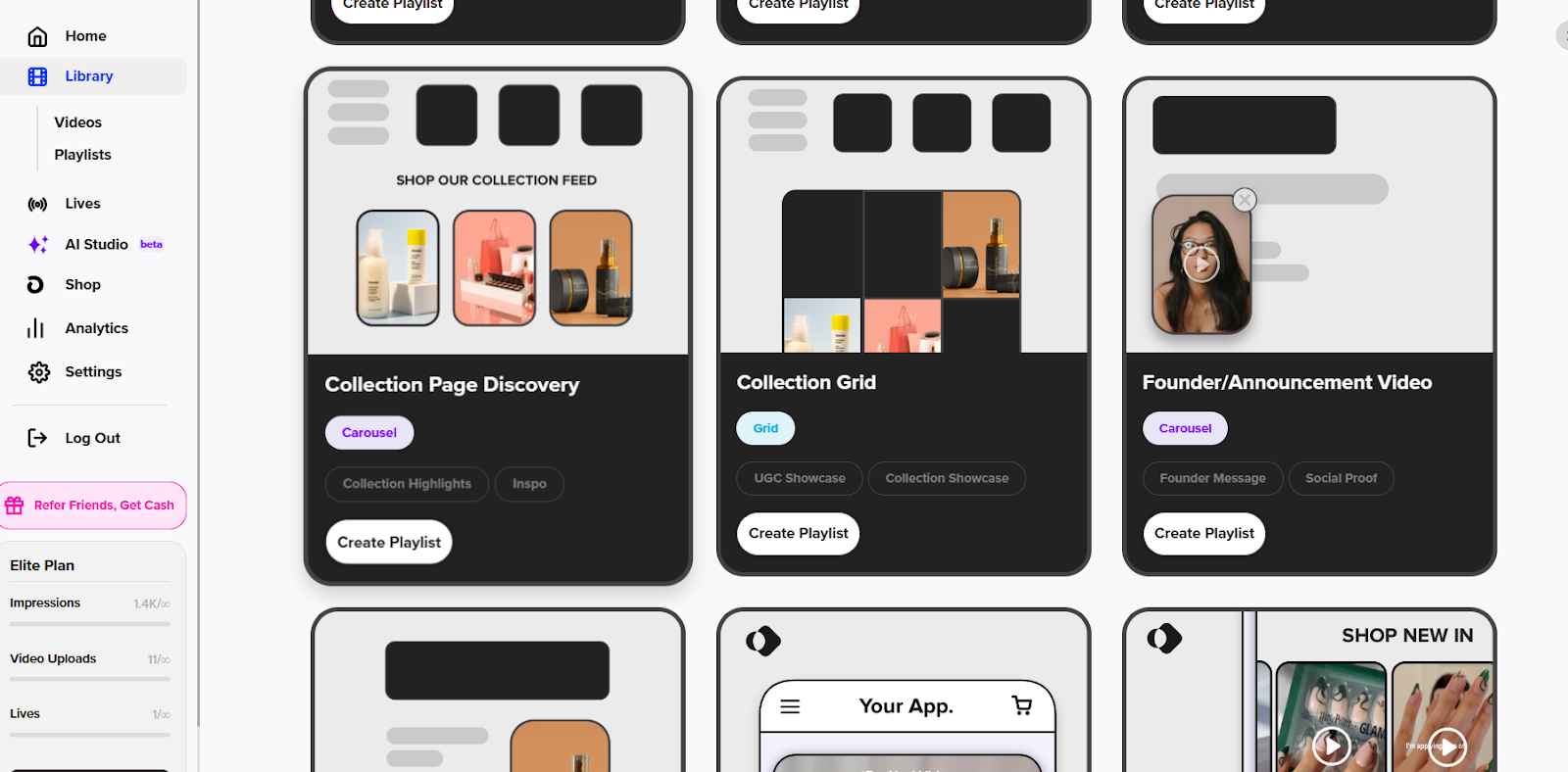
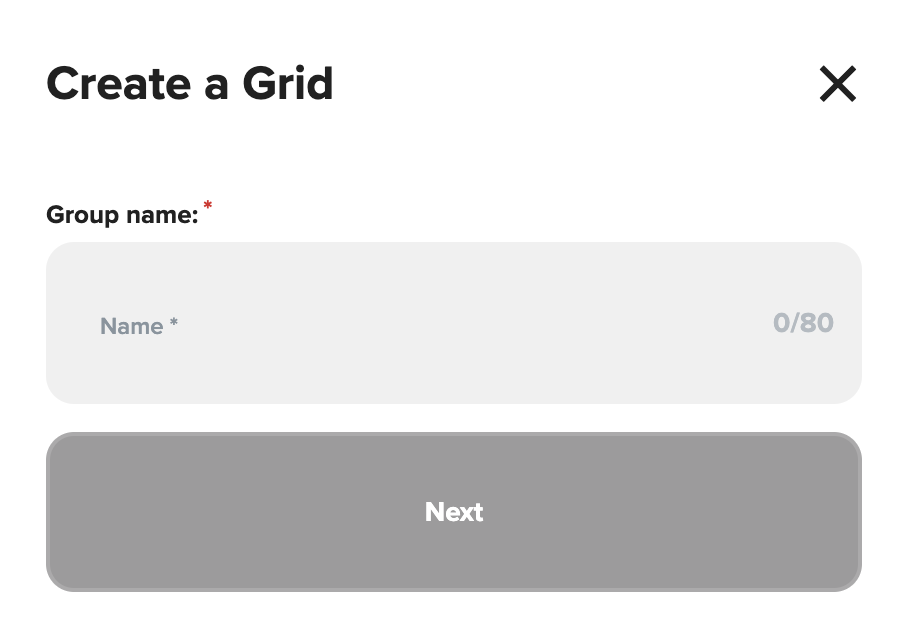
Name Your Grid
Enter a name for your Grid playlist.
Click Next.
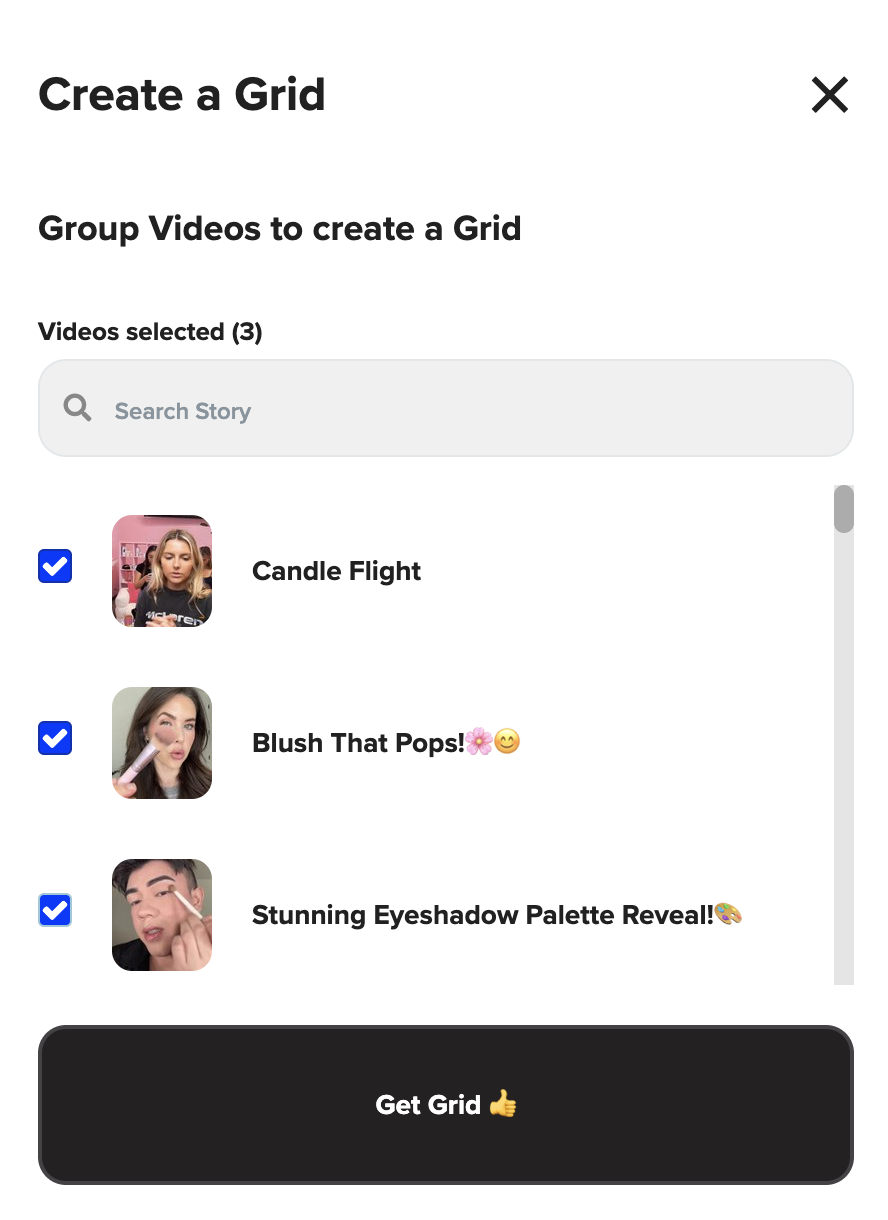
Add Your Videos
Scroll through your video library or use the search bar to find videos.
Select the ones you want to include in your Grid.
Click Get Grid to continue.
Videos Tab
When creating or editing Grids, you'll land on the Videos tab first.
From here, you can:
Drag and drop to rearrange video order
Add or remove videos
Edit any video details
Be sure to click Publish Grid to save any changes!
Design Tab
Customize how your Grids look and feel in the Design tab. 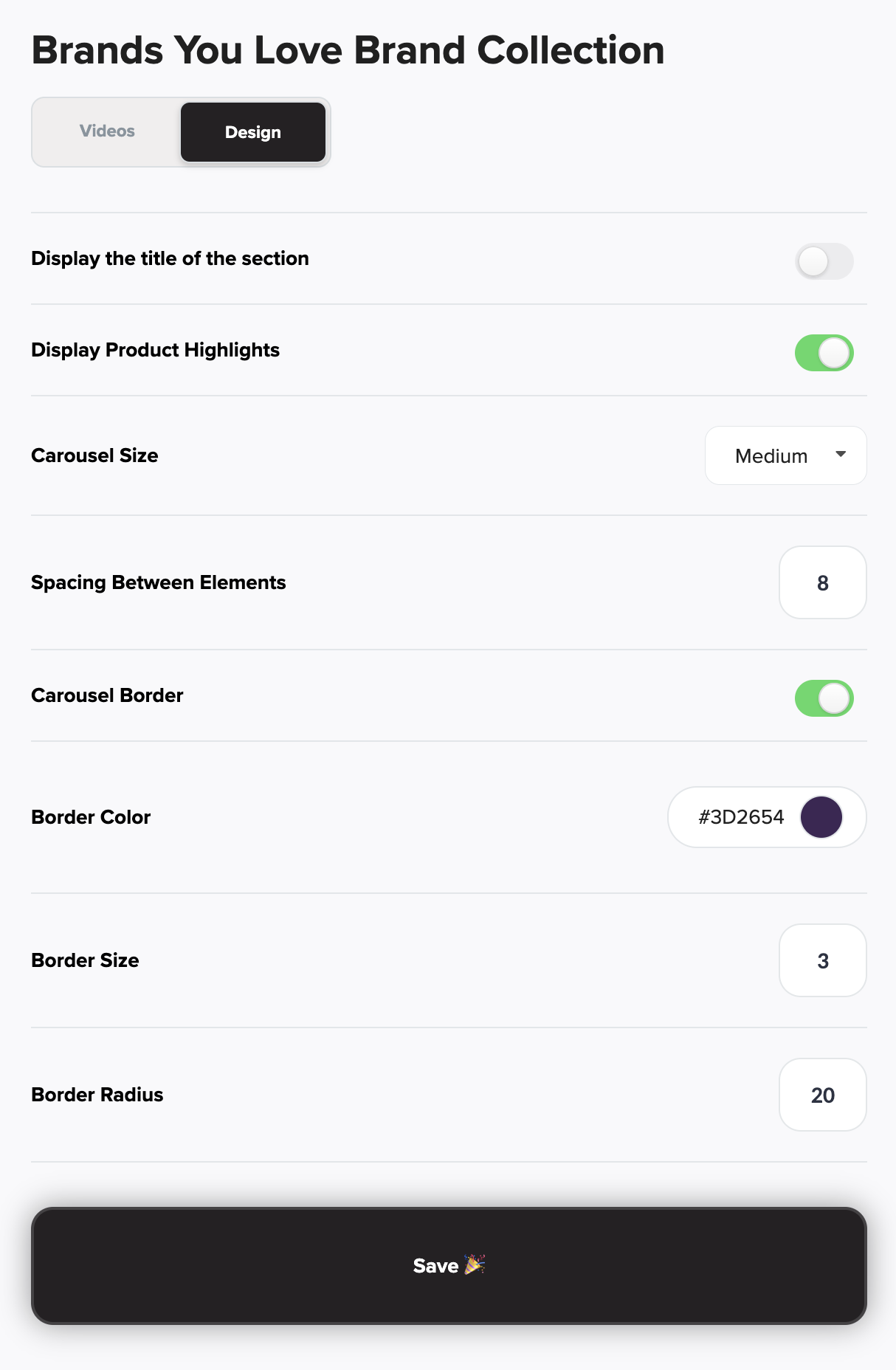
You can adjust:
Show/Hide Section Title
Grid Size
Spacing Between Videos (enter value 0-99)
Grid Border (toggle on/off)
If borders are ON, you can also adjust:
Border Color (click the HEX color box or input a HEX code)
Border Size (enter value 0–99)
Border Radius (set a corner roundness value between 0–99)
|| Quick Tip: Most sellers use a border size of 10 or less and a radius between 5–15 for a clean look.
Final Step: Publish
Once your video selection and design settings are complete, click Publish Grid to save and generate your embed code. 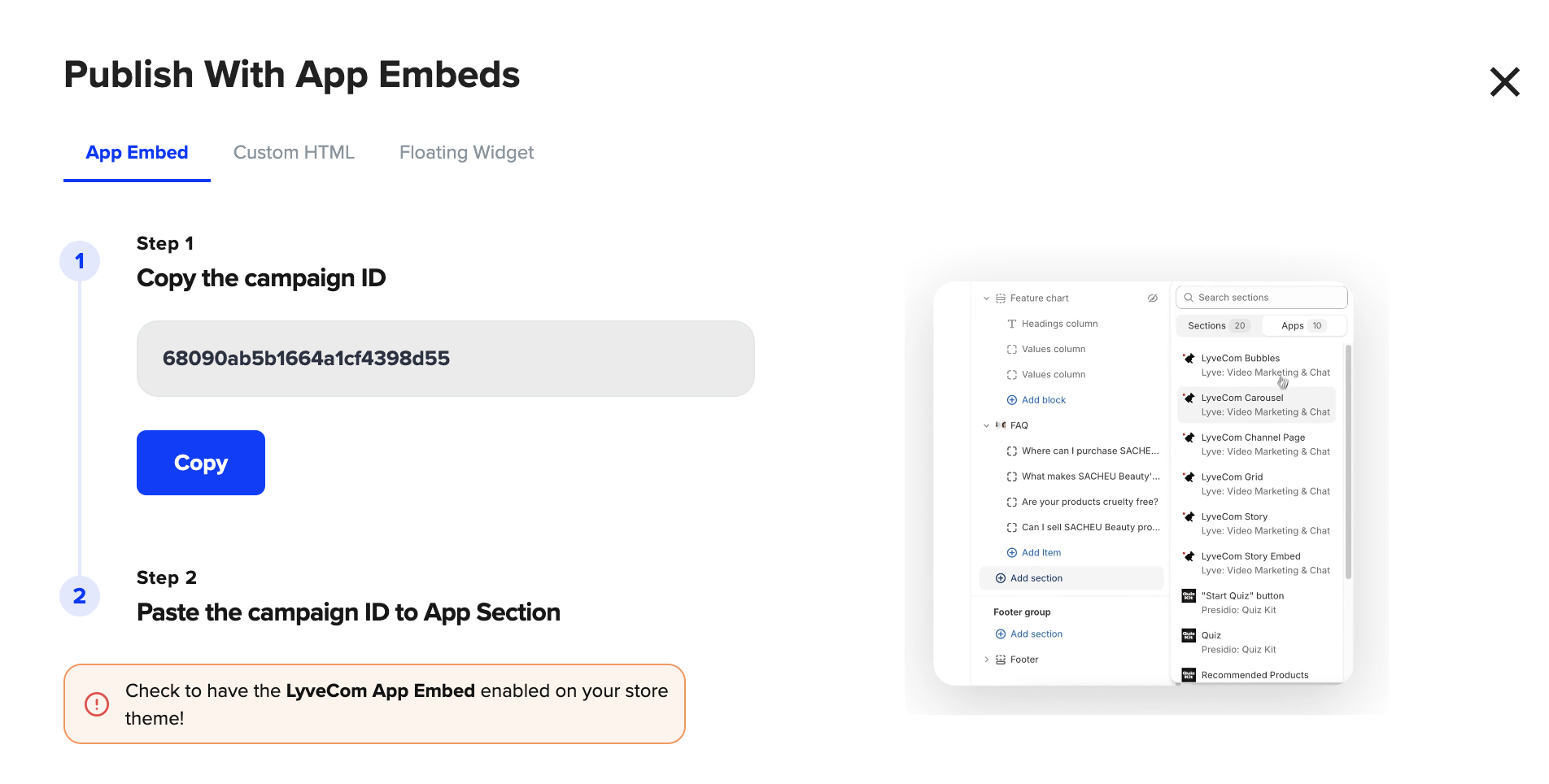
Have more questions? Reach out to our support team - we’re happy to help!
Happy selling! ✨