
Adding Your Streaming Widget for Site-Wide StreamingUpdated 4 months ago
Purpose: This article shows you how to embed the LyveCom livestreaming widget across your entire Shopify site to boost visibility and engagement.
Intended Audience: Ecommerce Managers, Developers, Marketing Teams
Embedding the Livestream Widget Site-Wide
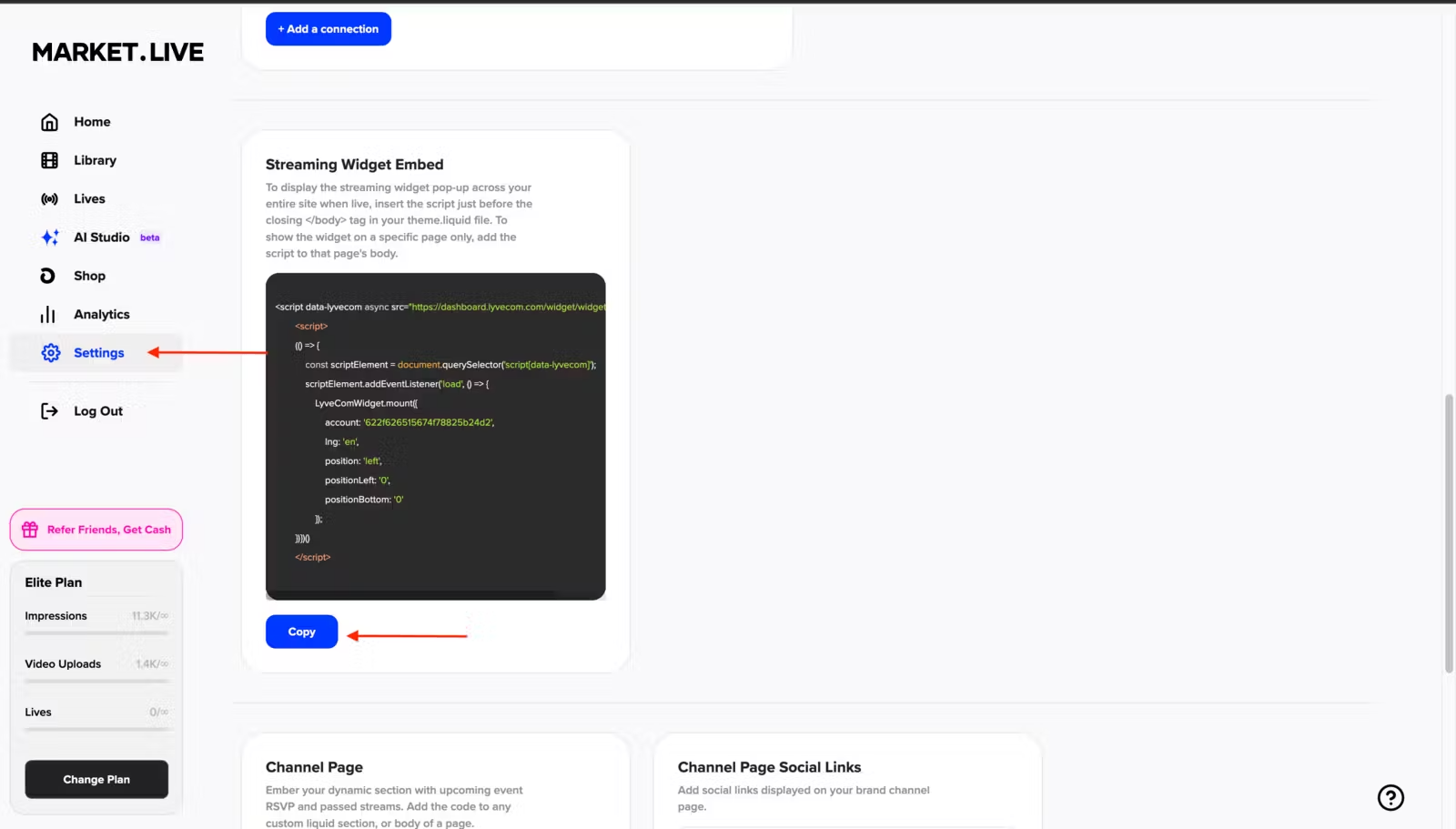
Step 1: Copy Your Streaming Snippet
(Note: make sure your branding is already applied!)
Log in to your LyveCom Dashboard
Go to Settings → Streaming
Copy the code snippet provided
✅ You only need to do this once — the snippet stays the same for each campaign.
Step 2: Add the Snippet to Your Shopify Theme
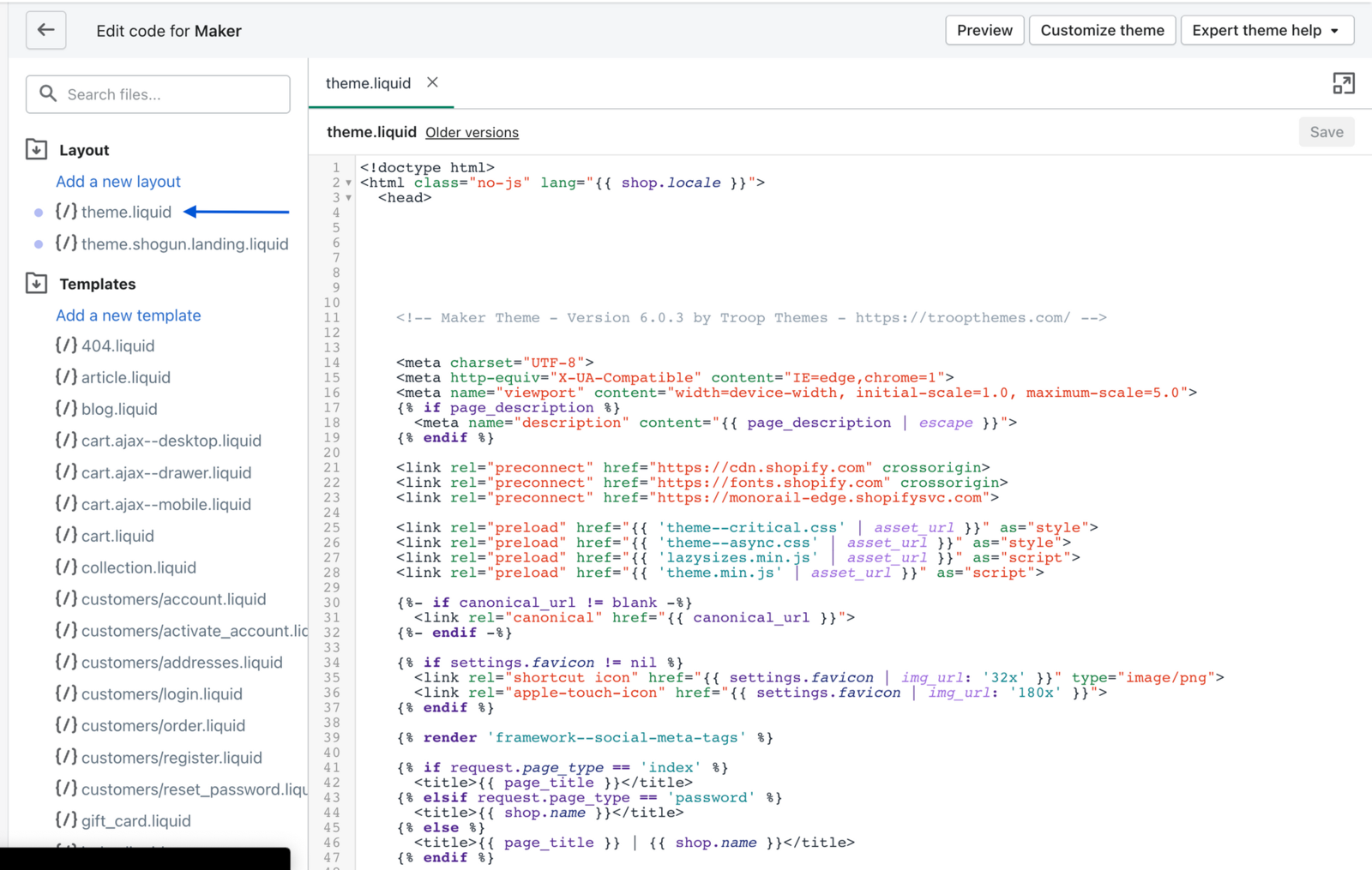
In your Shopify Admin, go to Online Store → Themes
Click Customize on your current theme
Click the three dots in the top left, then click Edit code
Find and open the file called theme.liquid
Scroll down until you see the
</body>tagPaste your code snippet just above the
</body>tagClick Save
Optional: Embed on Individual Landing Pages
You can also add the snippet to specific landing pages :
Use a
custom.liquidsectionOr paste the code into an HTML block
You’re All Set!
Once you go live, the livestream popup will appear site-wide for the duration of your broadcast.
Have more questions? Reach out to our support team - we’re happy to help!
Happy streaming!